

The formatting of numbers in FileMaker can be tricky. Why doesn’t something work as you expect? This article and the accompanying sample file might clarify some points for you. The internal notation of FileMaker and the local settings of your system and probably even FileMaker can differ. According to Murphy’s law, whatever can go wrong, will go wrong. This is how to fix it.
Number Formatting in FileMaker
FileMaker has a split personality when it comes to numbers. Internally, it always uses a dot as decimal separator — but what you see on screen depends on your OS locale and field display settings. That gap between internal notation and visual display is where things get both interesting and tricky.
The trouble starts when you reference a number field in a script or calculation. FileMaker doesn’t simply hand you the raw value — it renders it, applying locale-specific formatting along the way. What you get may not be what you expect, and it may not even be consistent across different systems.
Take this file. It was made with a European style locale, and only one of the available ones. The results you see in the US, in Asia or elsewhere, might slightly differ. Yet, the processing should resemble something useful. That was the aim. In our testing, it holds up, but these are exactly the pitfalls you’ll encounter in solutions that need to work worldwide.
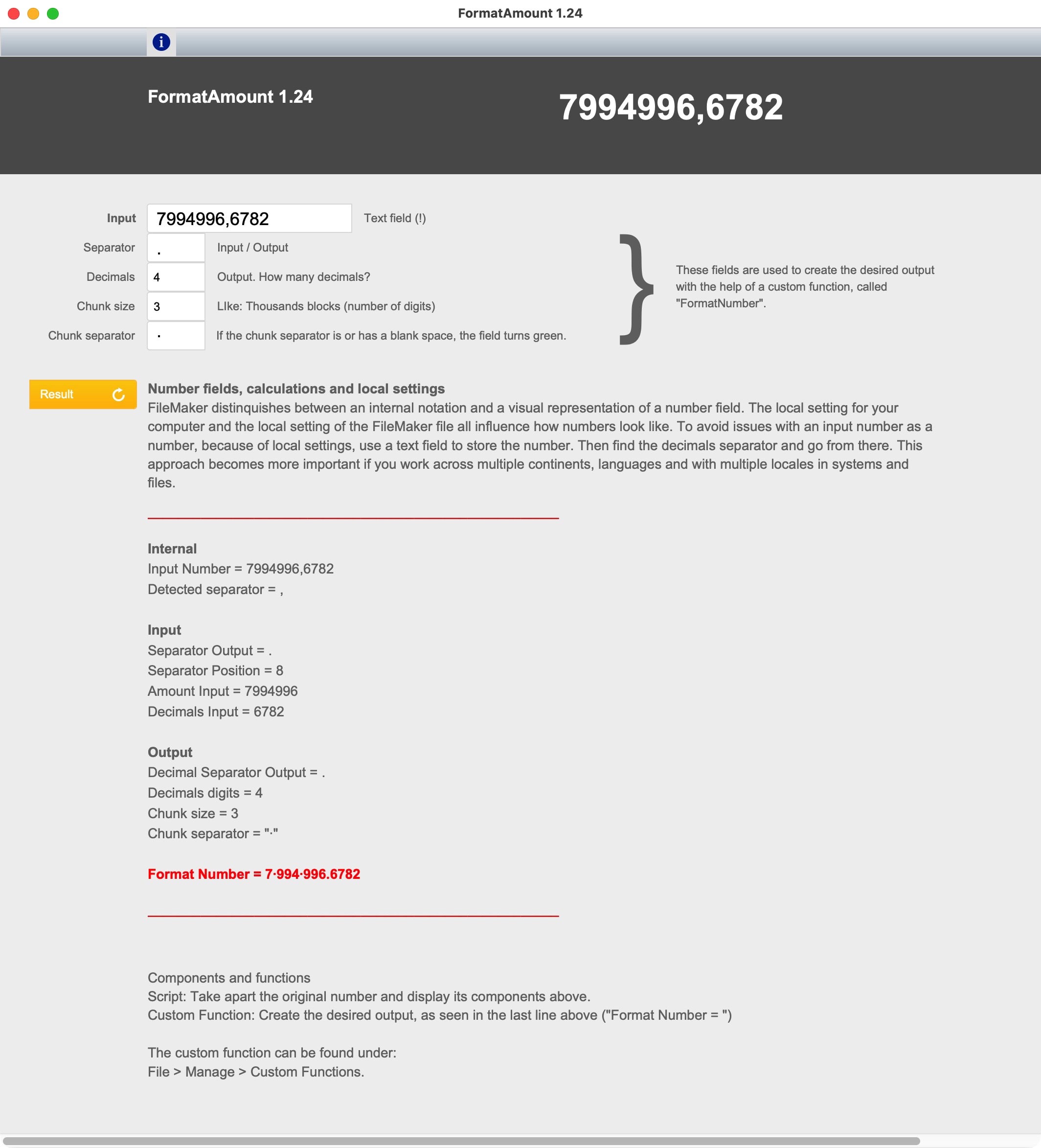
How to avoid the locale
“GetAsNumber()” seems like an obvious fix, but it has the same problem in reverse: it interprets the value according to the current locale before stripping it down, so you’re still at the mercy of the system settings.
Custom functions add another layer of complexity. Pass them a locale-formatted string and any internal numeric operation may silently produce wrong results. How do you get a better grip on these things?
The solution turns out to be surprisingly simple, once you understand the problem. Use a text field for input, so the value is stored exactly as the user typed it. Detect the decimal separator directly from that raw string. Then normalize it to a dot using `Substitute()` before passing it anywhere that does math. From that point on, everything behaves consistently — regardless of what locale the system is running.
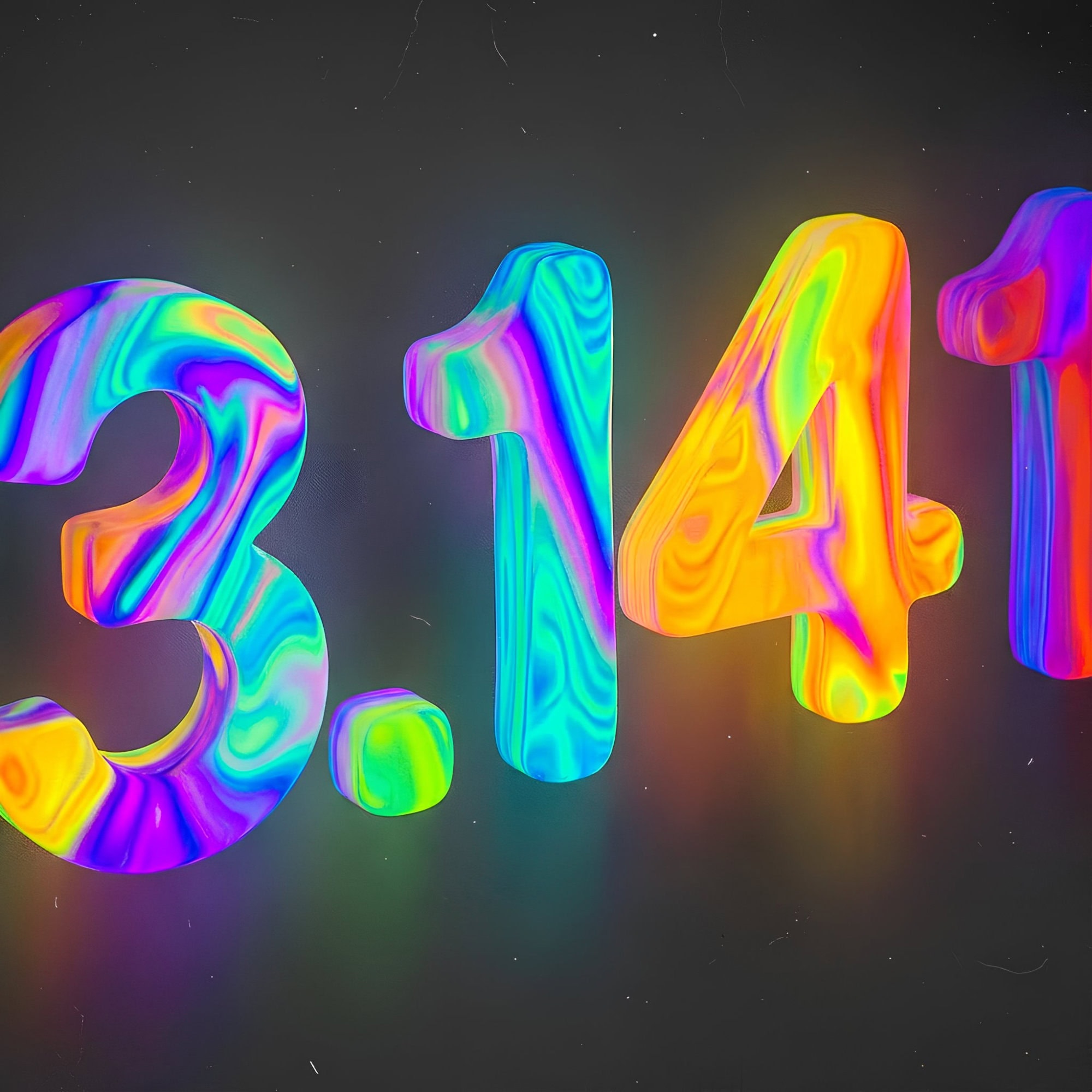
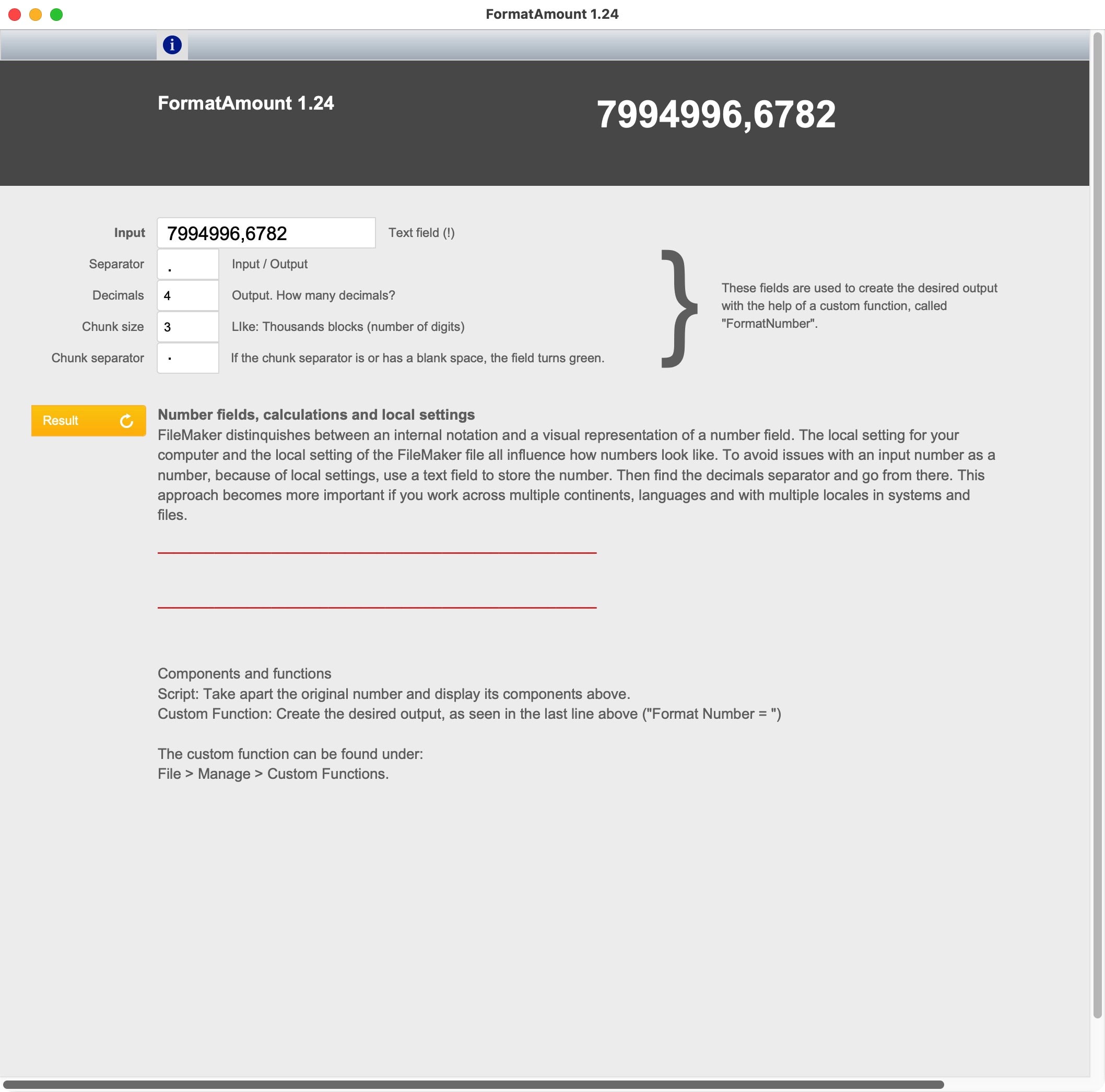
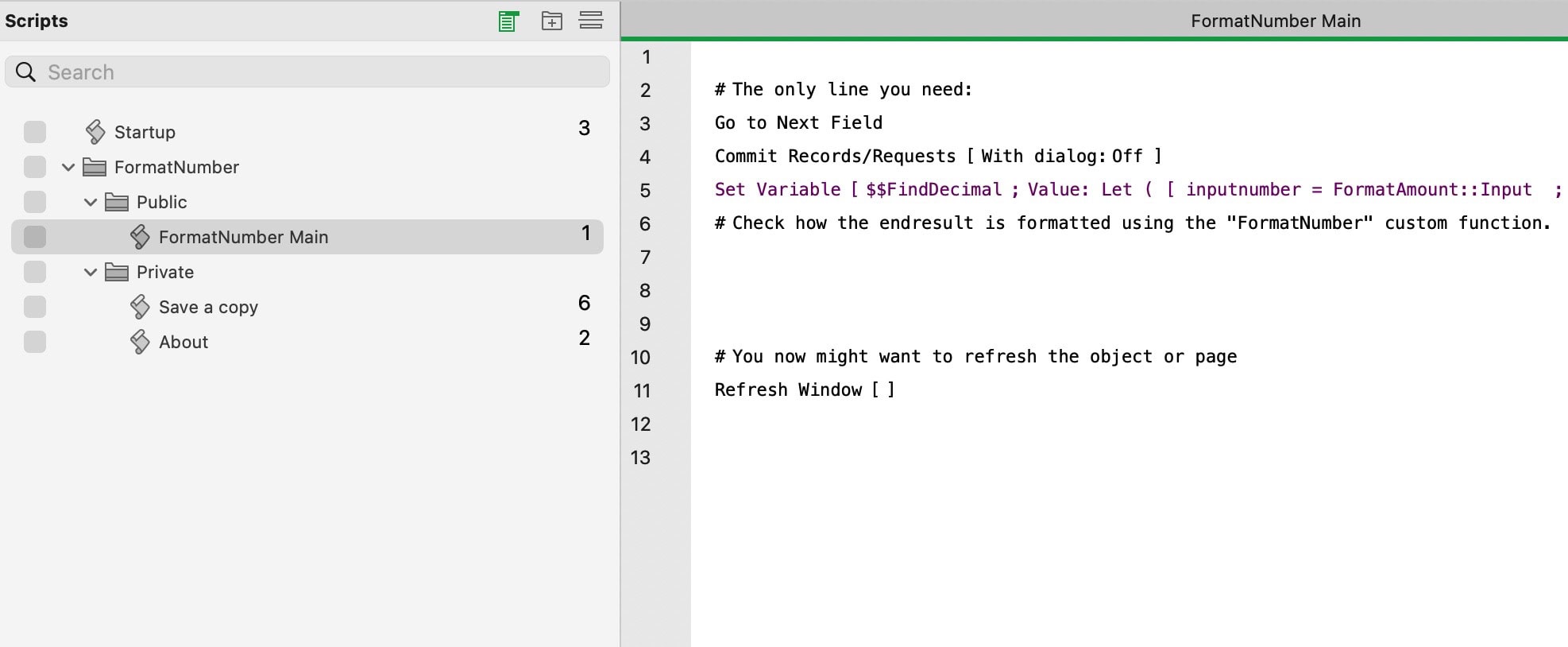
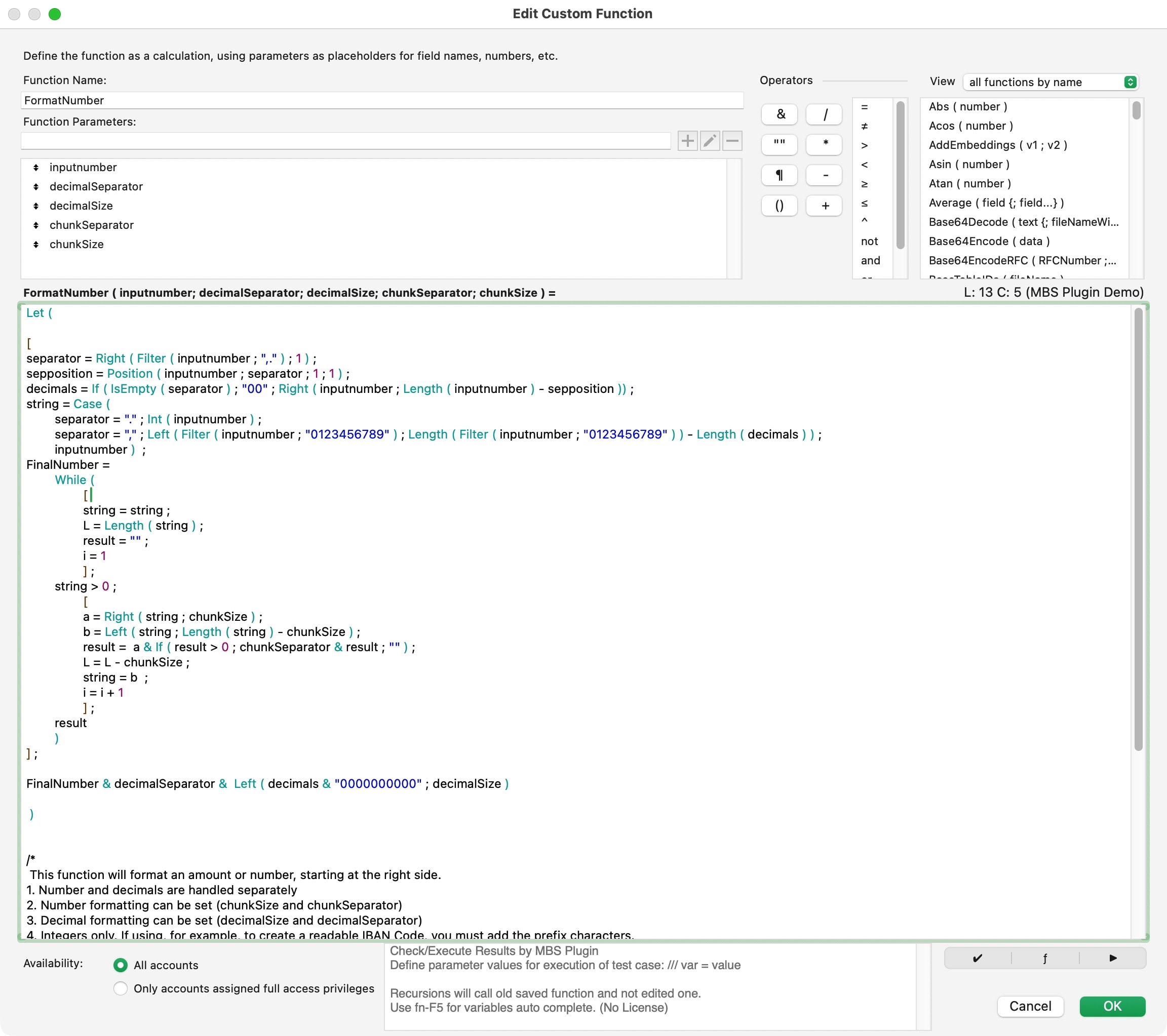
Use the sample file to test and build what you need. The file highlights the single steps needed to interpret a number. It also shows parts of a number to create the proper output for your project. These might be numbers, amounts, or other results. Understand, then create the output you want. Note, that you can import the custom function from this file into your project.
Custom Function and FileMaker sample file to format any number to required specifications. This sample file also explains the pitfalls across different local settings and how to deal with it.
Minimal requirements: FileMaker Pro 20.