

Most developers work with a single language. Many countries, though, have multiple official languages. In our globalized world, having a multilingual software solution will give you instant advantages and much more flexibility. How do you build multilingual solutions? Here is one way to achieve that.
Two things you need
FileMaker is not multilingual in itself. The software is extremely versatile, yet there is no system to create or display text labels, let alone translate them. You have to build this yourself. Thus, there are two sides to take care of:
- Organizing
You need a system within your software that can switch languages. Along with it, you need to create labels in multiple languages, create a switch to change the language, and edit the entries while making it easy to display each label at a desired location. This article addresses this need. The sample file shows you one systematic approach to solve that issue. - Translating
This is an entirely different thing. Translation can be handled in multiple ways. You start with a label in one language, then translate this by hand or by using a translation engine into any number of other languages. If you are interested in a solution to automate translations, check out our free addon “TWD – Translate With DeepL” on this site.
Start with a table
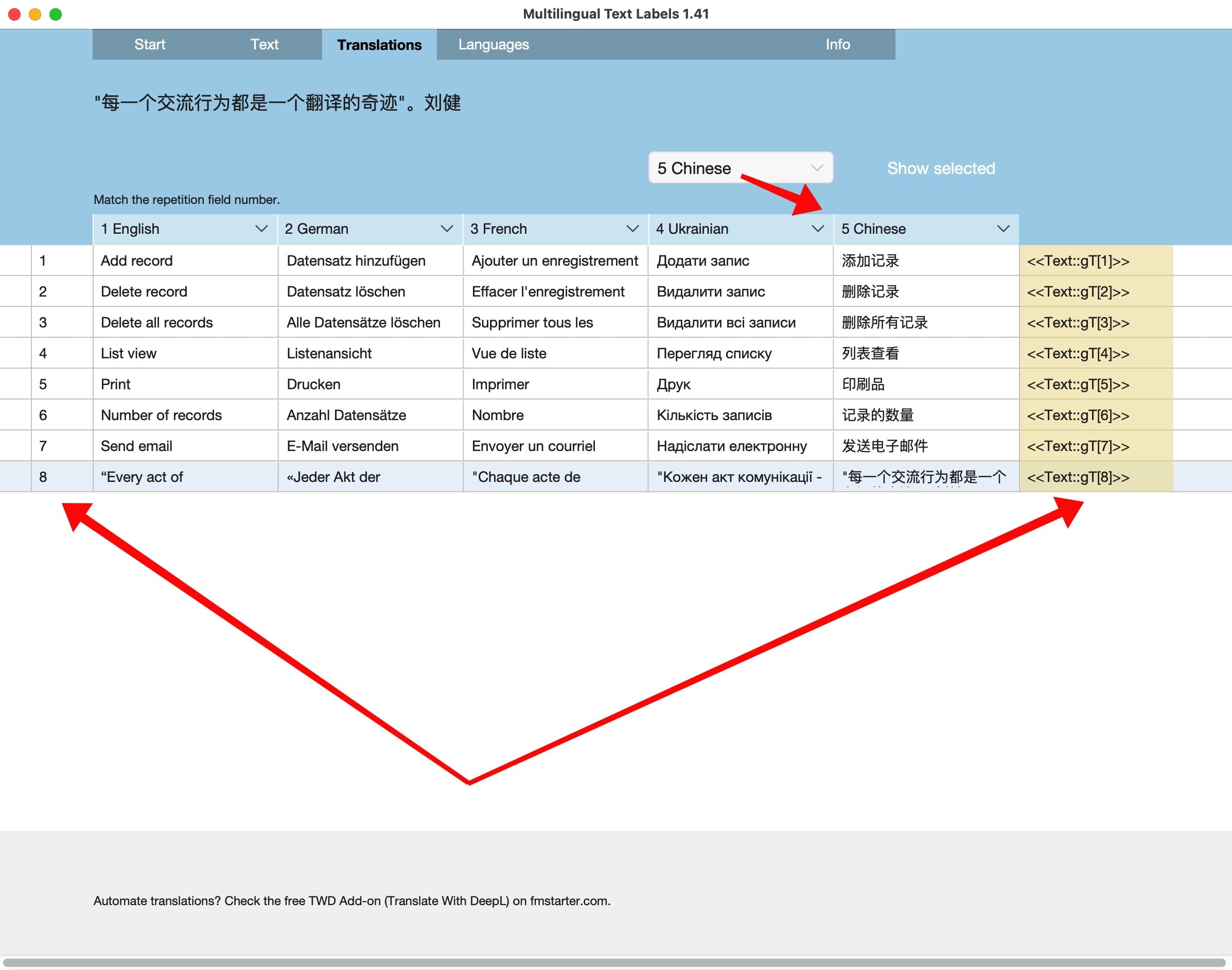
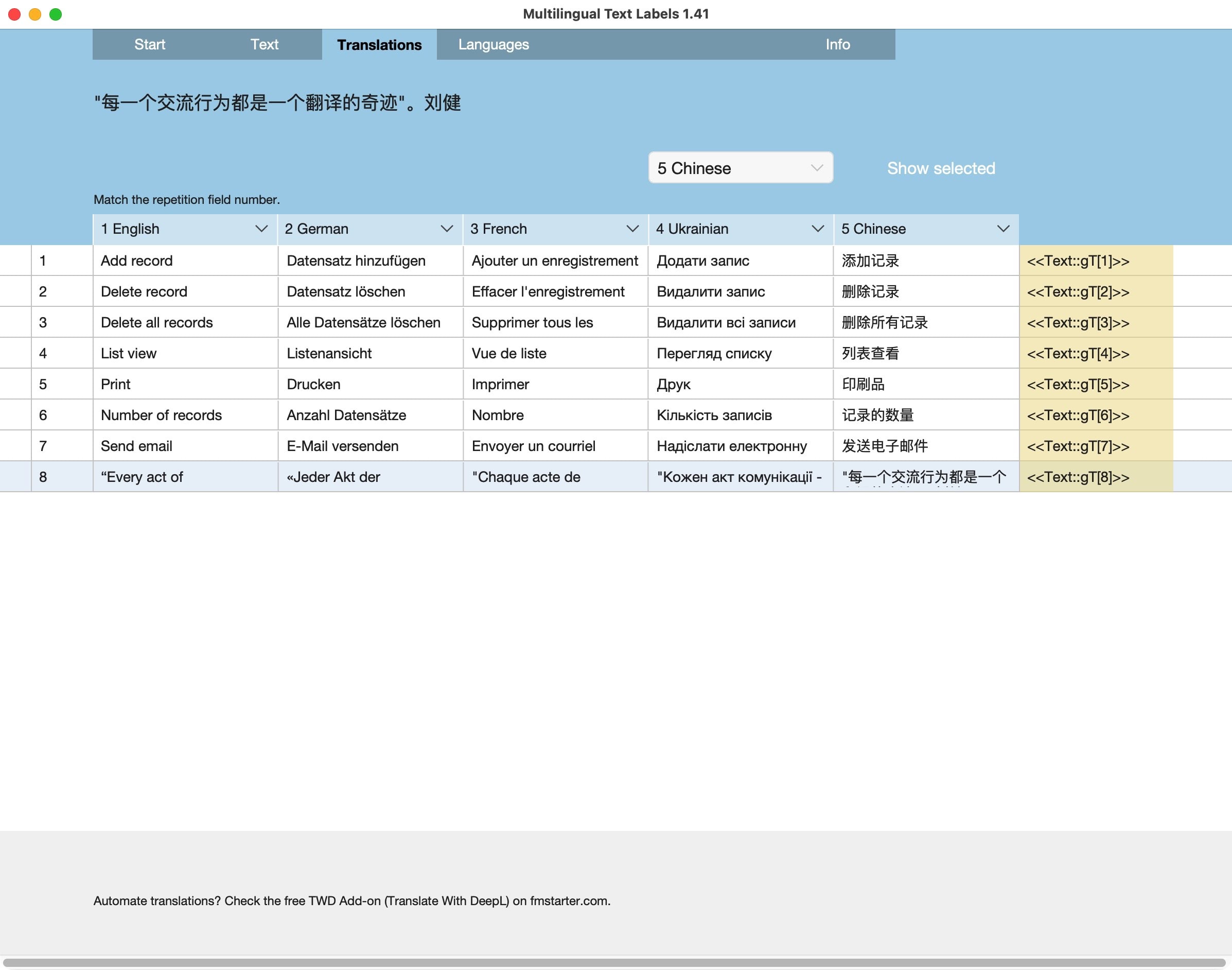
The example shows a solution for handling multilingual text labels in FileMaker. It is based on a simple table, in which there is a translation field. This field has a number of repetitions. Each repetition represents a language. In a list view, each column is a language. You then take the first field repetition as a base. All other repetitions have the translation of that phrase in the defined language.

Why work with repetition fields?
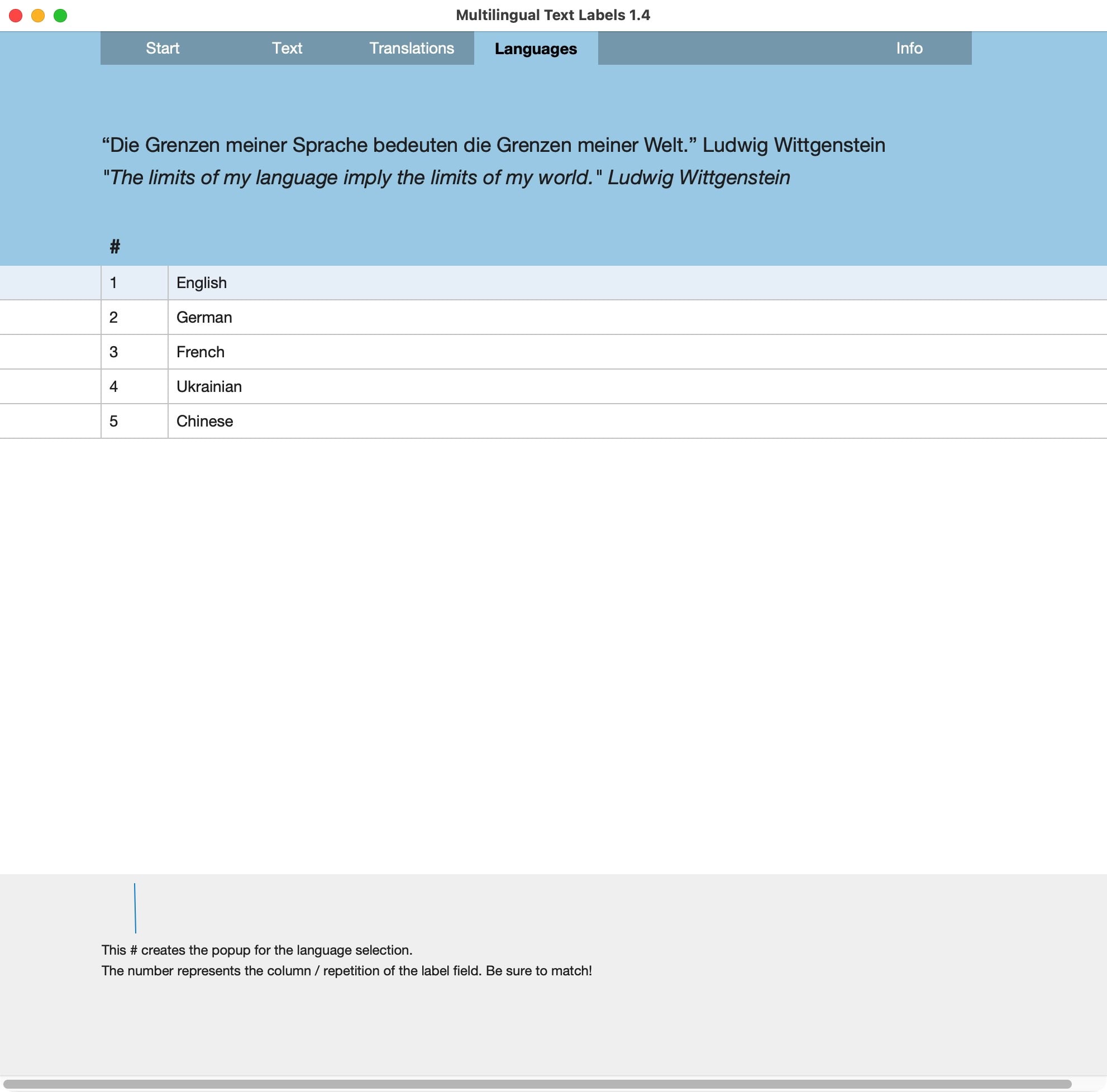
Repetition fields are not considered to be safe for customer data. I fully agree with that. For the interface, though, repetition fields have many benefits. One of them is that they are represented with a number. Consider, for example, that the first repetition is your base language, and it is English. The second repetition could be Spanish. The third repetition could be Slovenian. The fourth repetition could be Japanese. Numbers are not language-dependent, and therefore work with any language. Choose 1 or 2 or 5 is perfectly fine if you know what is meant by that. A simple value list for languages solves this and makes a selection transparent. See the sample file.
Whatever languages you create, you can refer to them by the repetition number. That is much easier than working with naming language fields. A repetition field in FileMaker can have up to 32’000 repetitions. That should be more than enough to cover all your language needs.
From the table to real-life usage
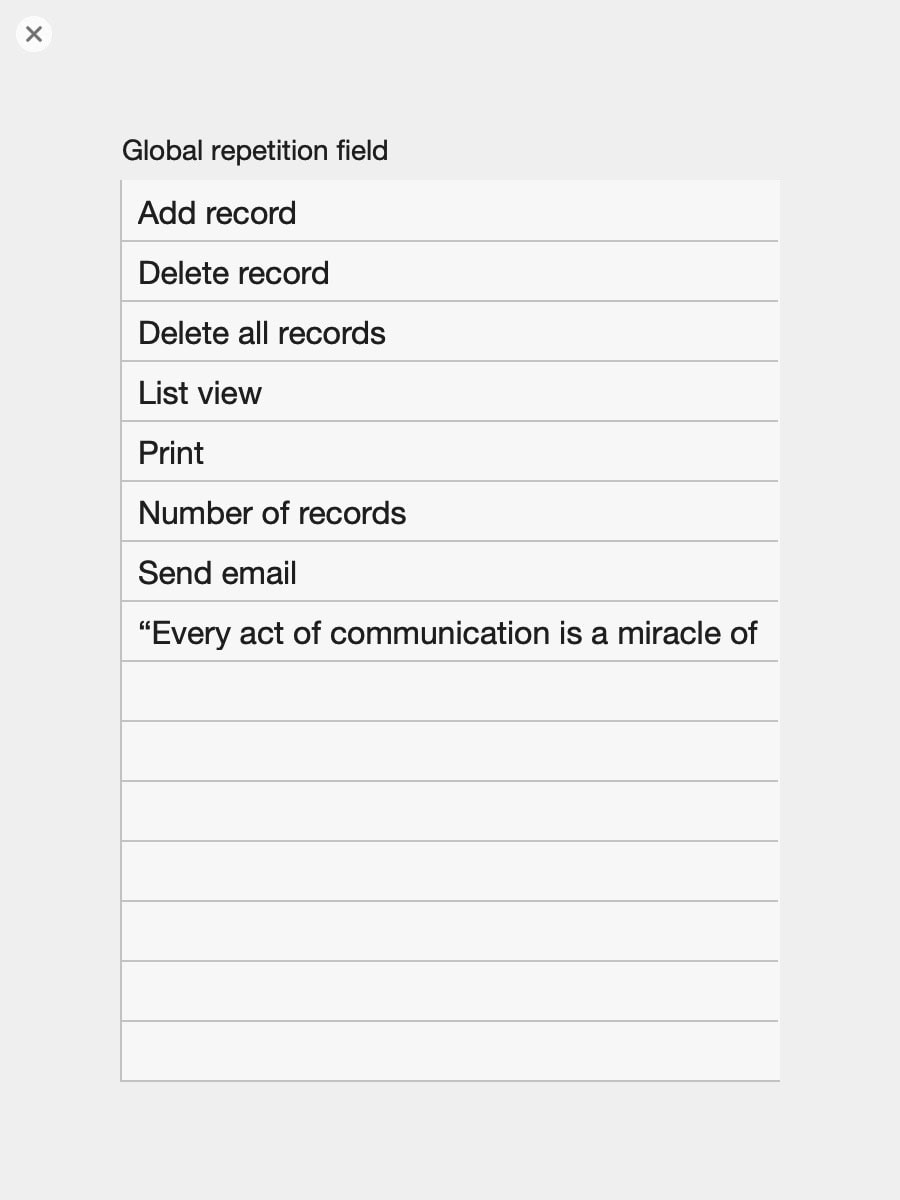
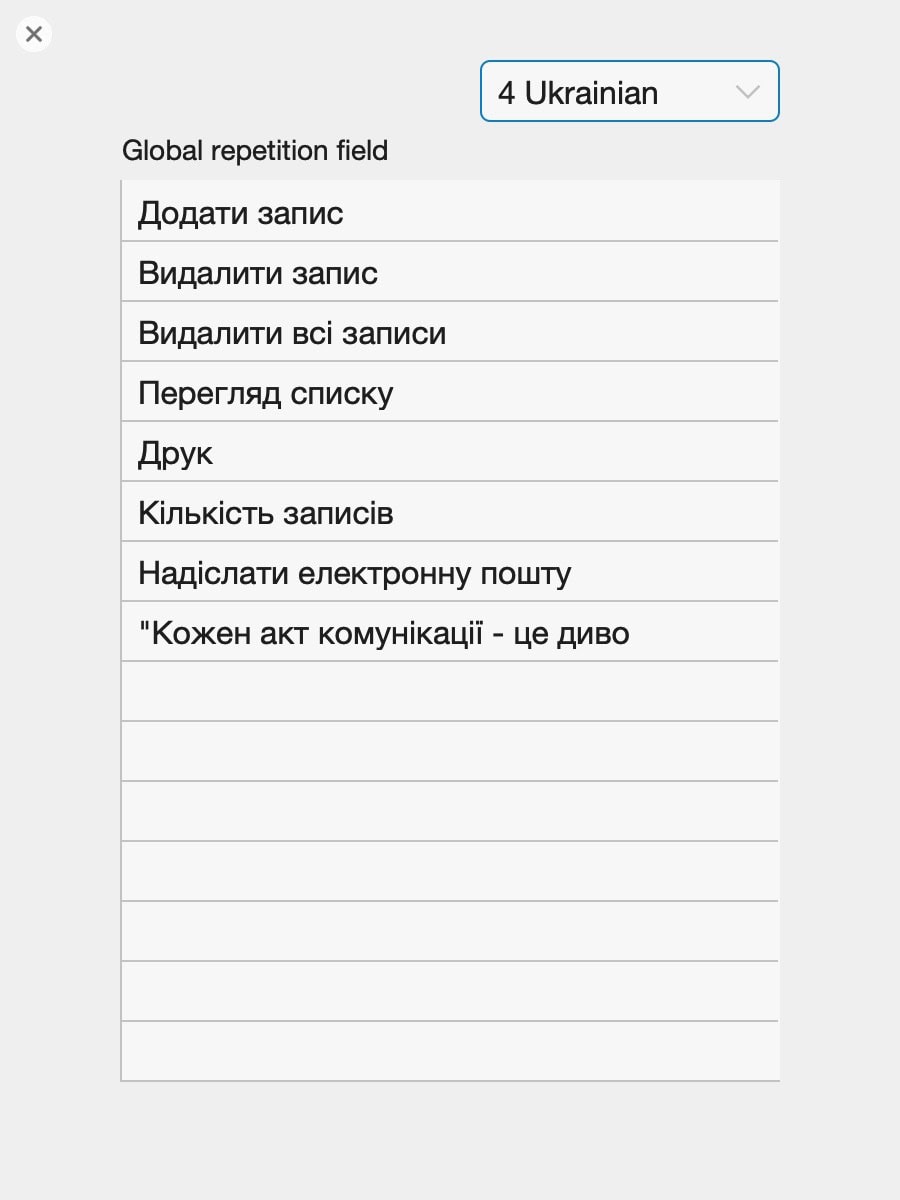
You now have all your translations in a translation table. From here it is a single step to load that table into a global repetition field (as in the sample file). Other options are possible. Here is the trick to use: You do not load the entire table into a global repetition field, but just the language you need. You select a language, and only that language will be loaded into the global repetition field. It will be a single column of your table, representing only a single language.
The global repetition field then has all text labels, and you can refer to them by using the number of the repetitions of that field. If the table is called “Text” and the global field is called “Textlabel”, you can address a repetition of that field as “Textlabel[52]”, which refers to the 52nd repetition of that field.
In a practical solution, you could select a repetition number and build a merge variable from it, like “<<Text::Textlabel[52]>>”. Put that on your layout, and it will display the text for that repetition in the loaded language. This is what is shown in the sample file.
Avoiding pitfalls
How do you create a reliable repetition number? The order number of the table (1st entry, 2nd entry, 3rd entry, and so on) is not reliable. What if you delete the 2nd entry? The 3rd entry would become the 2nd entry. You cannot adjust your solution for that scenario. You must find a reliable way to always display the correct text.
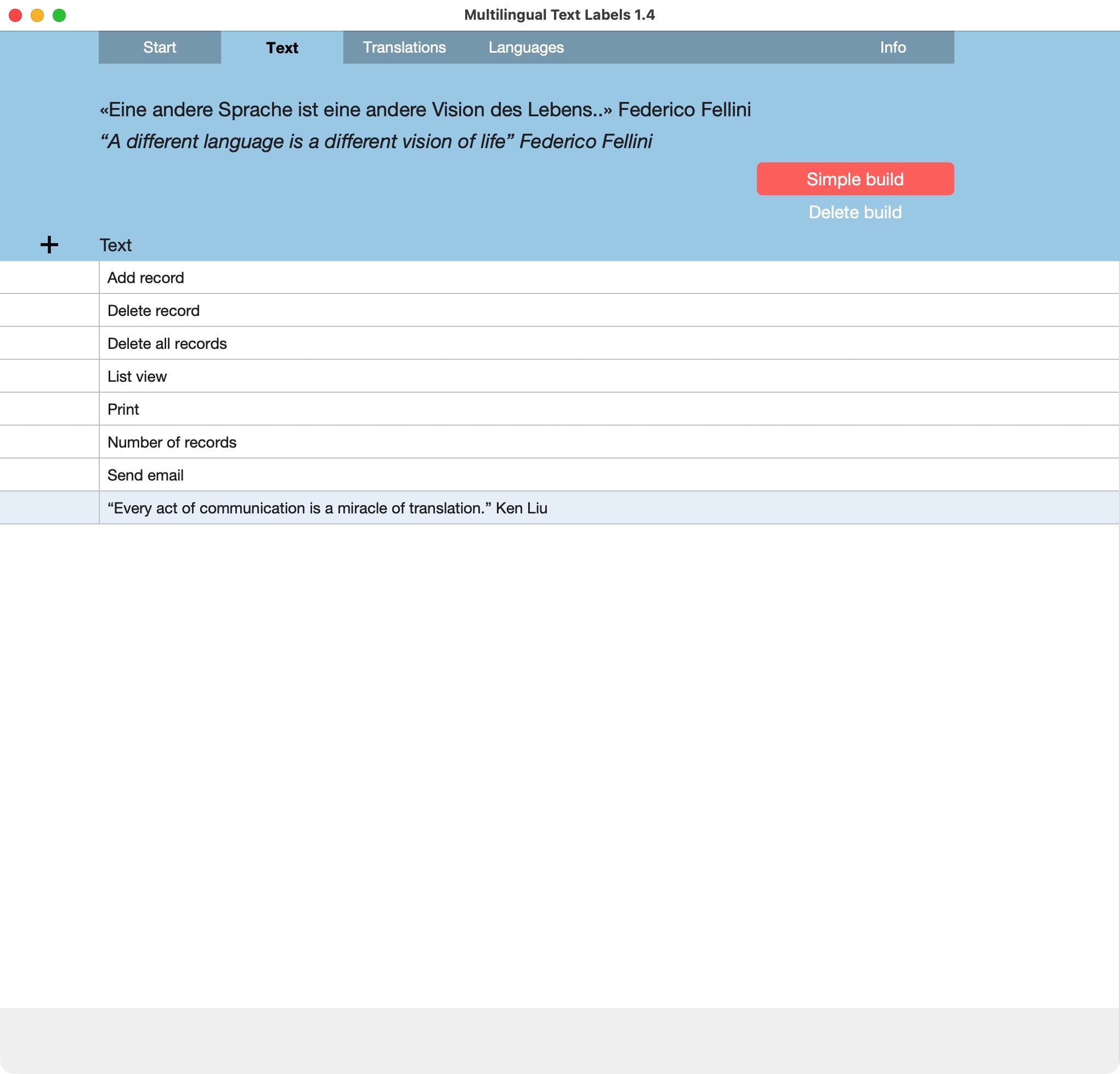
The simple solution is to create another field in the language table and run that alongside the entries. This field has a serial number, starting at 1 and running up with a single step each time. This will create a unique number in your translation table for each record, independent of the number of entries in that list. Never change that number. Use that number as an indicator for the repetition number of the global repetition field where you load your languages.
Once you load the table into the global repetition field, it will store the information in the repetition represented by the field with the counter. This simple setup always works, even if you delete records from your table. Some repetitions will ultimately not be used, but that doesn’t do any harm. It is much more important that any reference to any repetition number on your layout will stay the same and thus is reliable.
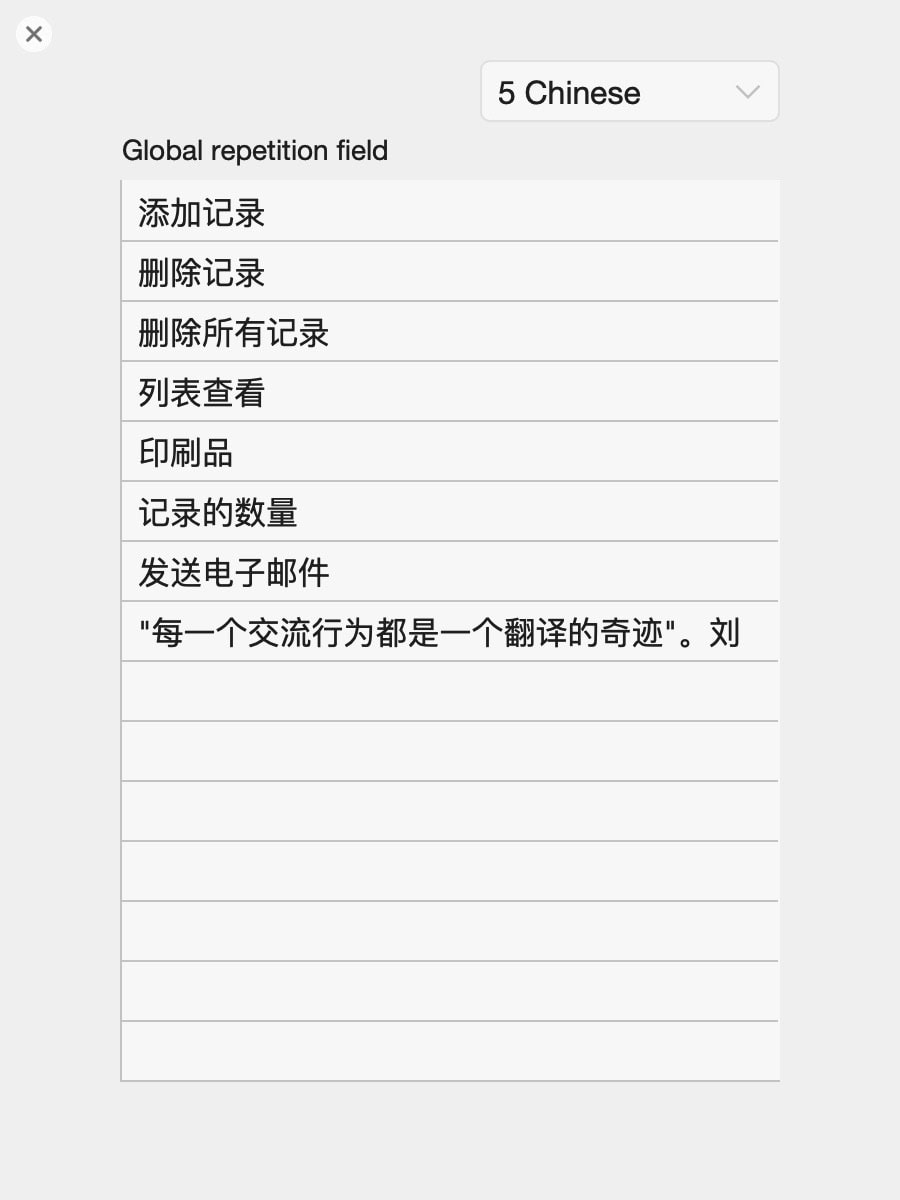
Check the sample file
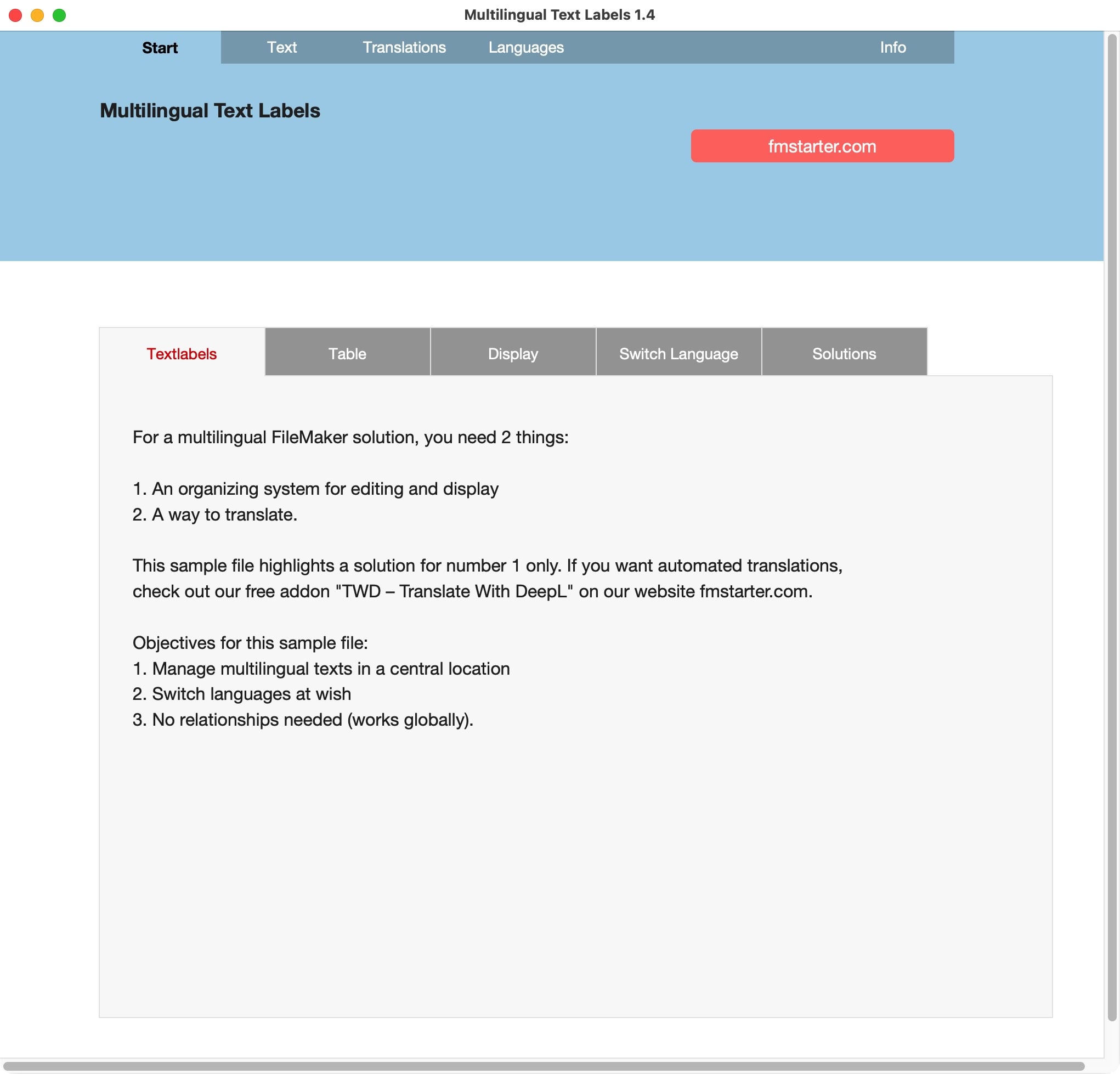
The sample file introduces you to the concept you step-by-step. Download the file and see how it is done.
Sample file showing how to create multilingual text labels for a universal application within FileMaker solutions.
Attention: This is not about translation, but about how to manage multilingual text labels.
Requires FileMaker Pro 20 or newer.