

How do you create a navigation in FileMaker? It is easy to place some buttons on a layout or use button bars, but these are usually not very dynamic. Defining buttons or elements of a button bar requires quite a bit of editing. How do you create a better type of navigation, which is simpler to edit and maintain?
There are several ready-made solutions, both free and commercial, available on this website. We get to these at the end of the article. First, let’s talk about concepts.
Concepts for a better navigation
The closest thing to a menu that FileMaker offers is menu bars. Still quite a few developers stick to buttons that are added to the solutions as needed. The issue is clear: while buttons and button bars work, they remain isolated solutions for each page. Dealing with buttons or button bars usually requires editing those elements on multiple pages and for each occurrence. To change that, you have to centralize the editing. That will simplify editing and reduce possible errors. As we are working in FileMaker, centralizing editing is easy by creating a navigation table to manage all navigation items. That would be step one.
Another issue is the simplicity and availability of the navigation. Instead of creating buttons or button bars for each layout and adjusting them, one could imagine a single solution with global application within your app. Global means copy-and-paste. No further adjustments or relationships are needed. Step two would be: globalize.
These are the two main steps you probably want to achieve to simplify your setup:
- Centralize
- Globalize

Ai-generated image.
Centralize
To centralize your data, think of a navigation table. The table would have all the entries of your navigation. In its simplest form, there are two fields: a label field and a target description field. The label has the name as it appears in your menu later, while the target description field either has a name or the internal number of that layout.
It would work like this: You have a menu showing labels, and by clicking on any entry, you trigger a script that routes you to the target layout. That is the idea.
Of course, this is no full solution yet, but a concept one can play with. There are still several ways to achieve this. One of the additional benefits of a navigation table is that it can be enhanced. Think of adding other fields to show or hide entries. Again, in its simplest form, think of a checkbox called “IsActive” with a single value option (value list with the number “1”). If checked, the entry is visible; if not, it is not. You can now sort, find, or exclude entries based on that field. Other options are probably a level of indent to create a hierarchy, group fields to link lower-level entries to higher levels, and allow for collapsing or showing parts of the navigation based on clicking.
Creating all navigation entries in a single table instantly simplifies editing across your app. The next challenge of course is, how to show that navigation.
Globalize
The first dynamic navigation I created was dependent on relationships. I used a navigation table, but there was no global application possible yet. I had to add these relationships to the navigation table as well as to each table occurrence and layout. Though it already was much better than anything I had done before, it still wasn’t a truly global solution. The relationship graph was sprinkled with relationships to display the navigation, as I used the Anchor-Buoy-method. The Selector-Connector-model of relationships would be much more efficient for that scenario.
I still prefer the Anchor-Buoy method for relationships, but wanted to free the navigation from its dependency on relationships. To do so, you need to globalize the concept. FileMaker has global fields and global variables, which function without relationships. Yet, the simplest method is not using any of these.
Card window menu
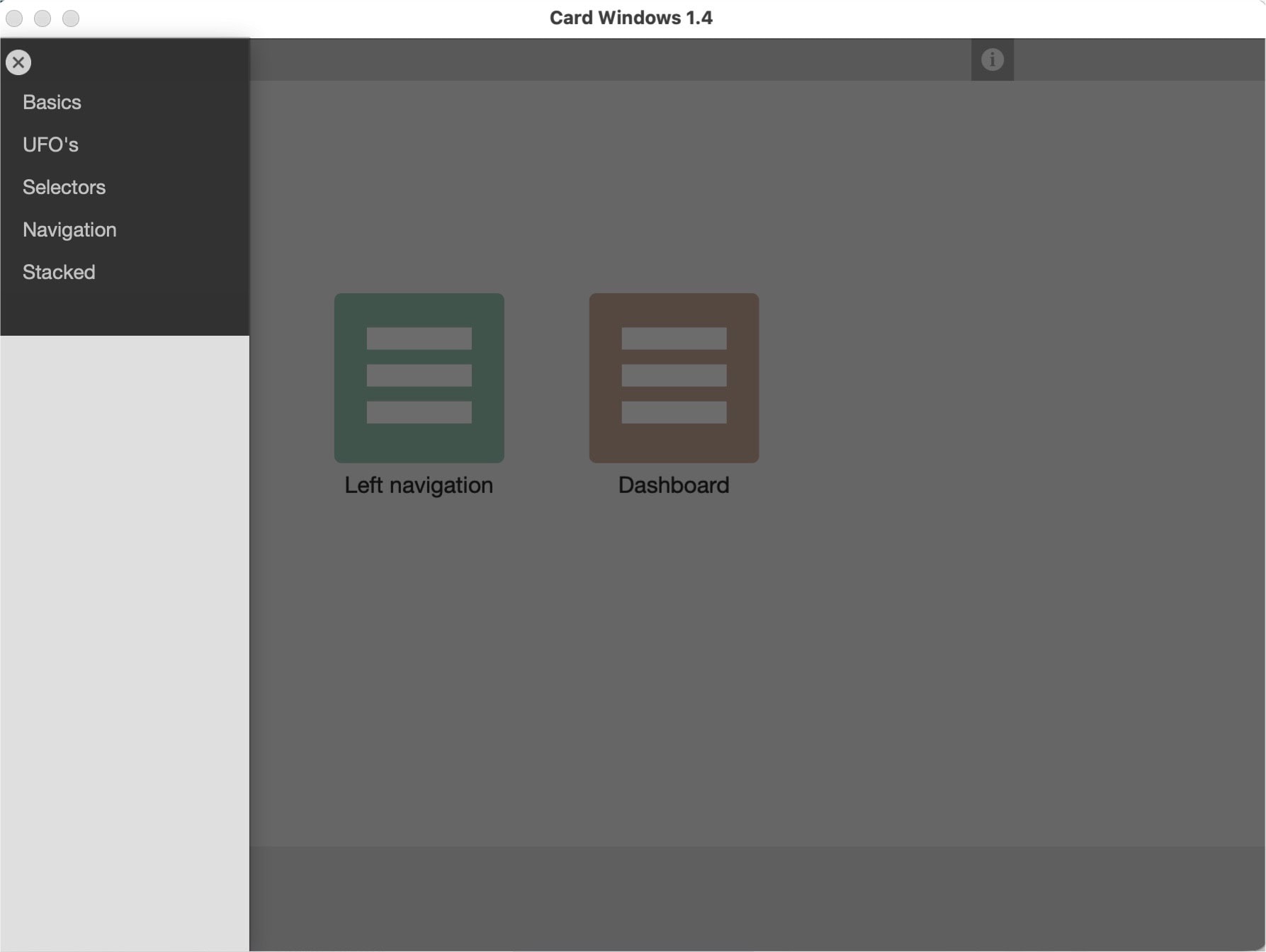
The easiest way to create an independent and globally usable navigation is by transferring it to a separate layout, which you call by a script as a card window. The way to do it is to create another layout based on the navigation table. Make it a list layout, small and high, showing records in list form. This can be a scrollable list. Now create a button to open a new window with that layout and make it a card window. It will open as a menu. Give it a fixed place by the script you call.
When clicking on an entry, trigger a script that first closes the menu, then routes to the clicked layout. This is simple, and its application is universal. The only drawback is that you need two clicks: one to open the menu and a second click to select an item and navigate to it.
In many solutions, the menu is on the left side and mostly visible. This saves a click. On a FileMaker layout, you can only position a vertical menu on a page that is high enough. That might be OK on a layout for editing a record, but it frequently is less possible on a list layout, as it cannot be shown next to a list. In that case, you opt for a variation as described above, which is accessible through a button.
Learn more about card windows and their options through the link below.
Move the navigation to globals
Still considering a navigation table as the starting point, how can you make that information universally accessible? The solution to that question is to store the information in globals. There are two options: global fields and global variables. While fields are based on a table, variables are not. Both can be set to be global, which means there is only a single value that is accessible from anywhere without the need for relationships.
Global values behave slightly different if you open a file locally or from a server. In a local environment, the global value of a global field is stored in that field. It is good practice to not set a global field to have any values but set the values by a script or script step. That way you can control the content of that field. In a server setting, global fields are ideally set at startup or when needed. Global values persist as long as the session runs and you close the file. Global values or session-based; that is, each user has their own globals.
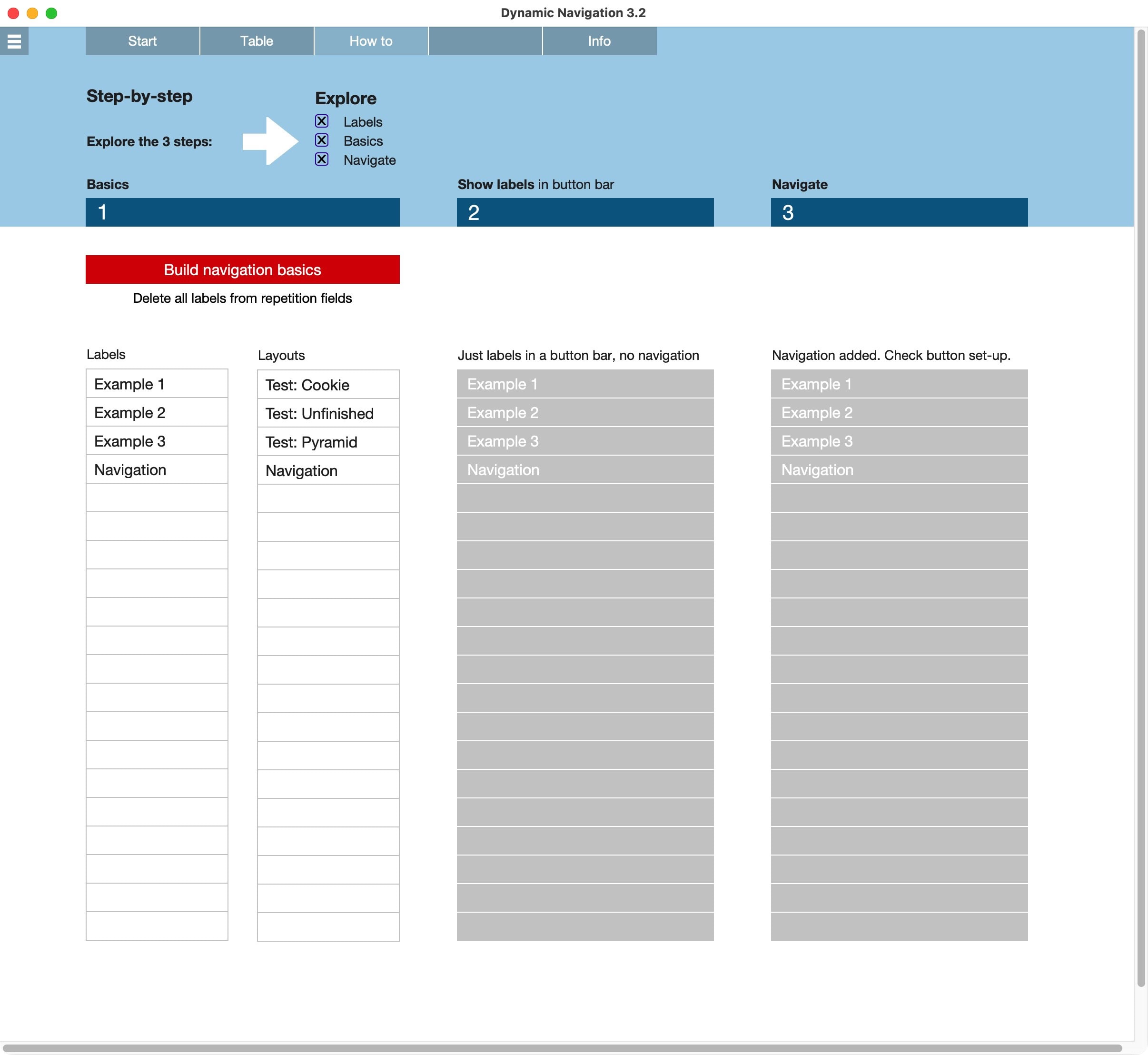
Now load the navigation table records into a global field or variable. Depending on what you choose, the mode can be different. There is not a single method. Some use JSON to describe a menu and its items; others use strings. A clean way to handle this is to add a field to the navigation table with a running number. Also add a global text field to the navigation table with many repetitions. You can now load each record of the navigation into the repetition with the number from the extra number field. Do not change that number in your navigation table ever, and it can be consistently referenced.
Loading your navigation can now be handled through a script, which loops through the records of your navigation table and writes the information into the global repetition field. This is quick and easy.
Once you have the navigation table loaded into a global field or variable, you can reference it from anywhere in your solution. When using a global repetition field, you can reference the 432nd repetition by
“TableName::FieldName[432]”.
As a merge variable to put on your layout, you can write that as
<<TableName::FieldName[432]>>.
Click on the following button to get to an example of that navigation:
Starter files
If you look for a simple way to start your next FileMaker project, take a look at our starter files. They already have a dynamic navigation included. While this article focuses on the basic concepts behind such a solution, our commercial starter files have many more tricks up their sleeves. The good thing: You can simply start using these solutions and cut many months from your developing time.

FM Starter is a basic starter file, filled to the brim with generic tools and functions, like a navigation, multilingual text labels and more.
FrankCRM is similar to FM Starter but is strongly enhanced towards a business software. The focus is still on basic functionality, and you enhance the basics to create your solution. Included are new modules with a wide variety of settings: Addresses, Products, Sales documents. Check our free limited version.