

FileMaker Custom Functions are something you can create as a solution for a repeating issue. Once created, you can easily integrate custom functions into other projects by simply importing from another file. Let’s talk about how to create a custom function.
Accessing Custom Functions
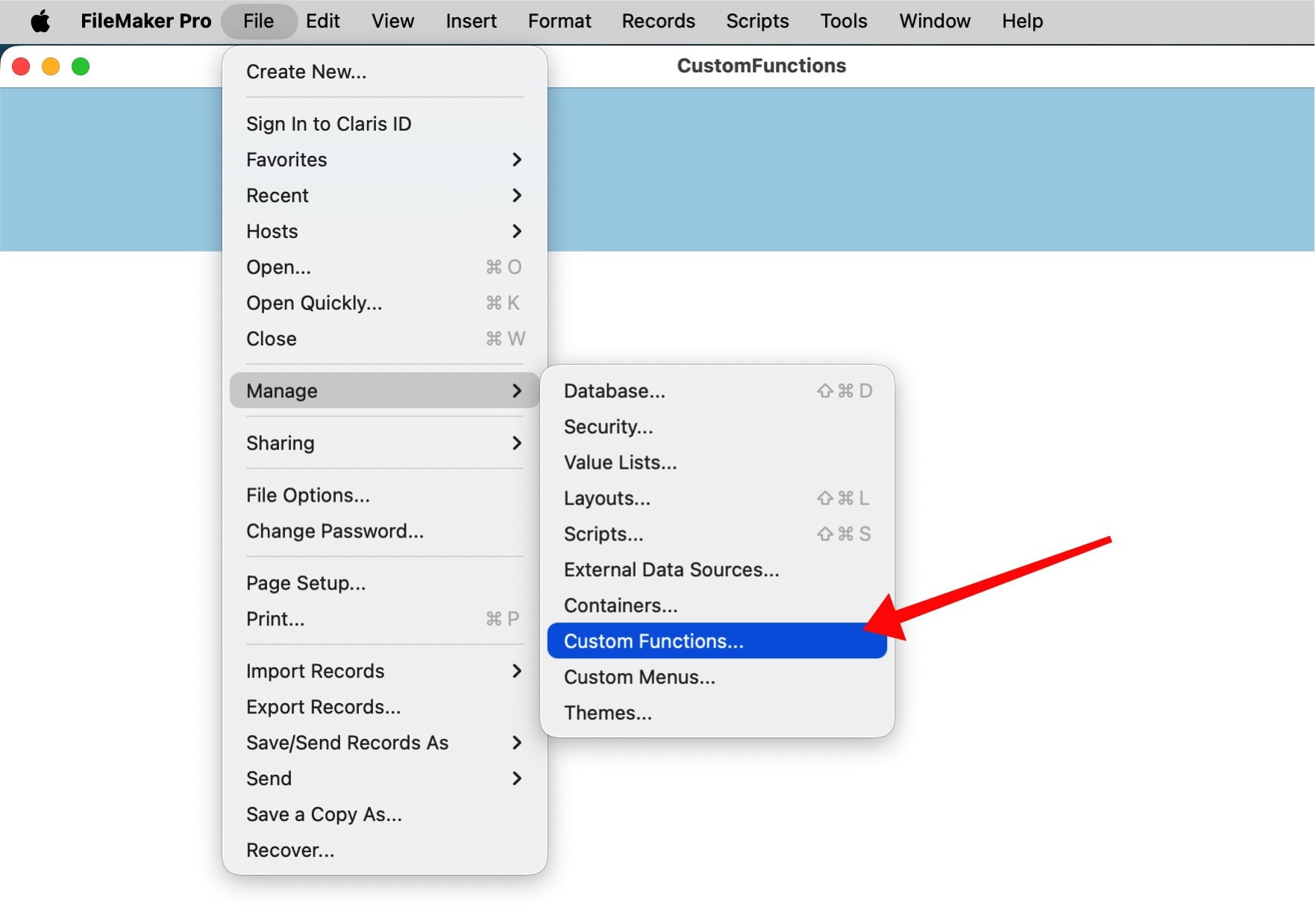
Custom functions are stored in FileMaker files. You must have an open file to be able to access custom functions in the menu > File > Manage > Custom Functions:
Once you access the Custom Functions, a Custom Functions window is presented with all currently available custom functions in that specific file. The screenshot below is an empty window, as the file was newly created and has no custom functions yet.
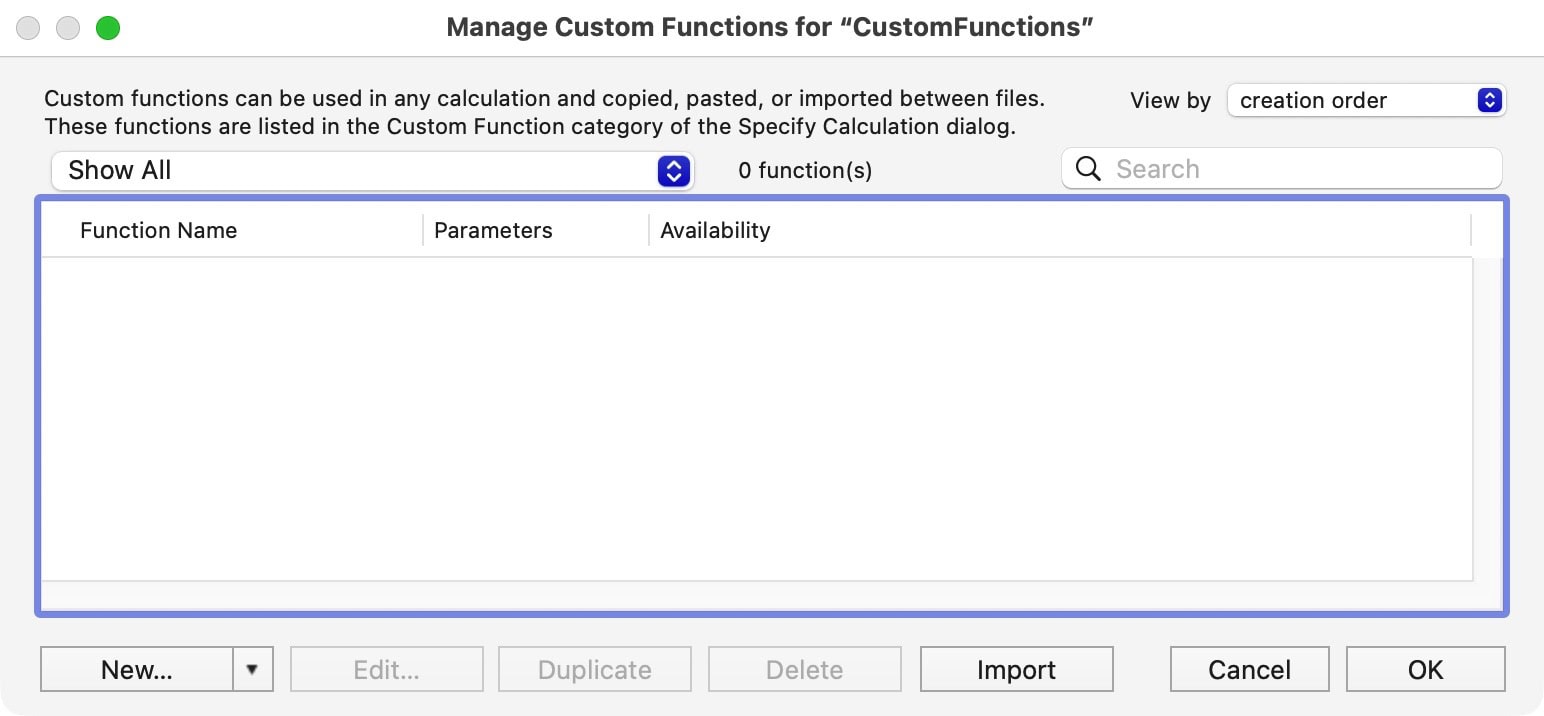
Custom functions can be used in scripts or in single script steps like “Set Field”, just as you would use regular functions in scripts or script steps.
Considering Custom Functions
Custom Functions are functions, just like script steps are functions. However, script steps cannot do everything you probably need. While scripts can cover much of the functionality, you might want to consider writing your own custom function for that purpose. Here are some reasons you might want to do that:
- Custom Functions are simple in concept: define an input, create some logic, and serve an output.
- Custom Functions do not depend on tables, layouts, or scripts.
- Custom Functions are perfect to simplify repeating tasks.
- Custom Functions can easily be shared among solutions.
Custom functions can do some of the heavy lifting as part of a script. That need not be complex. Custom functions can be basic. To explain custom functions, we start with the simplest of ideas and then gradually build more demanding solutions.

Example 1: Simplest version
Here is a simple approach: create a new custom function in the window mentioned above. There are a few things to do:
- Give the custom function a new name. I call it “TransformText”.
- Add a new parameter. I call it “Input”. The click on + to add the parameter to the list of parameters
- Add the logic. I want to transform the text style of that input to ALL CAPS. I use an available function to do that, which needs the definition “Uppercase”.
The screen now might look like this:
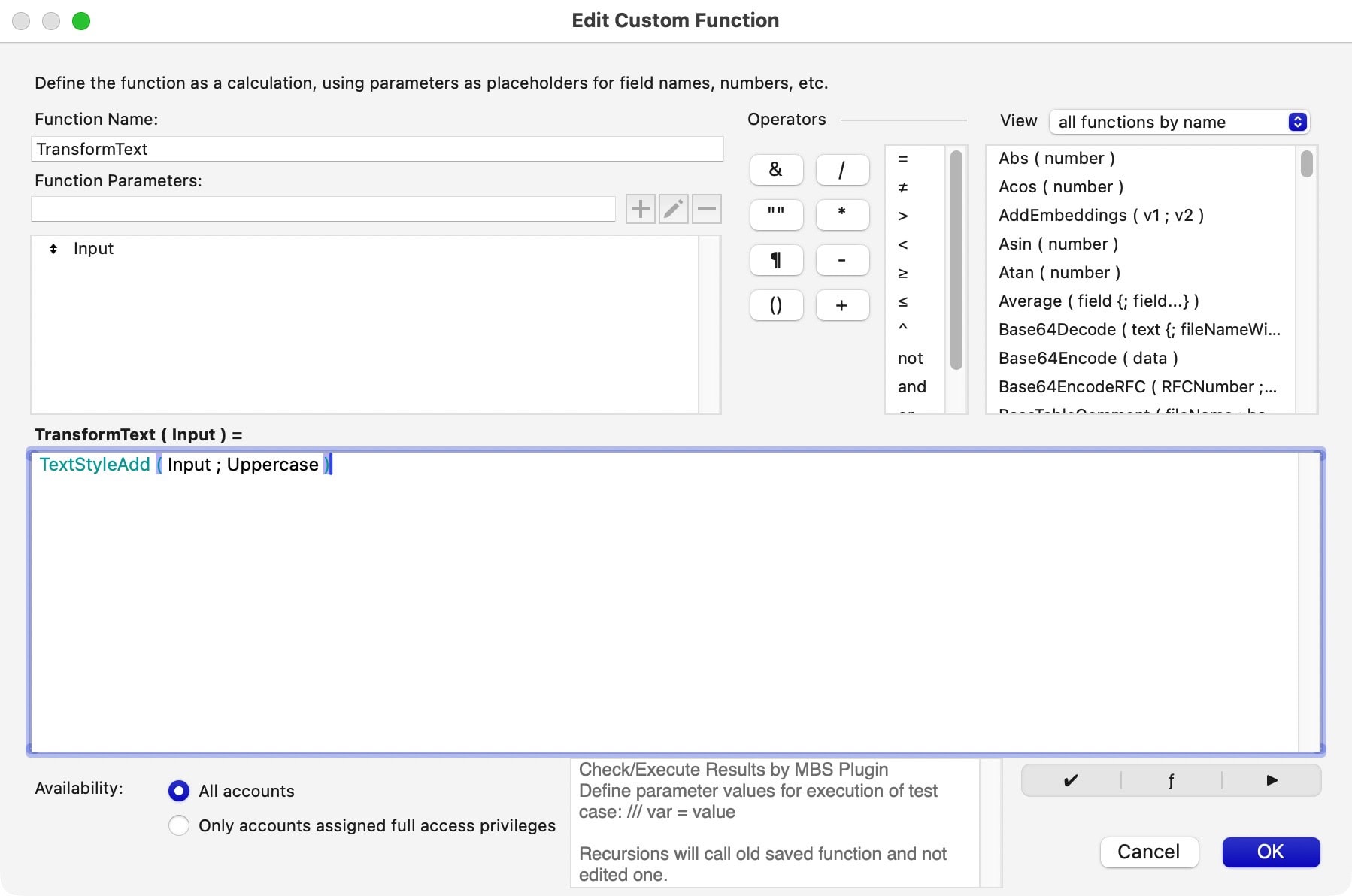
The custom function is ready. While this is probably nothing you would ever create for yourself, and you might question my sanity for providing such a basic function, it serves a single purpose: to explain the concept. It is not about being fancy but about enabling you to understand its workings so that you can start using it yourself.
In the background I have my sample file, where I created two global fields called gInput and gOutput. What I want to do is to type something in the field Input, then click a button which will then use the custom function to create an output that is written into the field Output. The result looks like this:
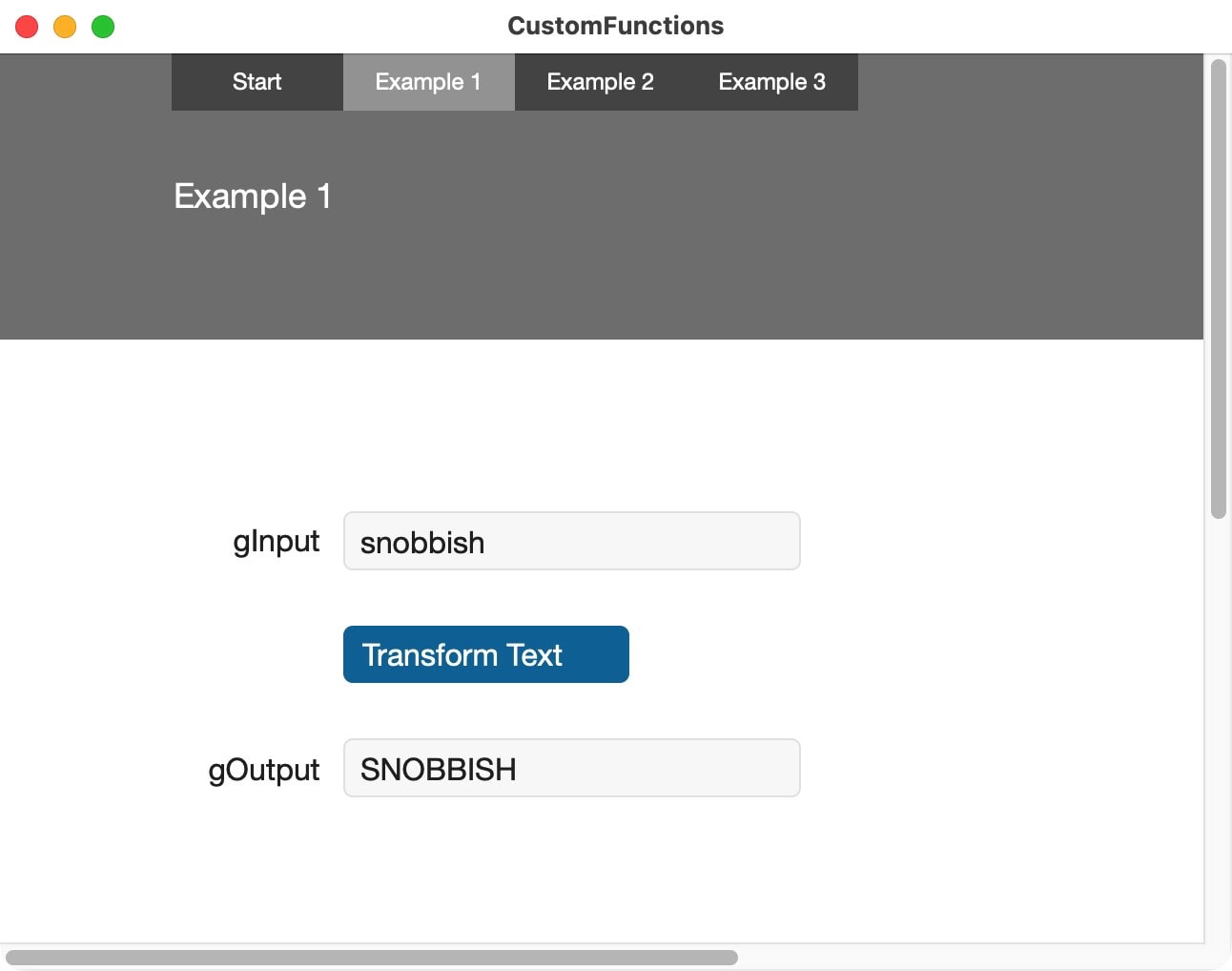
This simple example highlights the three components needed to create a custom function:
- Input
- Calculation
- Output.
How to up your game
Custom functions can be enhanced easily. The limits are only set by your imagination. From a single parameter, you can go to multiple parameters and from a single calculation line to complex settings. In daily tasks, custom functions are used to create consistent results in a simplified way.
Multiple parameters can be useful if you have stored settings in a field. You can refer to settings and let your custom function handle the differences in calculation. Calculations can evaluate settings with IF-contexts or WHILE-functions. Just anything that would work in a script calculation can be applied to a custom function.
Once you have tested the custom function and the results are rock-solid, you can simply rely on its working. Let’s get into a slightly more complex calculation.
Example 2: How to upgrade the calculation
A slightly more complex example is this one: Let’s figure out on what weekday the first of the next month is falling. You can do that by a script, but if you want to reuse such a function, a custom function is probably simpler.
The function Get ( CurrentDate ) will return the current date. It consists of 3 parts, Day, Month and Year. Each of those can be extracted with DAY ( Get ( CurrentDate )), MONTH ( Get ( CurrentDate )) and YEAR ( Get ( CurrentDate )). This will return the respective numbers for the day of the month, the month of the year, and the year with 4 digits.
I have added fields for the Date, the Day, Month and Year to the table. The 2nd example layout presents it like:
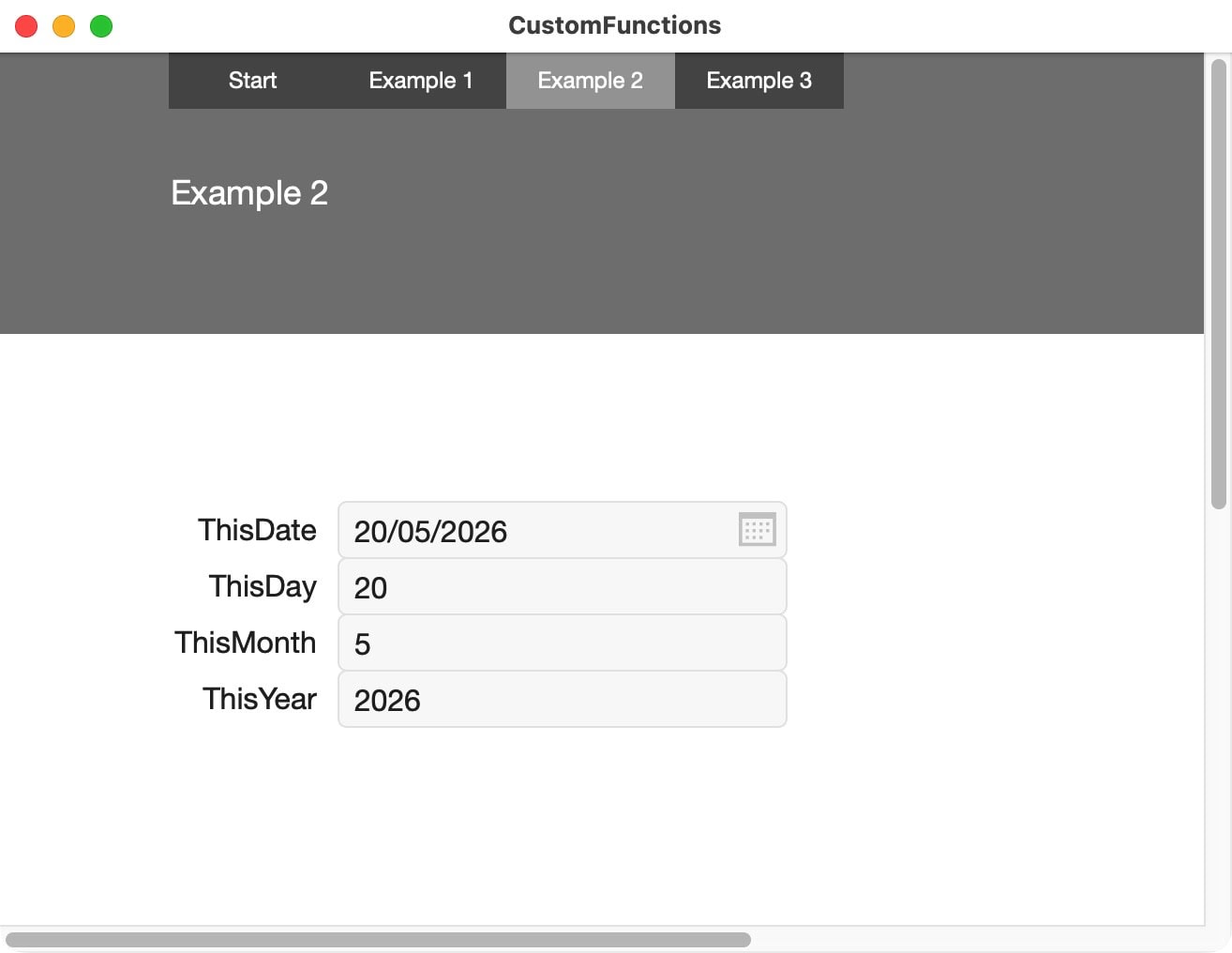
The next month would be the current month + 1. The first day of that month would be 1. The year initially would be the same, unless the current month is 12, in which case the next month would become 1 again and the year would be upgraded by 1 as well. Now you can start creating the custom function. Within the custom function, you do not need any field, but probably the DateField can be referenced. The rest can be calculated directly within the custom function. We can call the custom function: FirstDayOfTheMonth. As a parameter you can create ThisDate as input.
The simplest approach is to calculate the result directly from within a new Date function. Within that function, the month is upgraded with 1, which automatically will move the entire formula to the next year if needed (due to FileMaker functionality, no need to enhance).
Date ( Month ( ThisDate ) + 1 ; 1 ; Year ( ThisDate ) )
This example uses the date formatting for the US. It works, but be mindful about interpretations within calculations, text, etc. There is another article addressing date issues worldwide:
In the following screenshot and in the example file, I use the basic custom function to create a more differentiated feedback. Check the scriptstep for the button “First Day Of Following Month” below.
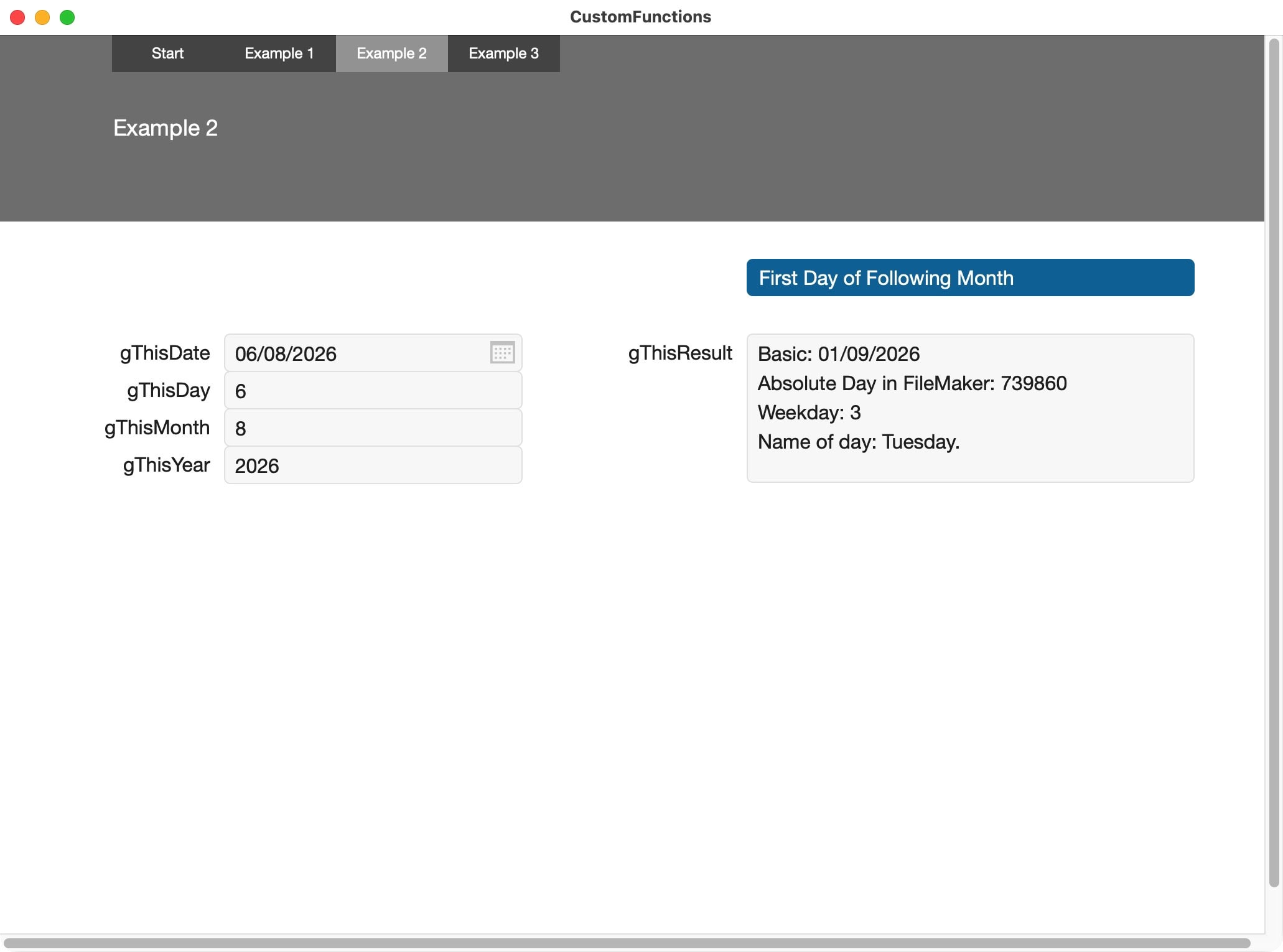
This second example is slightly more complex, and dates should be handled with care in FileMaker. We are now coming to the third and last example, where the task is seemingly simple: reverse the characters of the entered word or phrase. This is something I stumbled across when using layout software that did not support right-to-left writing.
What happened? When pasting text, the software reversed the order of characters for any words and phrases written in a right-to-left language. It simply reversed the order of the characters when pasting the text. How to deal with that? As the layout software did not support proper typesetting for certain languages, I had to find a solution to reverse the reversing. I needed a simple tool. FileMaker to the rescue! Create a custom function that helps to reverse the characters of any text string.
These and other scenarios can benefit from simple custom functions.
Example 3: Reverse the characters of a string
We create a new custom function with the name: “ReverseCharacters”. As a parameter, we need a text input. We call that parameter: “TextInput”. Recursive functions are well possible within FileMaker. Using a custom function simplifies an application. Here is a version using the While-context:
While (
[ result = “” ; i = 1 ; n = Length ( TextInput ) ] ; // the initial variables
i ≤ n ; // condition to check
[ result = Middle ( TextInput ; i ; 1 ) & result ; i = i + 1 ] ; // calculation and loop
result // at the end. output when the condition no longer applies
)
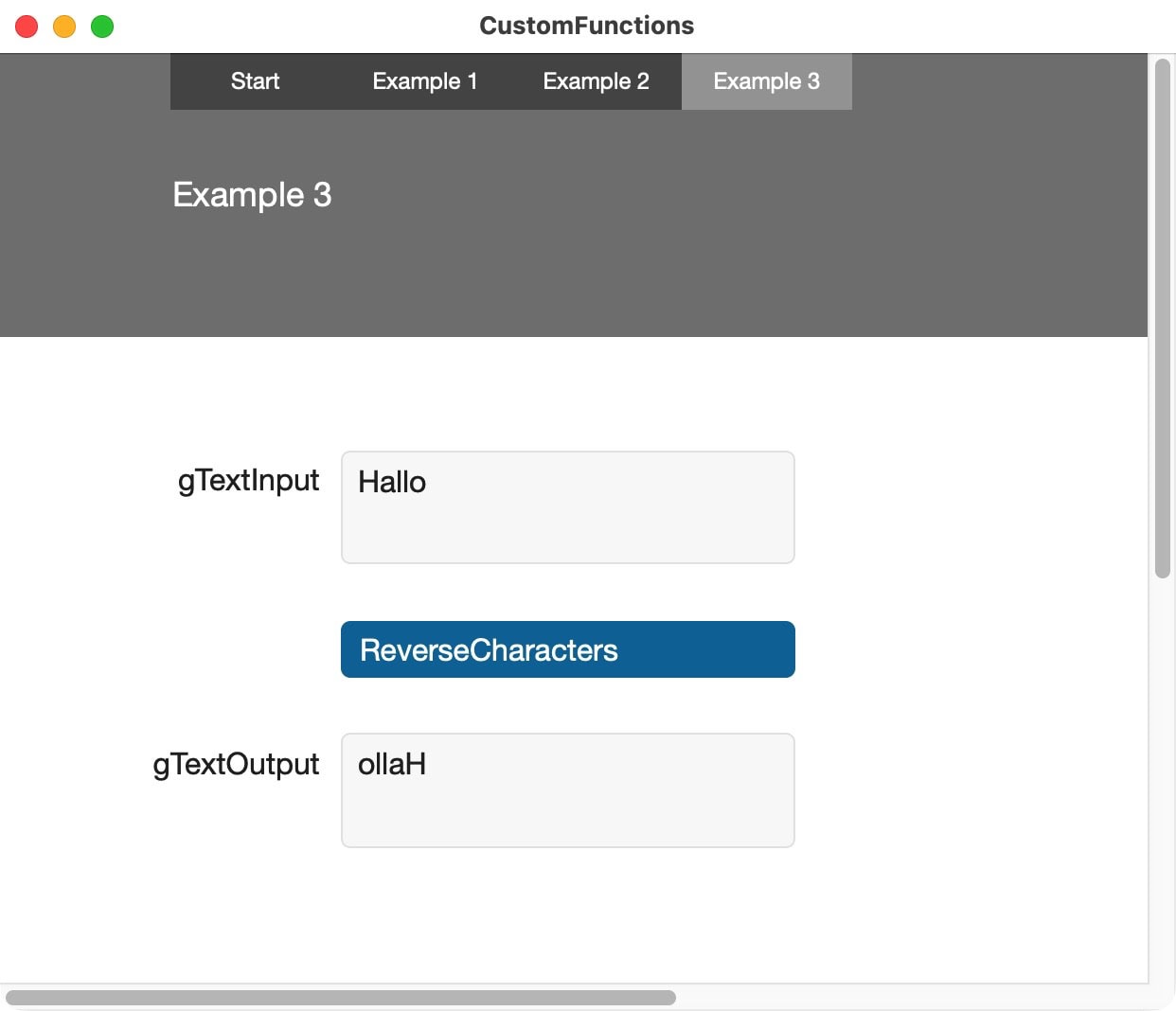
This third example is a bit more technical. Please refer to the sample file to see how it is done.
Resources
Custom functions have been around for a very long time. As a result, many developers used them and shared their tools and insights. If you want to learn more, you can also search for solutions on the web. A great resource is the Custom Functions Library maintained by Brian Dunning. You will find tons of solutions by many developers. At the time I write this article, there are over 2600 functions available. All are easy to integrate and frequently there are different takes on similar subjects. Have a look:
Custom Functions and AI
Finally, custom functions today are easy to develop with AI. While much of FileMaker’s functionality is hidden from the developer or linked to tables and layouts, custom functions do not have these restrictions. They work independently from restrictions, and thus all the logic is just a text. That is a perfect starting point for exploration with AI.
Describe to AI what you need, that you need it as a FileMaker custom function, and it will work this out for you. This simplifies a lot of the work. Also, as custom functions are easily updated by simply copying and pasting from a chatbot directly into the calculation field of a custom function, it hardly can be beaten in simplicity. If you hesitate to work with AI, give this a go.

How to create FileMaker custom functions? The article and accompanying sample file help you to get started.
Minimal requirements: FileMaker Pro 20.