

Searching for data is always an option. Sometimes, though, a simpler and more intuitive way to find data is needed. Think of clicking your way from generic categories down to the data you need. This will not always work, but where it does, it is neat and clean. This is a technique on how to achieve that.
Structured data
This option is only applicable if you have multiple records with some kind of categories involved. Look at the screen below to see what that could be:
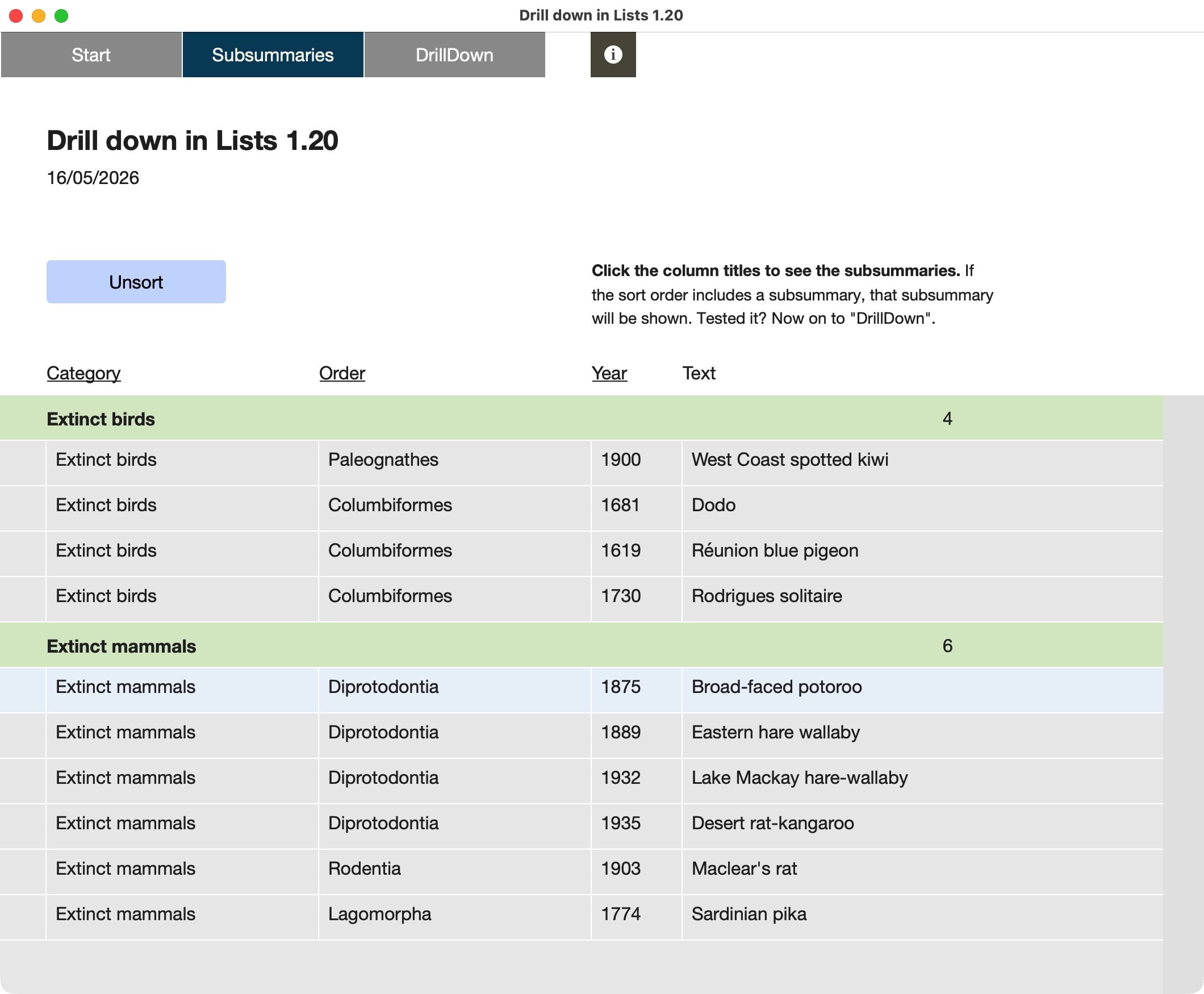
What happened to the body part?
The final records have the detailed information you look for. This is usually the body part of a layout. To exclude that information or layout part, and only reveal it later, you have to use three things:
- Use subsummary layout parts (which need a field to relate to)
- Move the fields from the body part to the subsummary reserved for that final information.
- Sort.
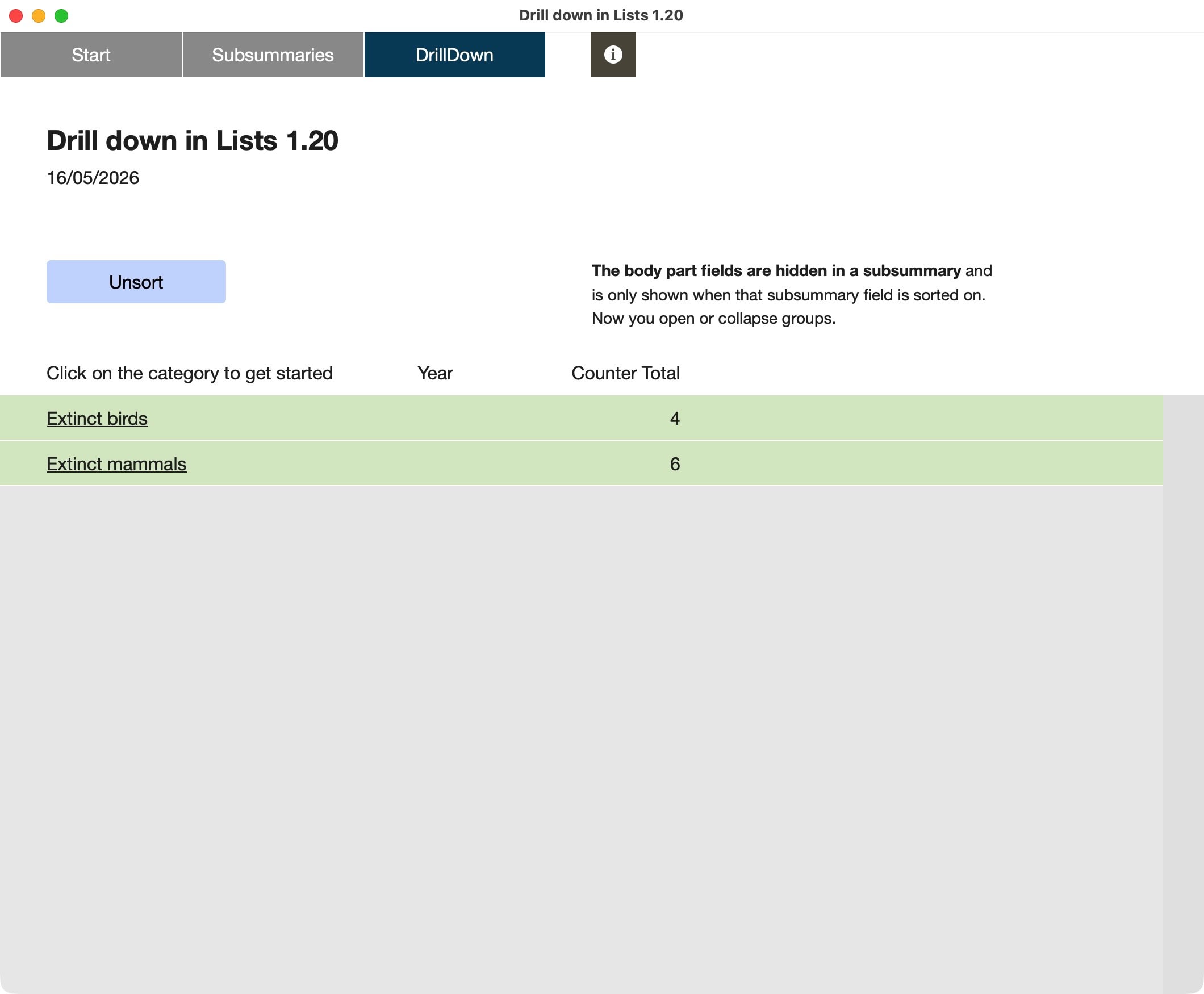
Now sort according to any subsummary field, but leave out the subsummary part where the body fields are displayed. The sorting will now hide the subsummary part where the body fields are listed. Enhance the sorting with that very part, and the body information will show.
Sorting or not sorting, that is here the question. By sorting, you create different list views. You can hide certain parts or hide subcategories, by excluding those parts from the sorting.
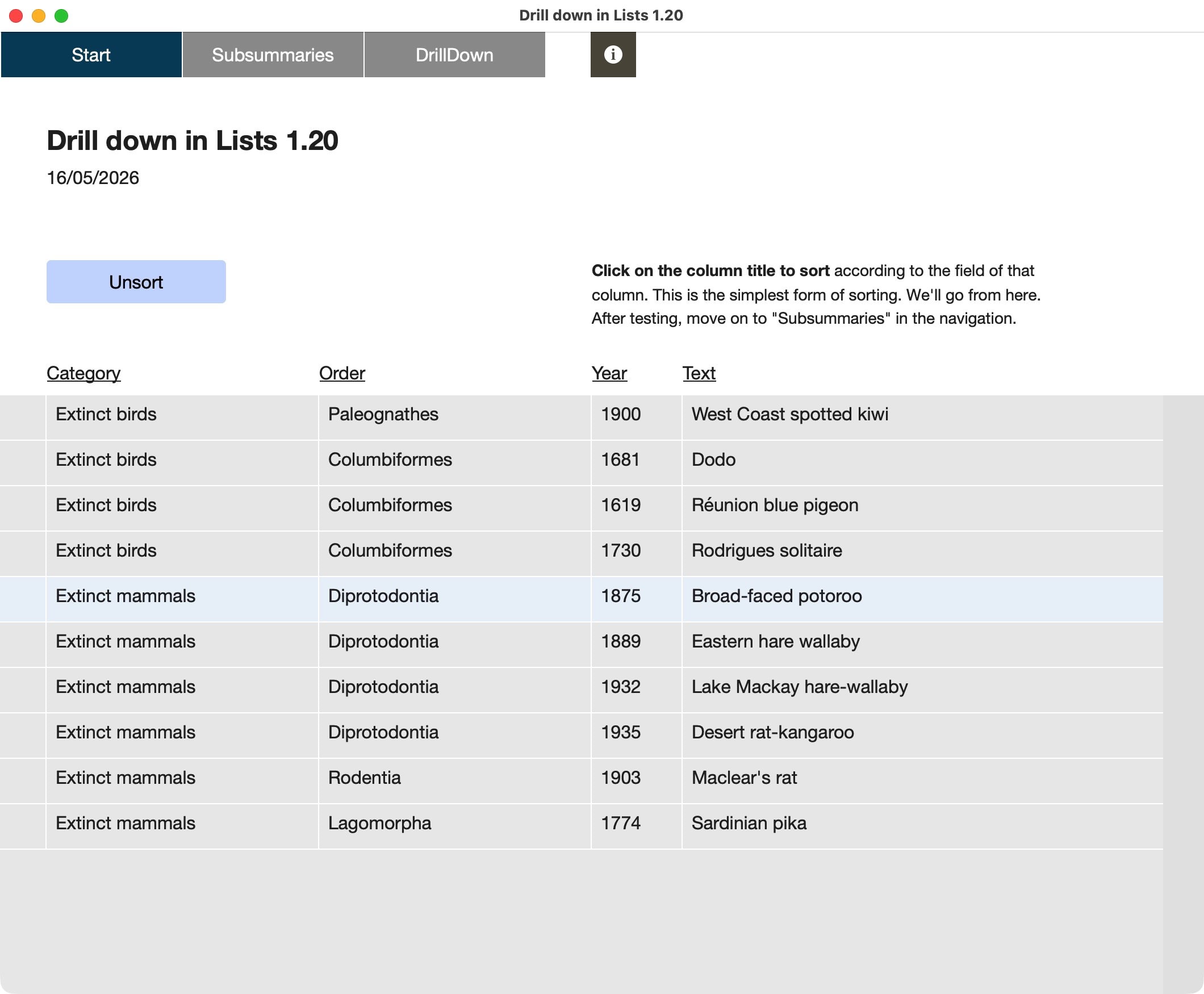
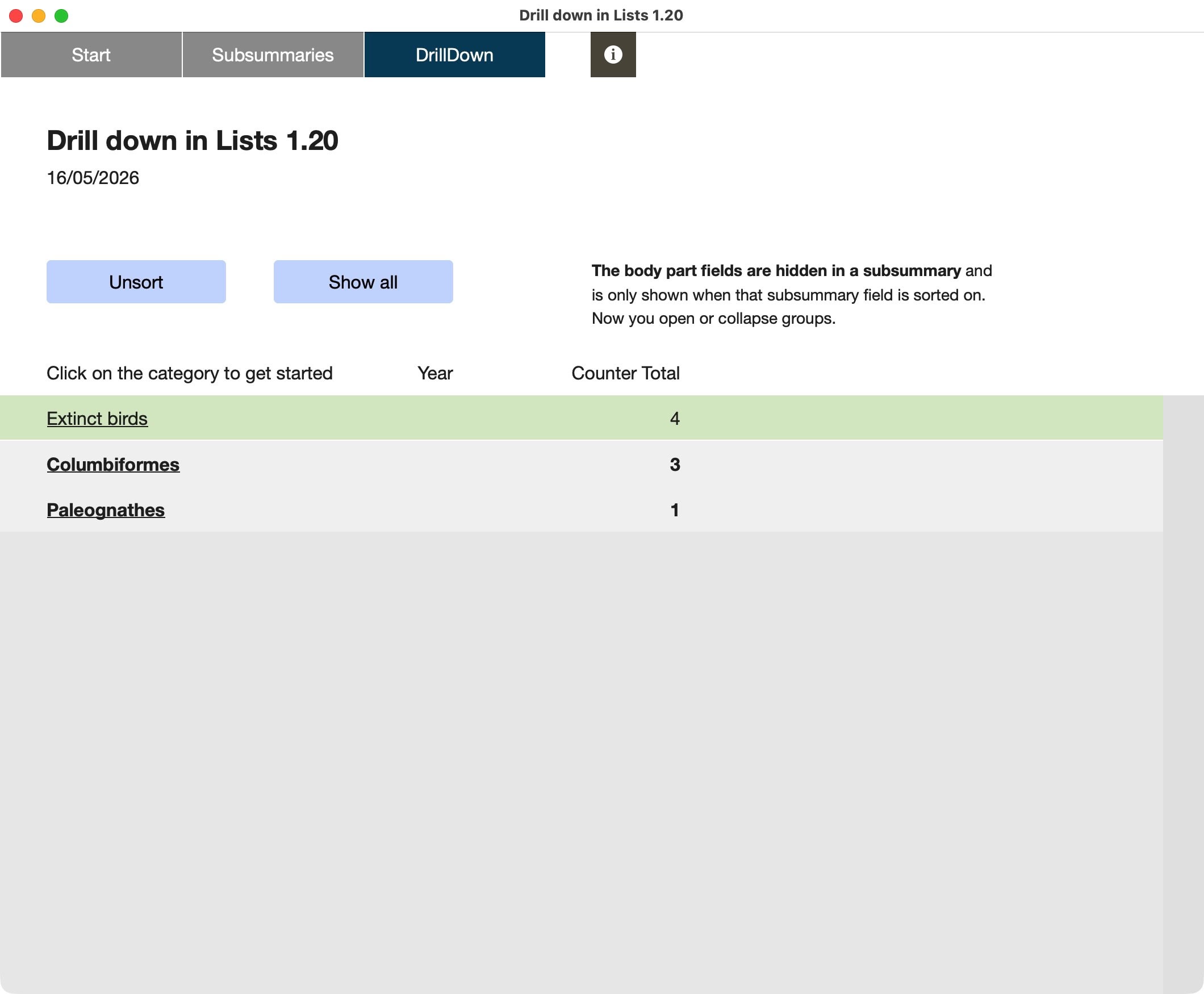
This technique is shown step by step in the sample file. From a simple sorting, through the sorting of different categories, finally a drill-down-concept is shown, in which the layout stays the same, but the sorting reveals more or less information. In combination with some design-changes for each part, it will look like categories are expanding or collapsing.

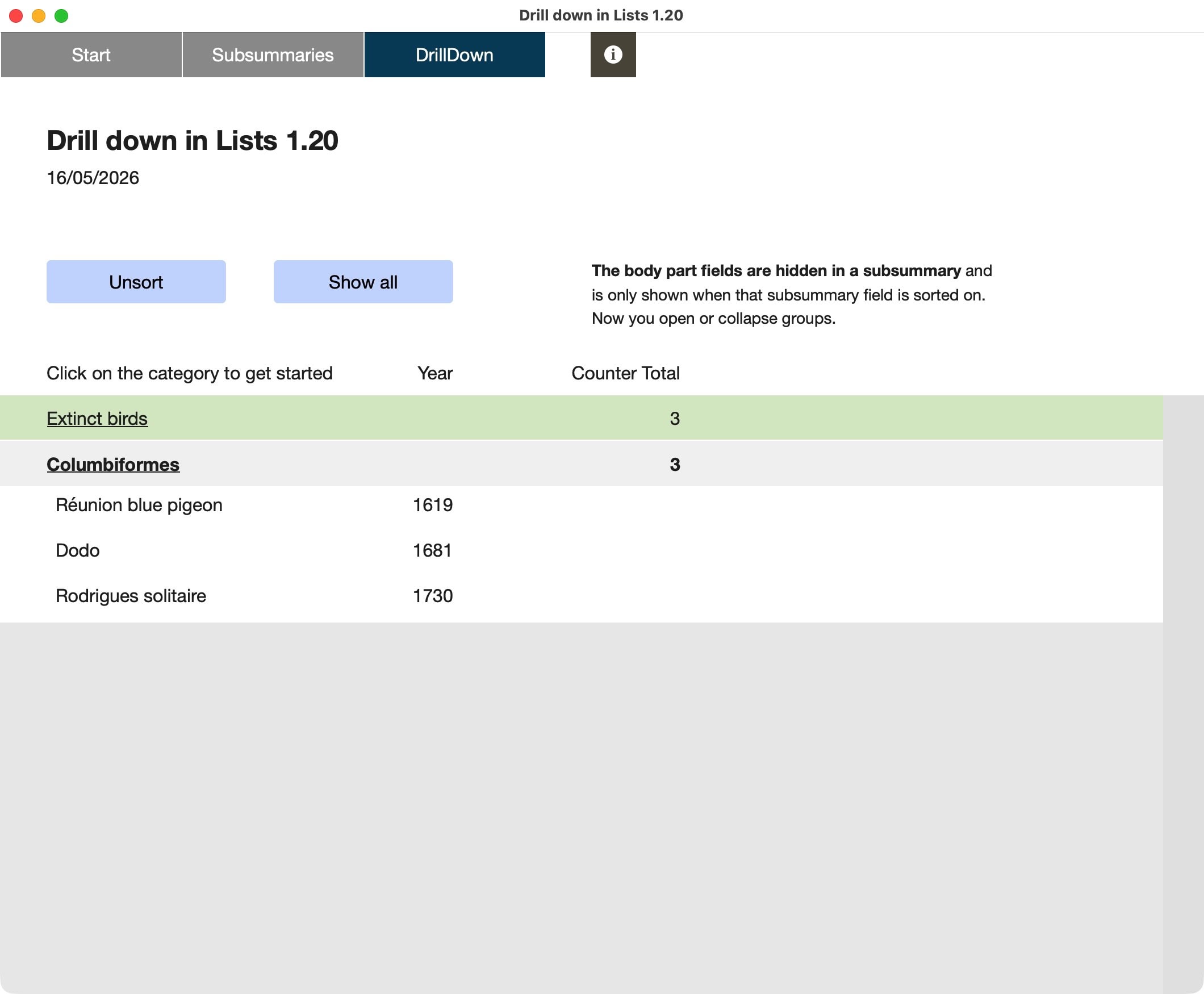
Selecting by clicking
A clever list layout has multiple subsummaries. Each part can have a button and a script attached, which sorts to more fields, and thus expands the view. Selecting by clicking is an intuitive way to show users of your solution where they are and how to select a group of data or even a single record. For complex data, this is probably not the way to go. It can also be a help to get search parameters set.
Explore the options. Happy FileMaking!

Sample file to show how subsummary parts in FileMaker can be used to open/close parts of a list and how to drill-down in list views.
Requires FileMaker Pro 20 or newer.