

Are there any naming conventions for FileMaker? No, there aren’t. Could something like a naming convention be helpful? Yes, of course it can. This article shows some ways to think about naming conventions for FileMaker.
Naming conventions are ideas about how you name tables, fields, scripts any just about any other element in FileMaker. What you use might be what you learned, or what you discovered as working best for your purposes. Having a strategic approach to the freedom you have in FileMaker, might give you some advantages for your work. Probably that is the pragmatic way of looking at it: See how naming conventions help you (and others involved) work better.
Consider a name of a table: Addresses. That name gives, by its very naming, a clue about its content. Typical fields of that table might be: Street, Street number, Zip-code, City, Country. Each of those fields clearly indicates its usage. This transparency is quite helpful. It also is a choice. As a choice, it can become a rule: “This is how I do it.”
To improve on clear basic names, some developers came up with their own set of rules on how to define them. FileMaker does not tell you what to do and will work almost with anything. Thus, the main issue for creating your own naming convention lies in a simplification of your daily tasks. It’s a preference. Naming conventions are more about you and your working style as about FileMaker.
Why do naming conventions make sense?
If you are setting out to work with FileMaker, you probably have some ideas about some areas and no idea about other specifics. Everyone faces these challenges. A bit of trial and error might help you land on the sweet spot for you. The ideas mentioned below are simply pointers. Some might make sense to you, others not. As there are no rules, you might want to consider what you want to achieve. Simplicity comes in many forms and different requirements for different situations.
It might be an idea to consider fields, tables and other elements to appear in lists. When your personal naming aims for an easy finding, you might take care about alphanumerical sort orders. Let’s say you have tables “Sales” and “Sales_ItemLines”, both are listed under “Sales”. Whether you want an underscore “_” to separate the first and second half of the naming is up to you. You can just leave the underscore out and do something else. Keep, for example, a CamelCase style of naming, starting each new word with a capital letter and no spaces (“SalesItemLines”). Do whatever you find helpful consistently. This will simplify your development.
Alphanumerical sorting in mind
When creating a new table in FileMaker, it will automatically add a layout with that table in the background and might as well add it to the relational graph. Here is the difference between a table and a table occurrence: In the Relationship graph (under > File > Manage > Database > Relationships), each database has at least a single occurrence. Layouts are (and must be) based on a table occurrence. Any table occurrence in the Relationship graph is a visual representation of a table, with a name and a list of all fields for the selected table. However, within the same Relationship graph, you can add multiple table occurrences for the same table. That might be very helpful, and is used, for example, to create different relationships between tables.
The first table added to the Relationship graph has the name of the table. Names of table occurrences must be unique. Naming them with a strategy in mind can help keeping everything simple.
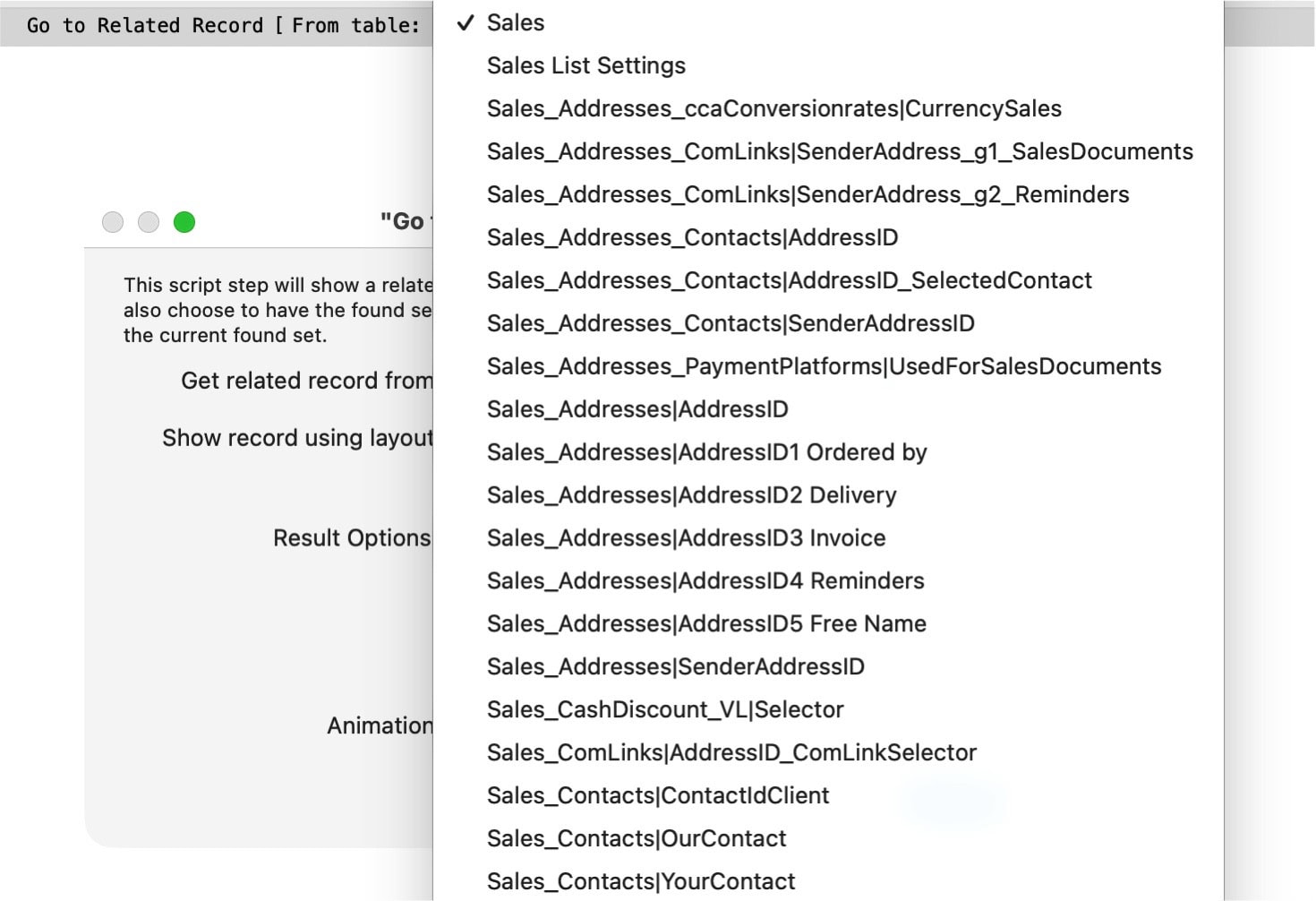
The screenshot above shows a single script step, where you want to go to a related record. In the screenshot, there is a popup menu to select related tables behind the text “Get related record from”. The list is a complete list of all available relationships, alphabetically sorted.
For this, you need additional table occurrences, which are linked by relationships. The popup shows a long list of connections. Note the naming used here. Each line represents a different connection and relationship. It always uses the original table first, then an underscore, followed by the target table. That is not a rule but just how I do it. You might take it as a suggestion or choose another path.
Behind this approach is a simple goal: This kind of setup helps to create clarity when sorting alphabetically, as is automatically applied in FileMaker. I have other developers seen doing this and happily adapted this myself, as I understood I was quite chaotic before. This approach served me well ever since.
Tables
A basic useful thing is to use clear names, which indicate the usage of a table or field. As there are multiple ways of creating, let’s say, a Sales solution, you will find that some developers prefer a separate table for each type of sales document. Thus, you end up with multiple tables for “Offers”, “Confirmations”, “Packing slips”, “Delivery Notes”, “Invoices”, “Credit Notes” etc. Or, alternatively, you can create a single table for all types, adding a flag to denote which type it is. This last case wants a more generic name for the table. It might be simply called “Sales”, as it would be misleading to call it “Invoices”.
Yet, other people prefer using the full name of a table only for its first and primary occurrence in the Relationship graph, like “Addresses”. For additional table occurrences, acronyms of the original table are used instead. This is with the aim of shorting names or being able to calculate the needed relationship more easily. Example: Four-letter acronyms might be just the first four letters of any table name, like “ADDR” for the table Addresses, “CONT” for the table Contacts and so on. A downside for this approach is probably, that you need a list of acronyms and its meaning, or a system explaining it. That adds complexity to a solution.
Suggestions by AI
Many developers work with AI already. Large LLMs are trained with available resources. That also means that certain practices popup more frequently than others. It is a result of “average results” across a large dataset. What I noticed, for example, is the use of field names starting with “pk_” or “sk_” for Primary Key and Secondary Key. More to that further down below. In Let-functions, the “i” frequently appears as a short placeholder. These are both things I have frequently seen in the work of other developers. Bearing that in mind, you can easily see that AI pickup certain strategies it found. These need not be your strategies. Let’s have a look at the naming of field names.
Field names
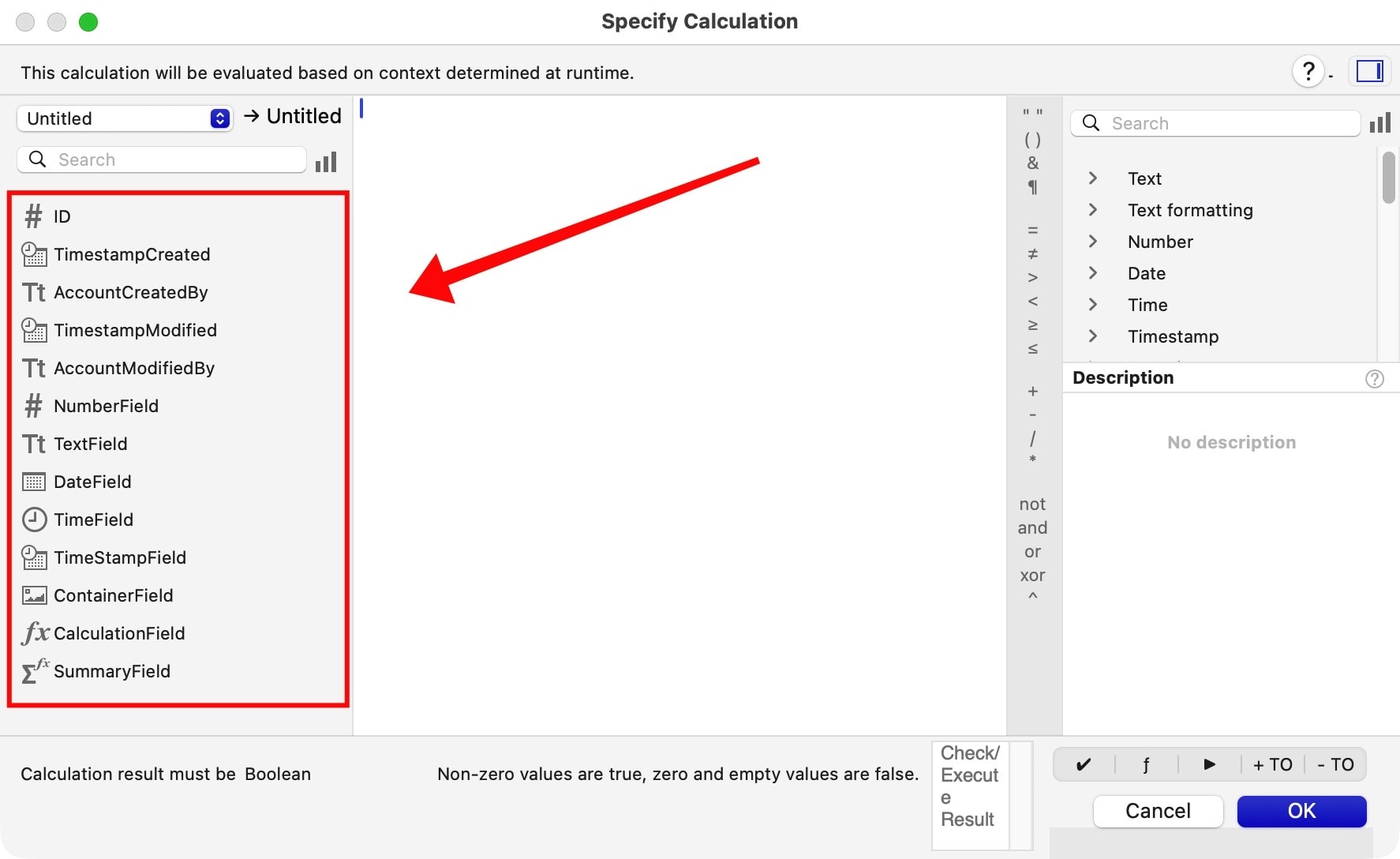
Looking at different approaches by different developers, you will see many variations. Most developers use some kind of naming convention they created for themselves. In earlier versions of FileMaker, it might have been a help to include a prefix or suffix explaining what type of field you work with. Today, in calculations, each field type has its own icon. See screenshot below. There is probably no more need to include the field type with a denominator in the name.
More about field naming at the Claris website:
Primary and Secondary Keys
It is highly advisable to have a unique identifier in each table. That you call the Primary Key. It is usually a dedicated field in the table, which thus applies with a unique identifier for each record. In the Relationship graph, you can link fields from different tables by a simple drag-and-drop. Thus, you can create a relationship. That is done by creating a Secondary Key field in the target table.
As an example: Creating a relationship from the “Addresses” table to the “Contacts” table needs a Secondary Key field in the “Contacts” table which can inherit the Primary Key from any record in the table “Addresses”. By copying the Primary Key value of a specific Address to the corresponding Secondary Key field in the table “Contacts” will establish a valid and unique relationship.
I found that quite a few suggestions by AI led to a naming of these fields with a prefix “pk_” for Primary Keys and “sk_” for Secondary Keys. I assume this is what the training of the LLM resulted in. It is quite a popular and widely used approach to differentiating Primary and Secondary Keys. There is a benefit to this approach: If you sort fields according to the name of the fields, all keys will automatically be listed alongside their own kind. Its downside is, that it expands complexity with extra characters in the naming.
An alternative approach
The naming of Primary and Secondary Keys complicated things by naming conventions. I wanted to get rid of some complexity and realized I could use any convention I made up myself. Here is what I did:
Each table has a unique Primary Key. Instead of enhancing the name, I simplified the name back to “ID” only. Each table has a field like that, which is referred to in calculations like:
(TableName)::ID
That setup is clear for the original table. Secondary Keys usually refer to another tables ID. If we consider the latest situation with Addresses and Contacts in two separate tables, each of them has a field, used as Primary Key and each with the same name “ID”. Creating a unique relationship from Addresses to Contacts requires a Secondary Key in the table Contacts, referring back to the ID field in the table Addresses.
I added the Secondary Key to the Contacts table and called it “AddressID”. That appears simple to me. When sorting alphabetically, I can now see AddressID alongside other fields in Contacts, starting with “Address”. Or, I could reverse the order to “IdAddress” and automatically enable sorting by “Id…”. Wherever “ID” appears alone, it is a Primary Key and can only refer to the table you are currently in, while combinations are always Secondary Keys connecting to other tables and records. This approach was more fitting to me and I use it since many years.
Relationships
Table occurrences in the Relationship graph must be named uniquely. As multiple occurrences of the same table can appear, it can be useful to explain the usage in the name.
For example: Connect two tables “Addresses” and “Contacts”, while using the “ID” of Addresses to connected to one or more contacts belonging to that address. The connection can be named like this:
Addresses_Contacts
To add more information, one can add the criterion used for the specific task. For example:
Addresses_Contacts|AddressID
The first part had the starting table, then the related table. Then comes a pipe character “|”, after which the criterion is listed. In this example, the “AddressID” shows the relationship is made based on the Addresses::ID field from the Addresses table. Here is a screenshot of an alphanumerical list of relationships:
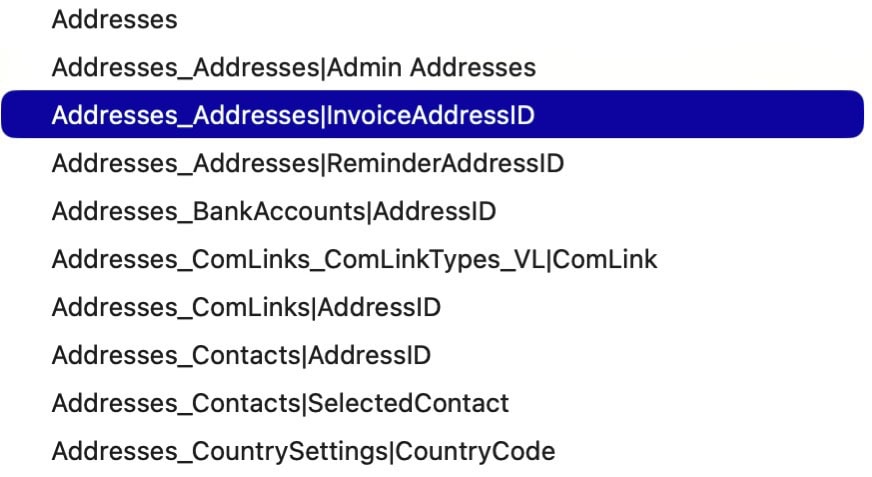
The screenshot above neatly shows a list to select a field from a related table. In a first step, you choose the relationship. The available relationships are sorted alphanumerically according to their name. As the names list the criterion used for the connection, it is much easier to select the appropriate relationship for your purpose.
Global fields
I do not use any prefixes or suffixes for field naming. However, there is one exception. That is because of global fields. Global fields have a single value across all records. They also can be read or written from any location in FileMaker and do not depend on a relationship. That makes these fields unique. These are the only fields which I refer to with a prefix “g”. Nothing more. I instantly find a field I can refer to immediately and from anywhere.
There is another reason I distinguish a global field with a “g” as suffix. I frequently back up settings in a single-record-table. The user sees and uses the global fields. A backup is saved into a single record of that same table. To read and save the values to and from a global field, I need it to stand out. Thus, settings tables frequently have two fields next to each other, like:
- SettingThis, regular field, for backup
- gSettingThis, global field, for reference.
The difference in naming is the “g”, which stands for “global”. The rest of the name is the same, making it obvious what is saved to where and vice versa.
Final thoughts
This article is not a naming convention. It is not conclusive in any way. This is just about sharing some thoughts I would have appreciated myself when starting out with FileMaker. Let’s say you are meeting other developers. Ask them how they handle naming conventions. It might be a valuable insight.
This is a summary of my personal approach:
- Use clear naming and avoid acronyms (this helps other people looking at the solution)-
- Simplify Primary and Secondary Keys.
- Don’t use extensive rule sets. Keep it simple.
- Make naming logical for display in an alphabetically sorted list.
- Mark relationships with a clear start and endpoint, as well as the criterion used for the connection.
What is your preferred method for naming elements in FileMaker? Where do they differ from mine? Why is that so? Is there anything you can pick up from this approach?
The ideas from this article are used in our Starter Files.