

Drill down in lists
Searching for data is always an option. Sometimes, though, a simpler and more intuitive way to find data is needed. Think of clicking your way from generic categories down to the data you need. This will not always work, but where it does, it is neat and clean. This is a technique on how to achieve that.
Structured data
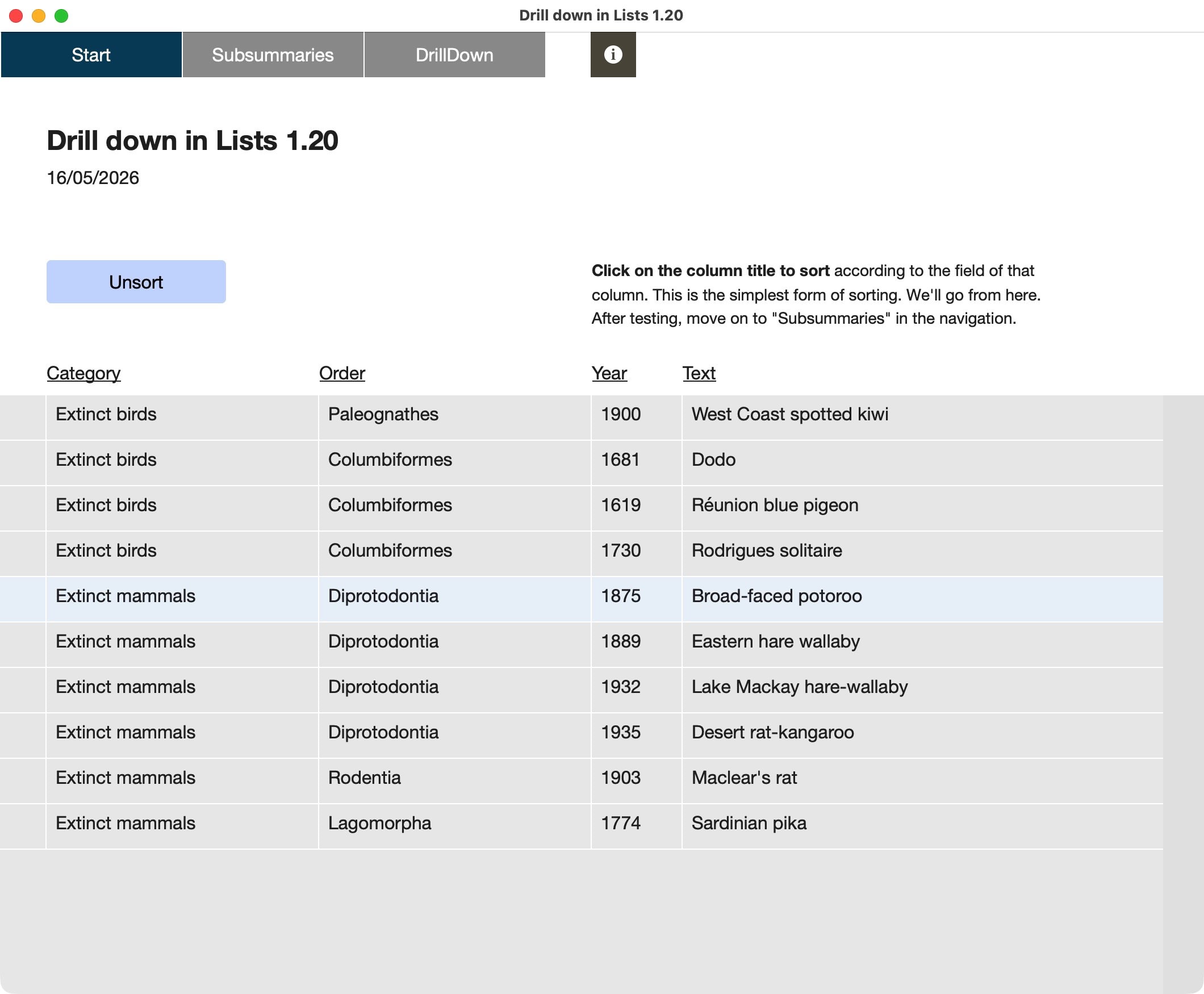
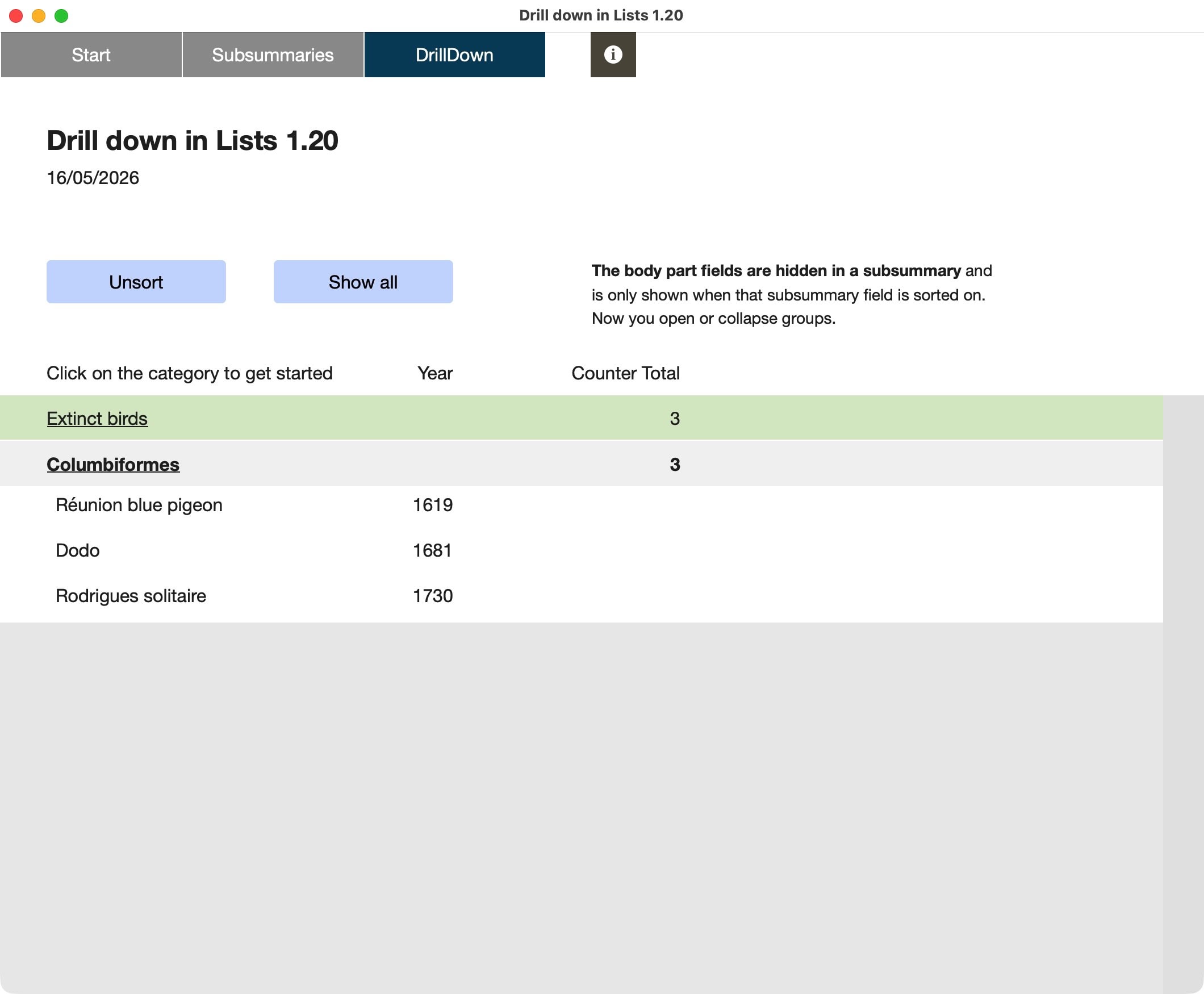
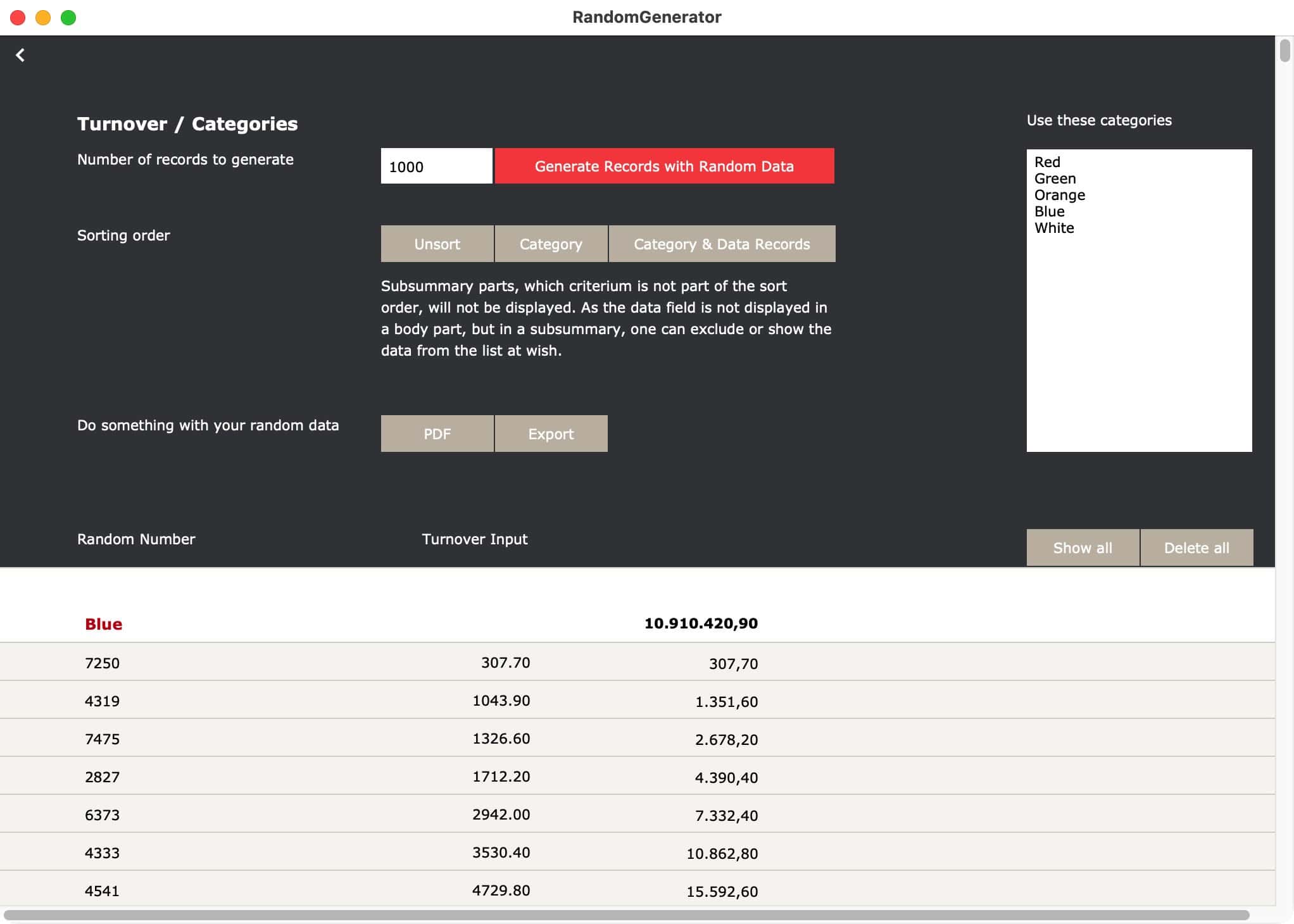
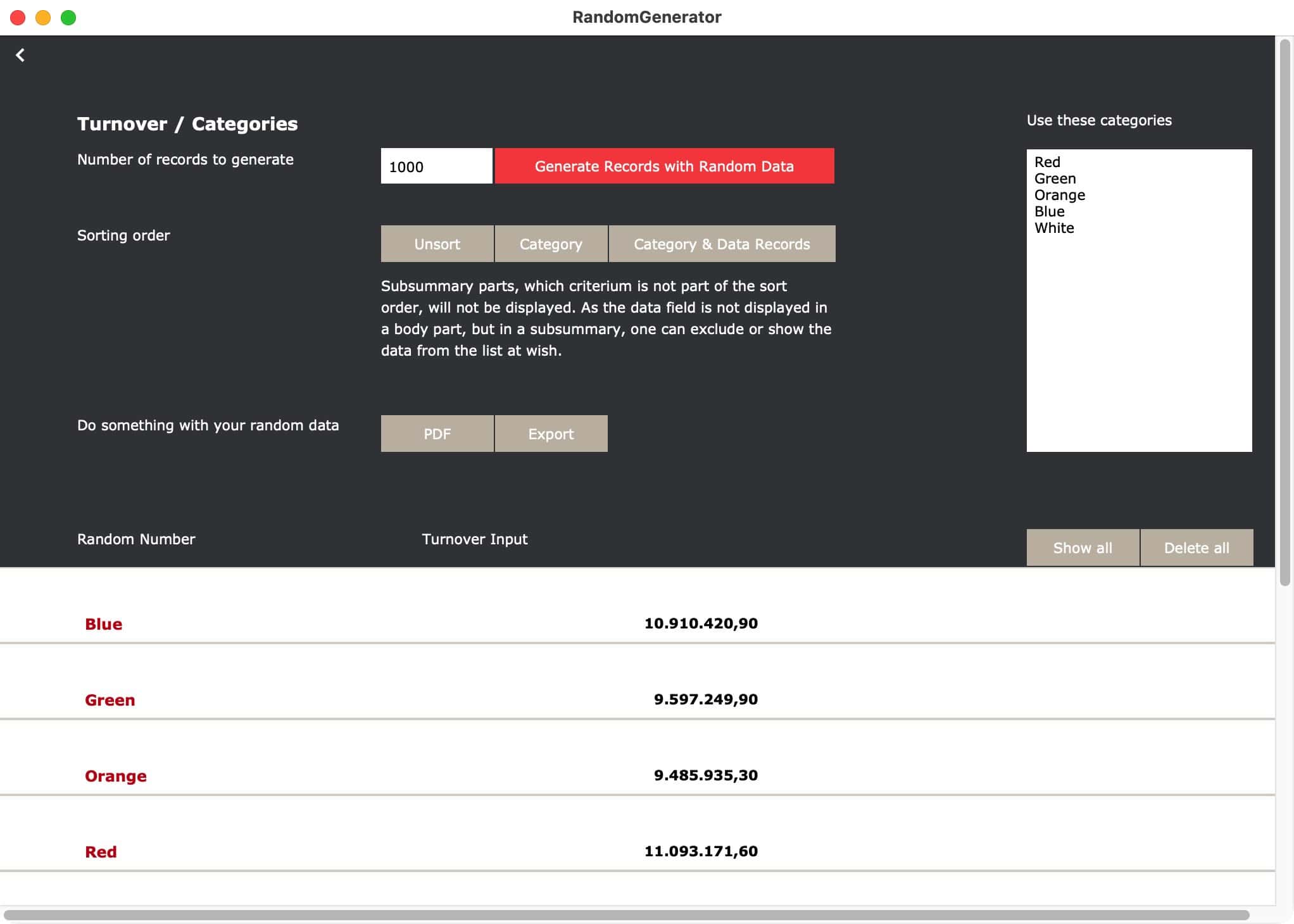
This option is only applicable if you have multiple records with some kind of categories involved. Look at the screen below to see what that could be:
What happened to the body part?
The final records have the detailed information you look for. This is usually the body part of a layout. To exclude that information or layout part, and only reveal it later, you have to use three things:
- Use subsummary layout parts (which need a field to relate to)
- Move the fields from the body part to the subsummary reserved for that final information.
- Sort.
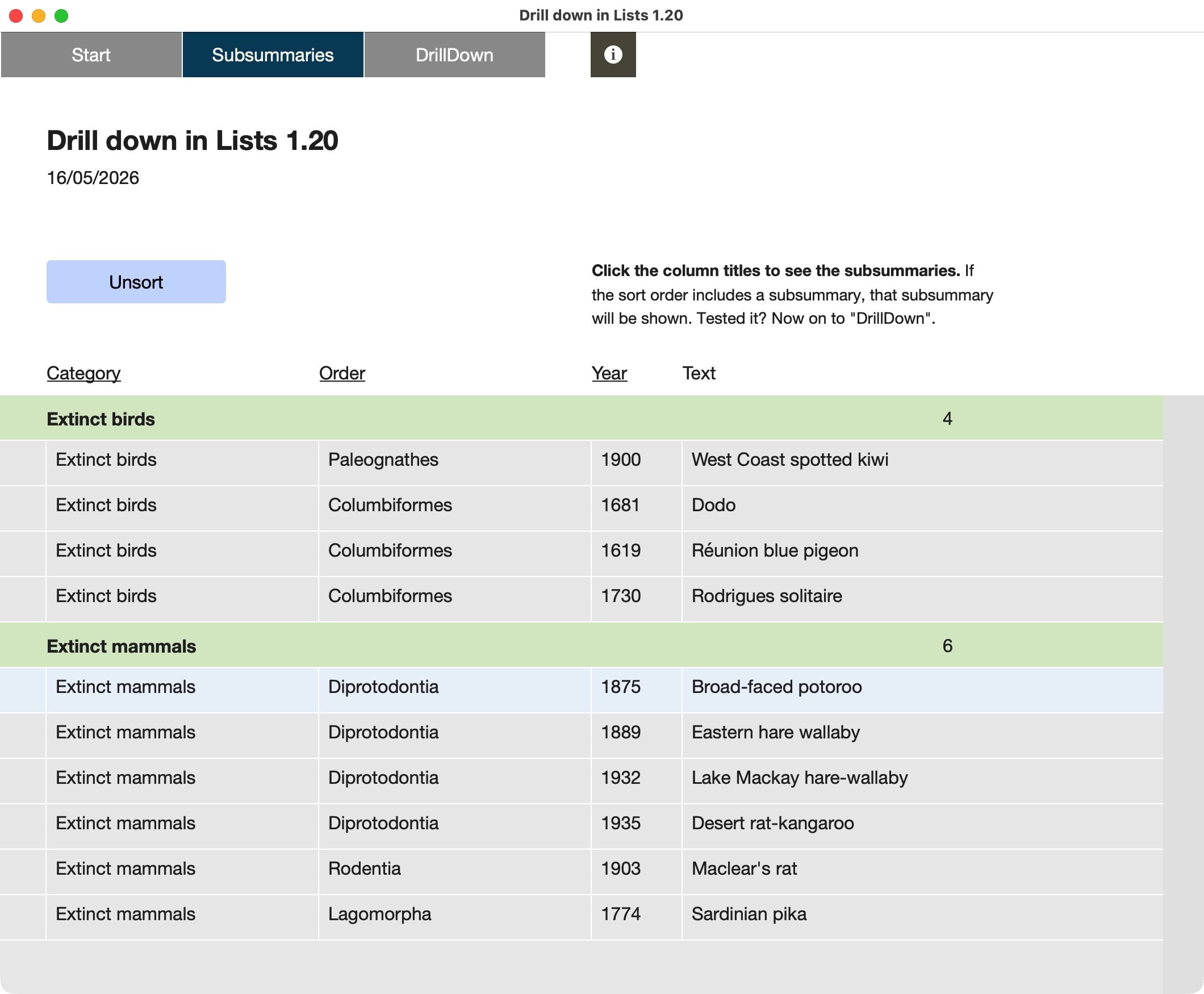
Now sort according to any subsummary field, but leave out the subsummary part where the body fields are displayed. The sorting will now hide the subsummary part where the body fields are listed. Enhance the sorting with that very part, and the body information will show.
Sorting or not sorting, that is here the question. By sorting, you create different list views. You can hide certain parts or hide subcategories, by excluding those parts from the sorting.
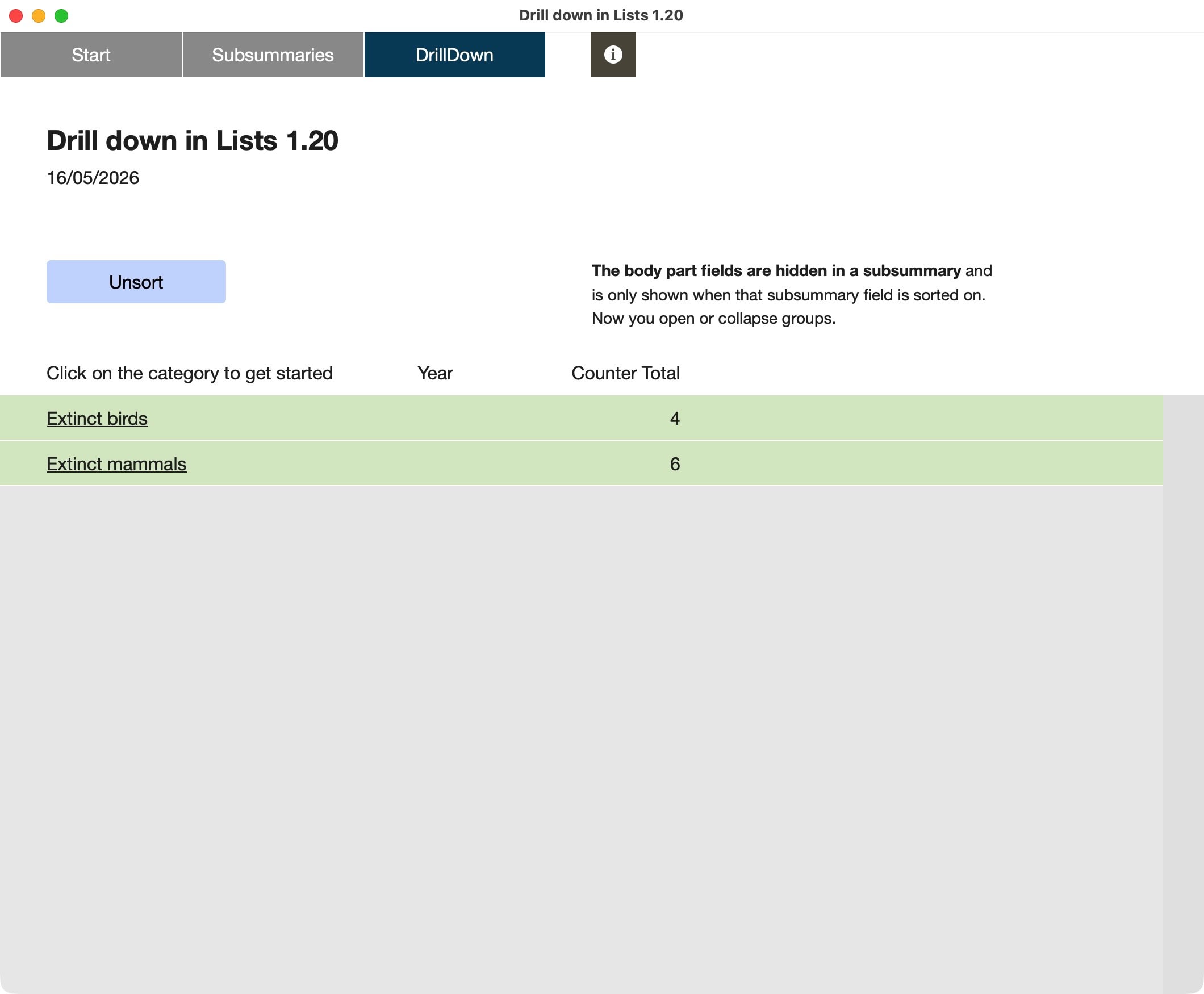
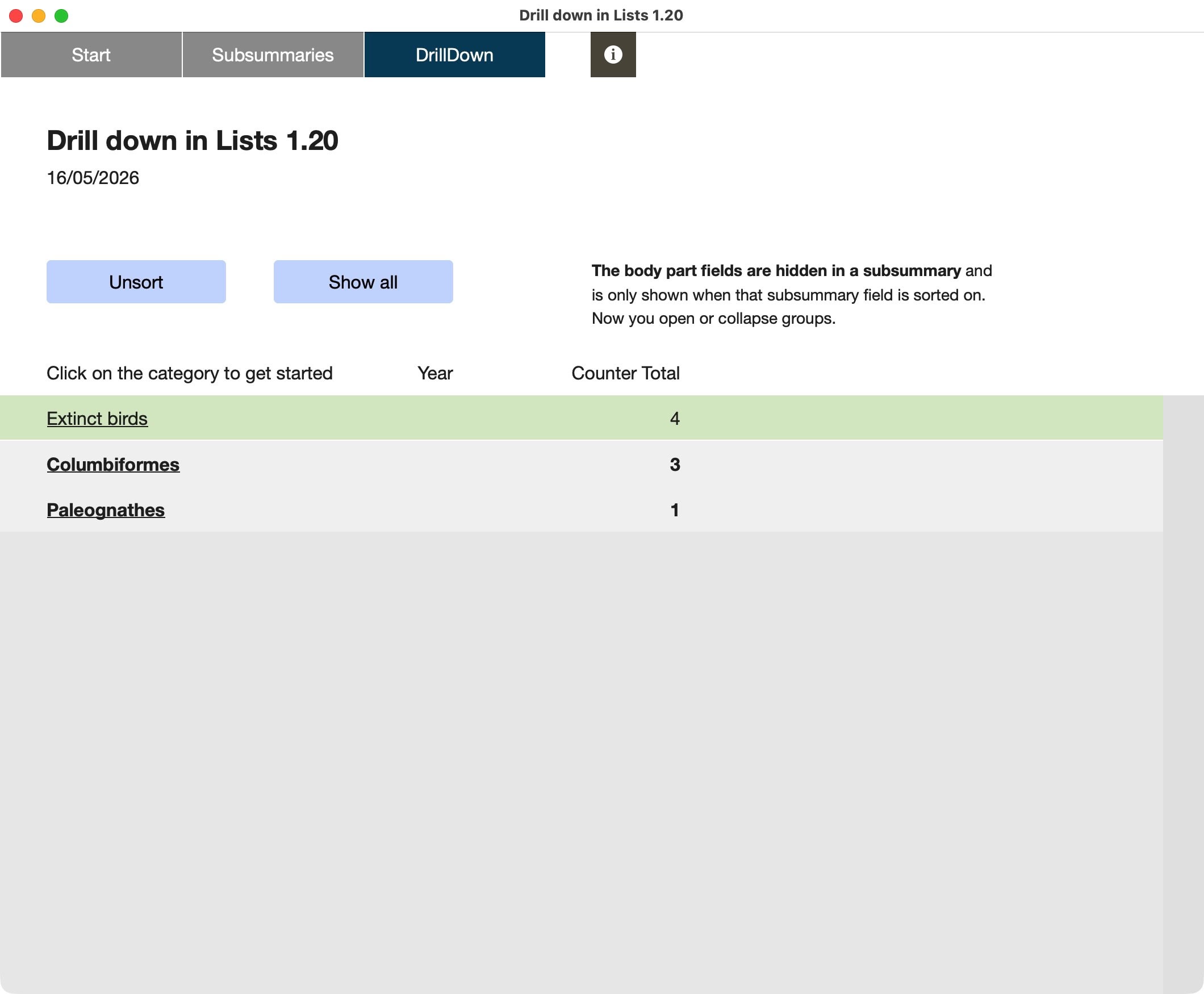
This technique is shown step by step in the sample file. From a simple sorting, through the sorting of different categories, finally a drill-down-concept is shown, in which the layout stays the same, but the sorting reveals more or less information. In combination with some design-changes for each part, it will look like categories are expanding or collapsing.

Selecting by clicking
A clever list layout has multiple subsummaries. Each part can have a button and a script attached, which sorts to more fields, and thus expands the view. Selecting by clicking is an intuitive way to show users of your solution where they are and how to select a group of data or even a single record. For complex data, this is probably not the way to go. It can also be a help to get search parameters set.
Explore the options. Happy FileMaking!

Sample file to show how subsummary parts in FileMaker can be used to open/close parts of a list and how to drill-down in list views.
Requires FileMaker Pro 20 or newer.

RandomGenerator
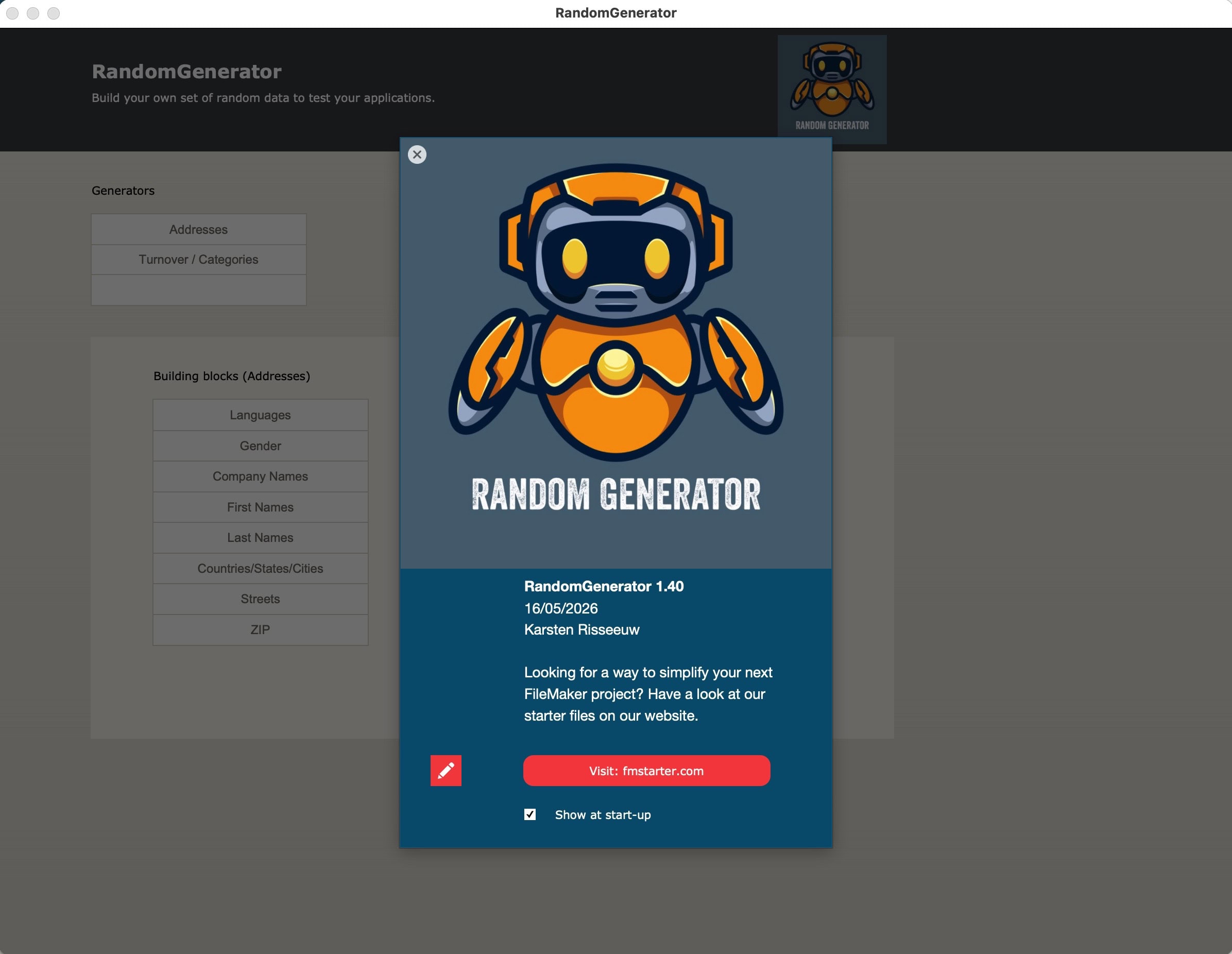
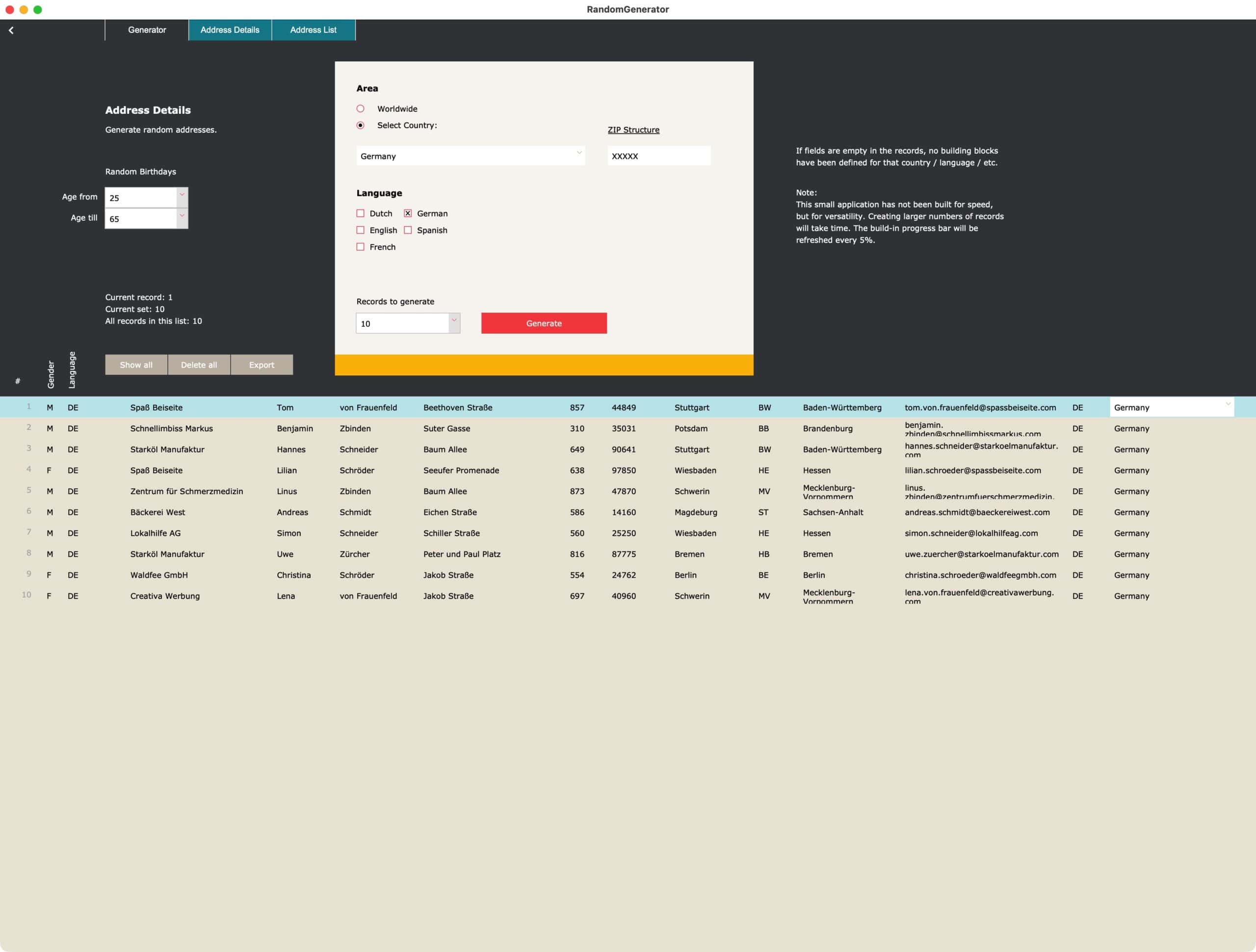
Random data is very useful to test your FileMaker solution. There are several free random generator websites out there. One can even let AI create random data. While that all sounds easy, it does not mean you can easily mold the results you get. But with this test file you can. RandomGenerator shows you how to use FileMaker when creating random data.
Make it random, but manageable
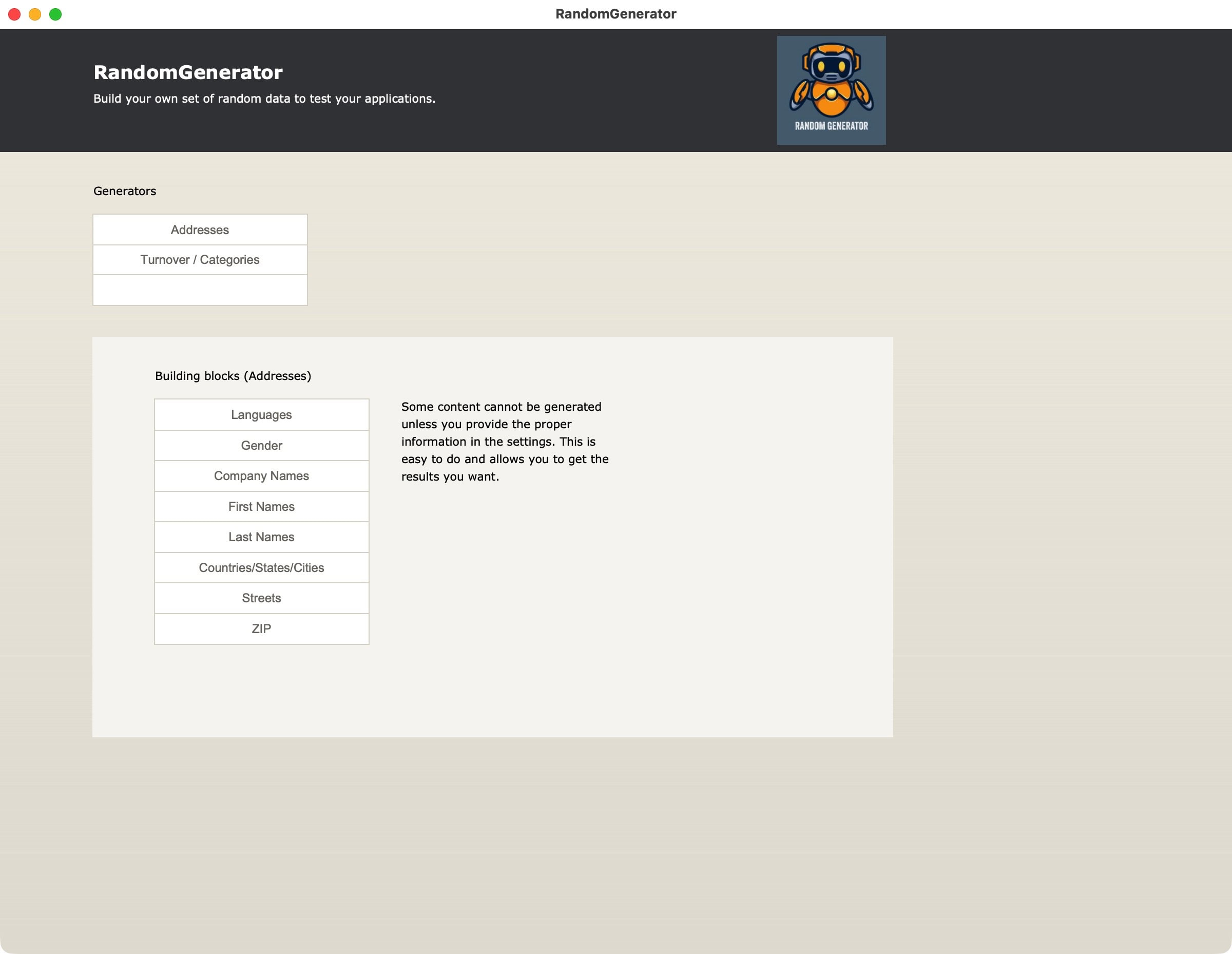
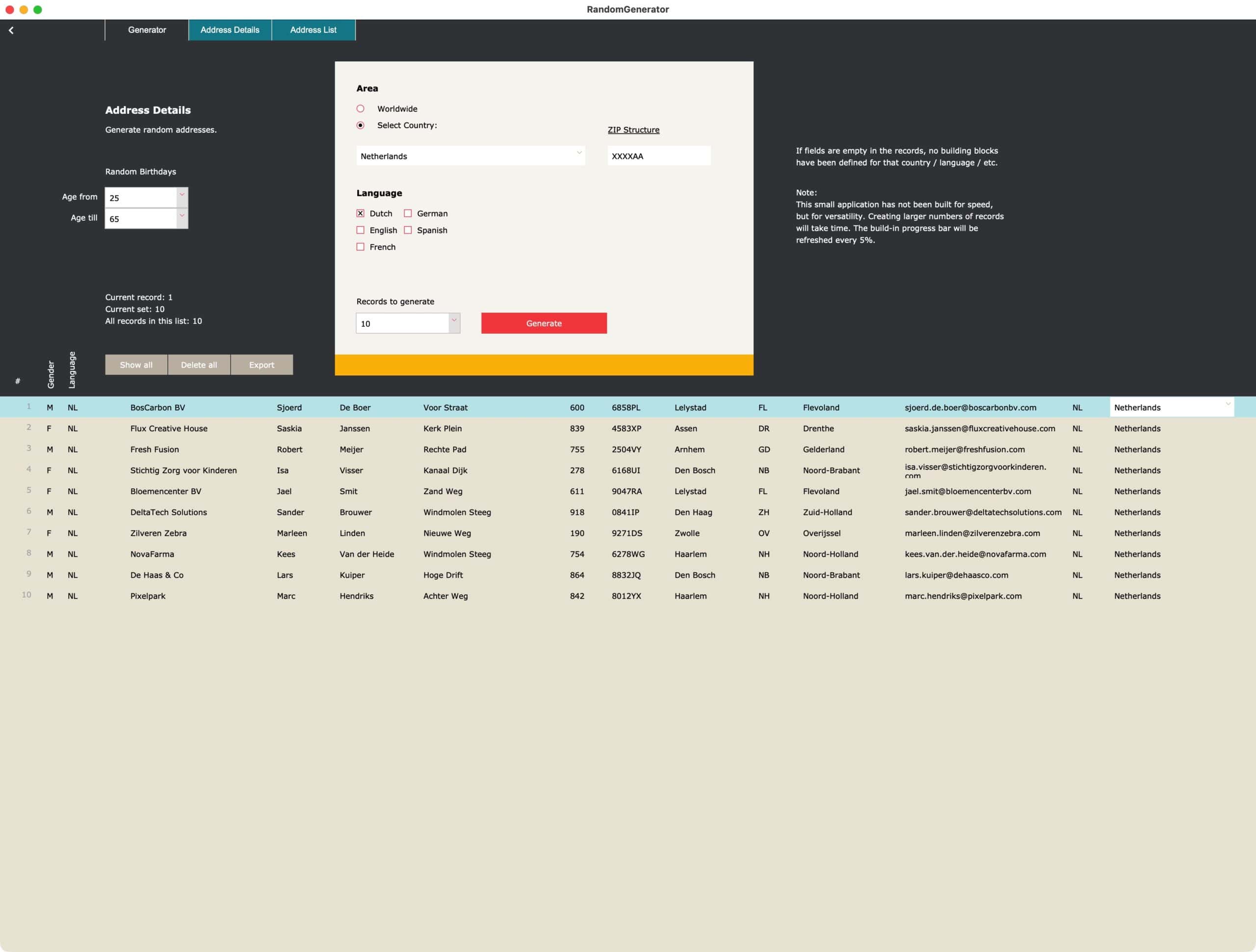
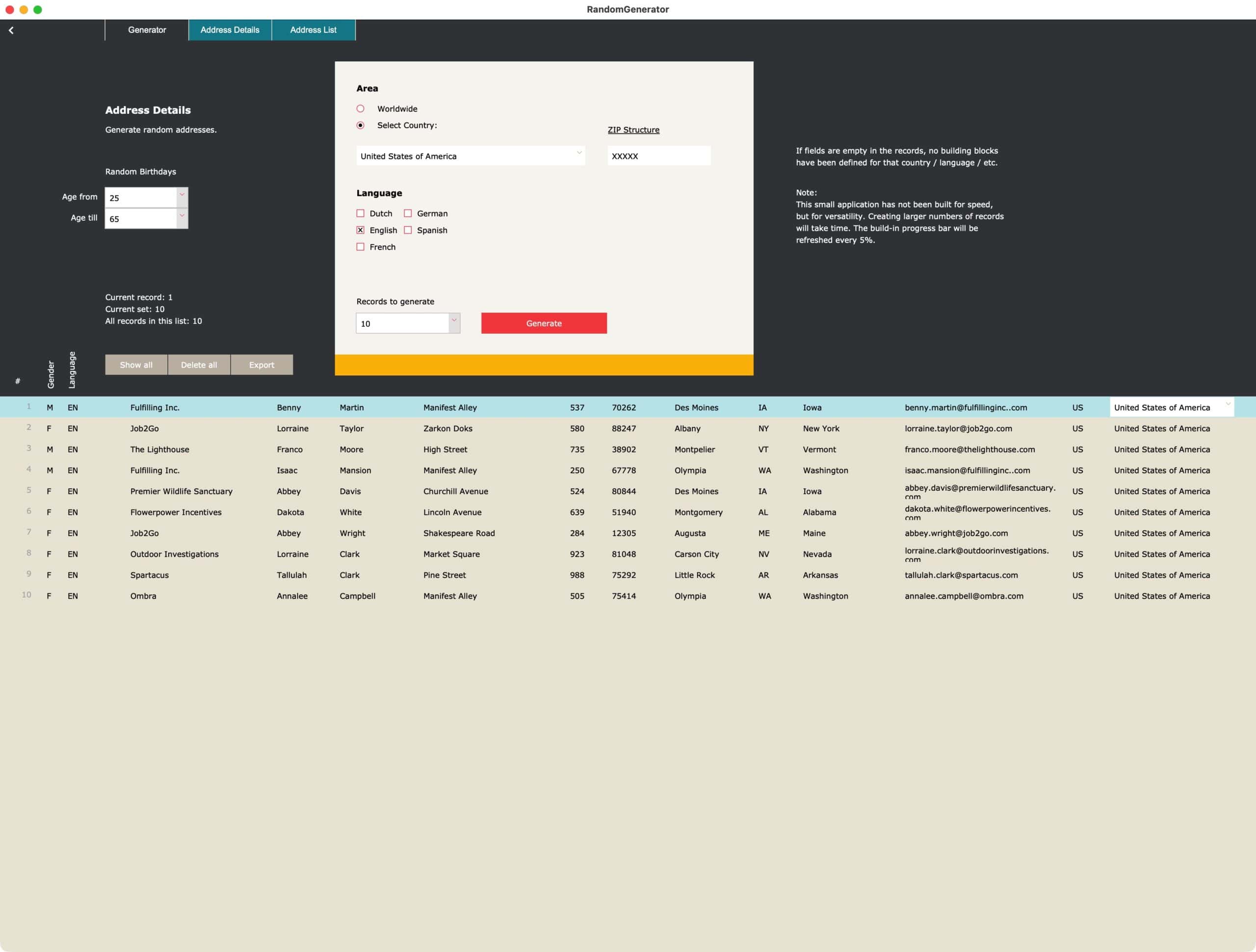
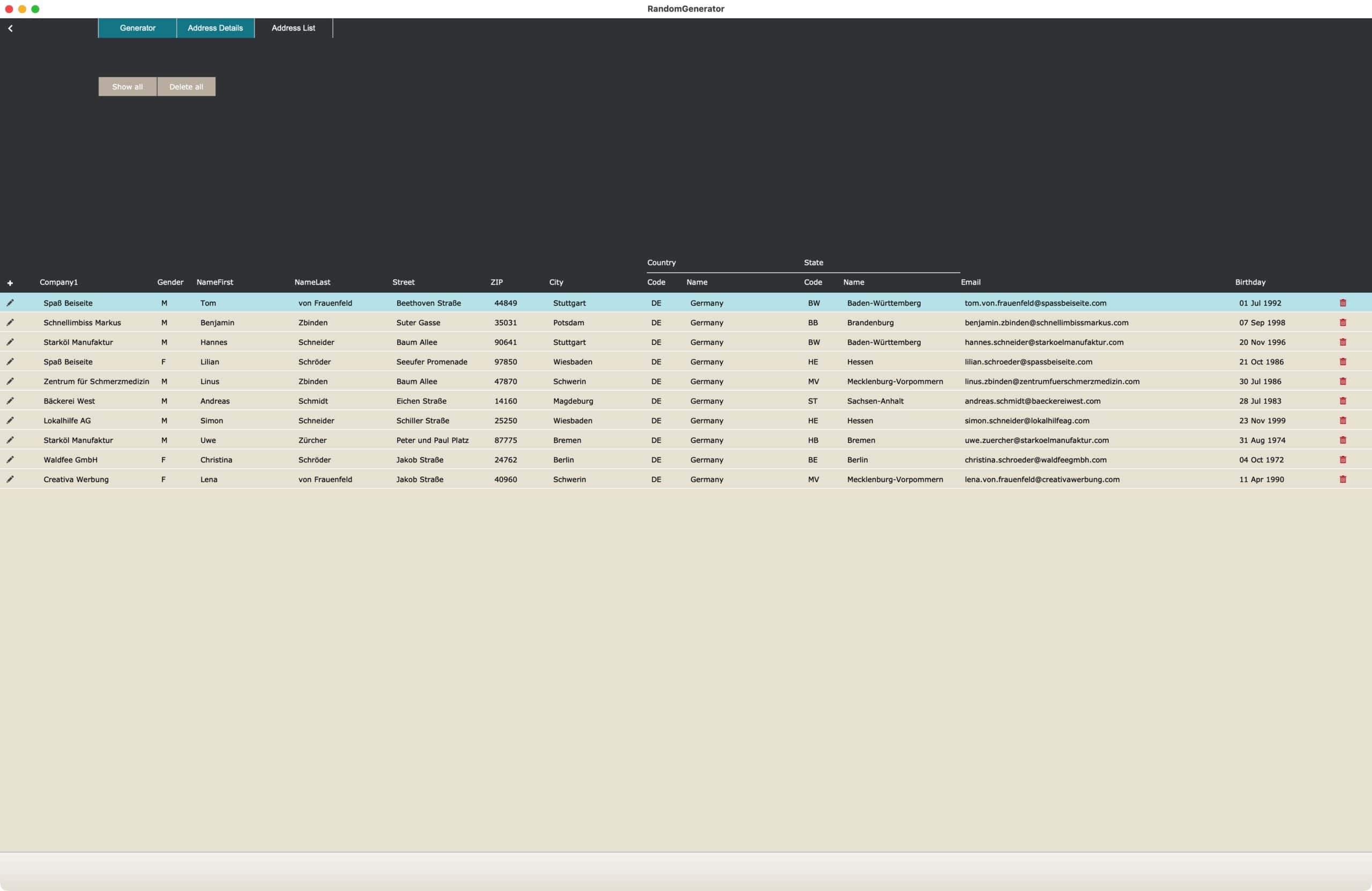
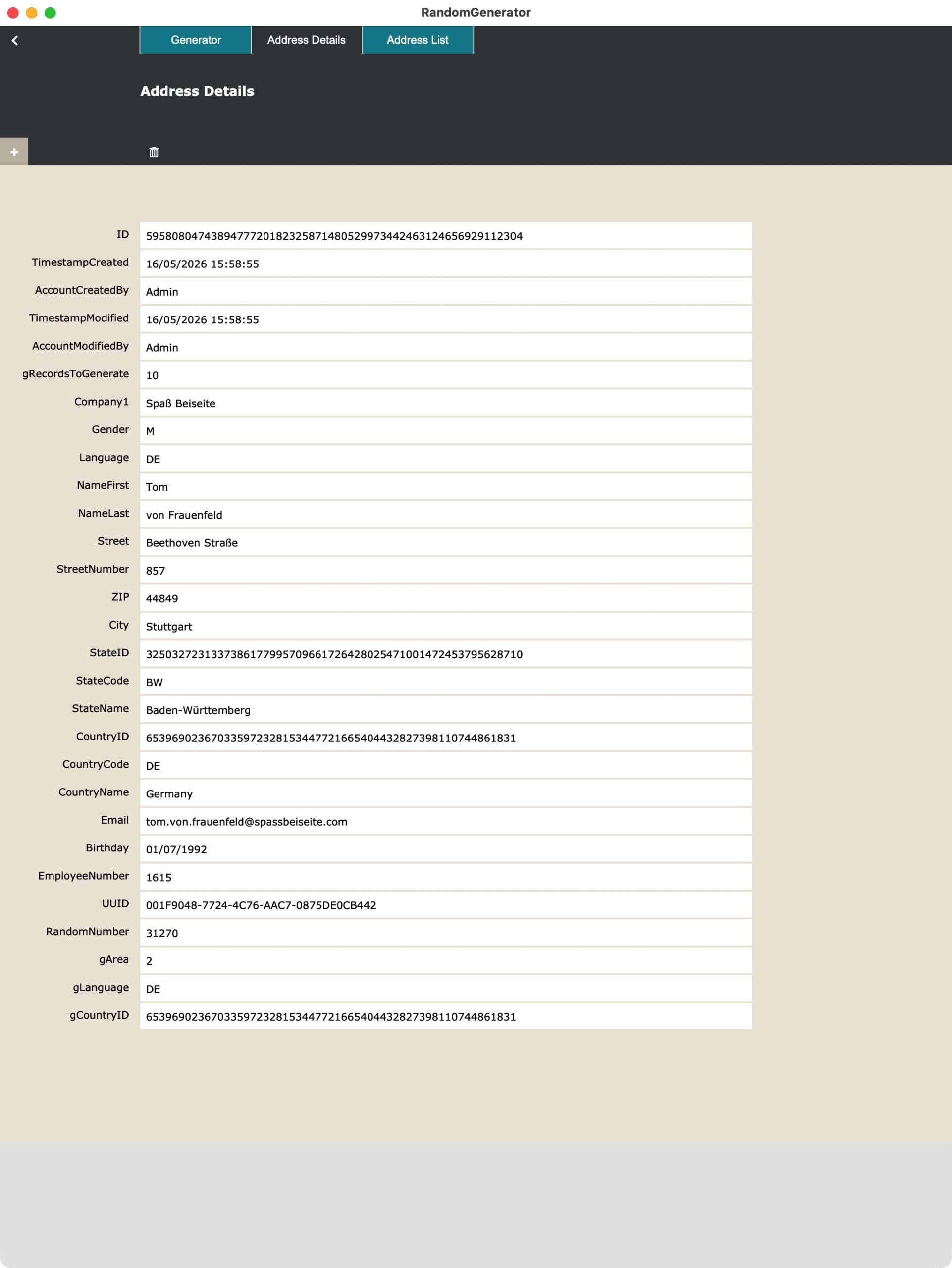
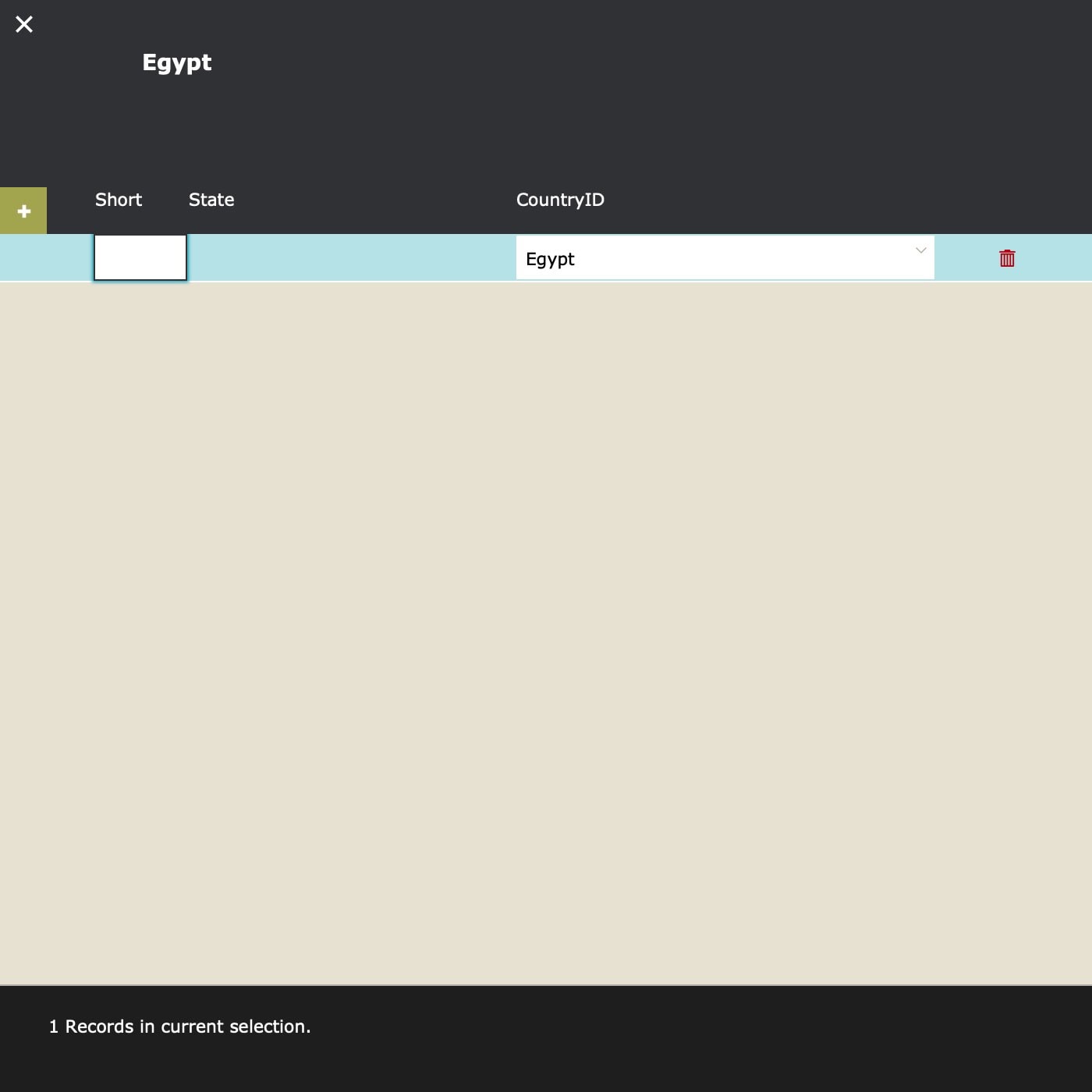
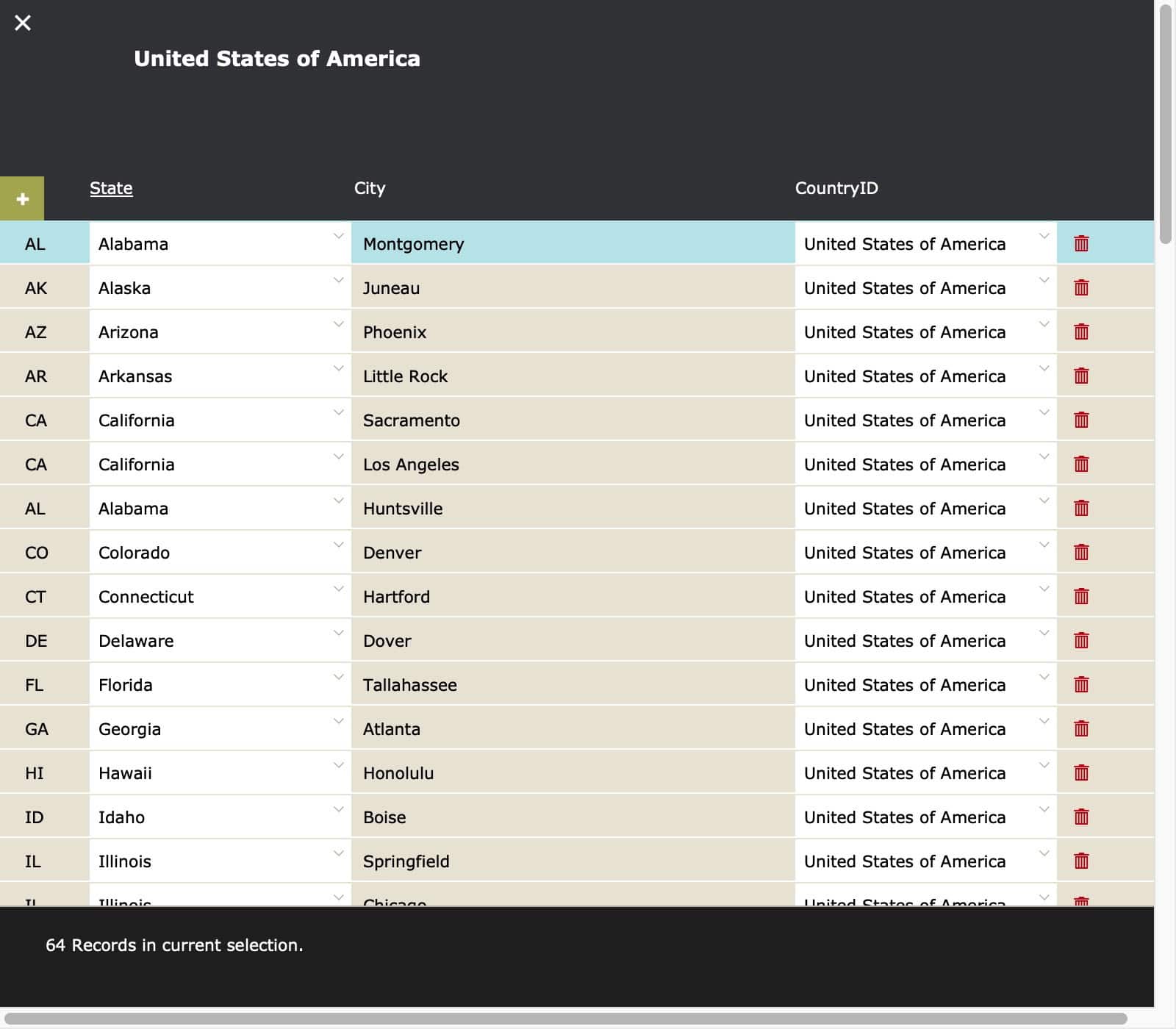
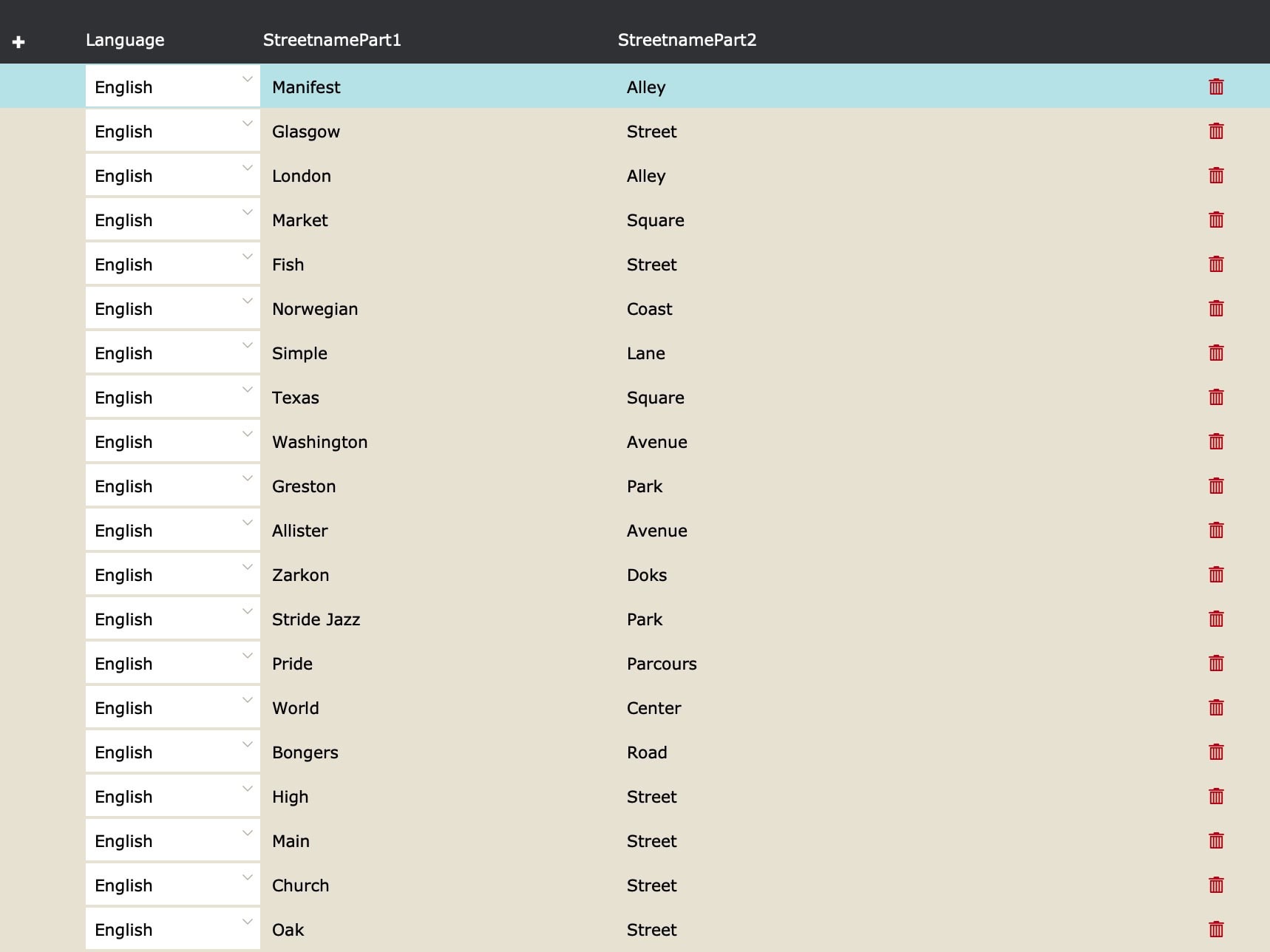
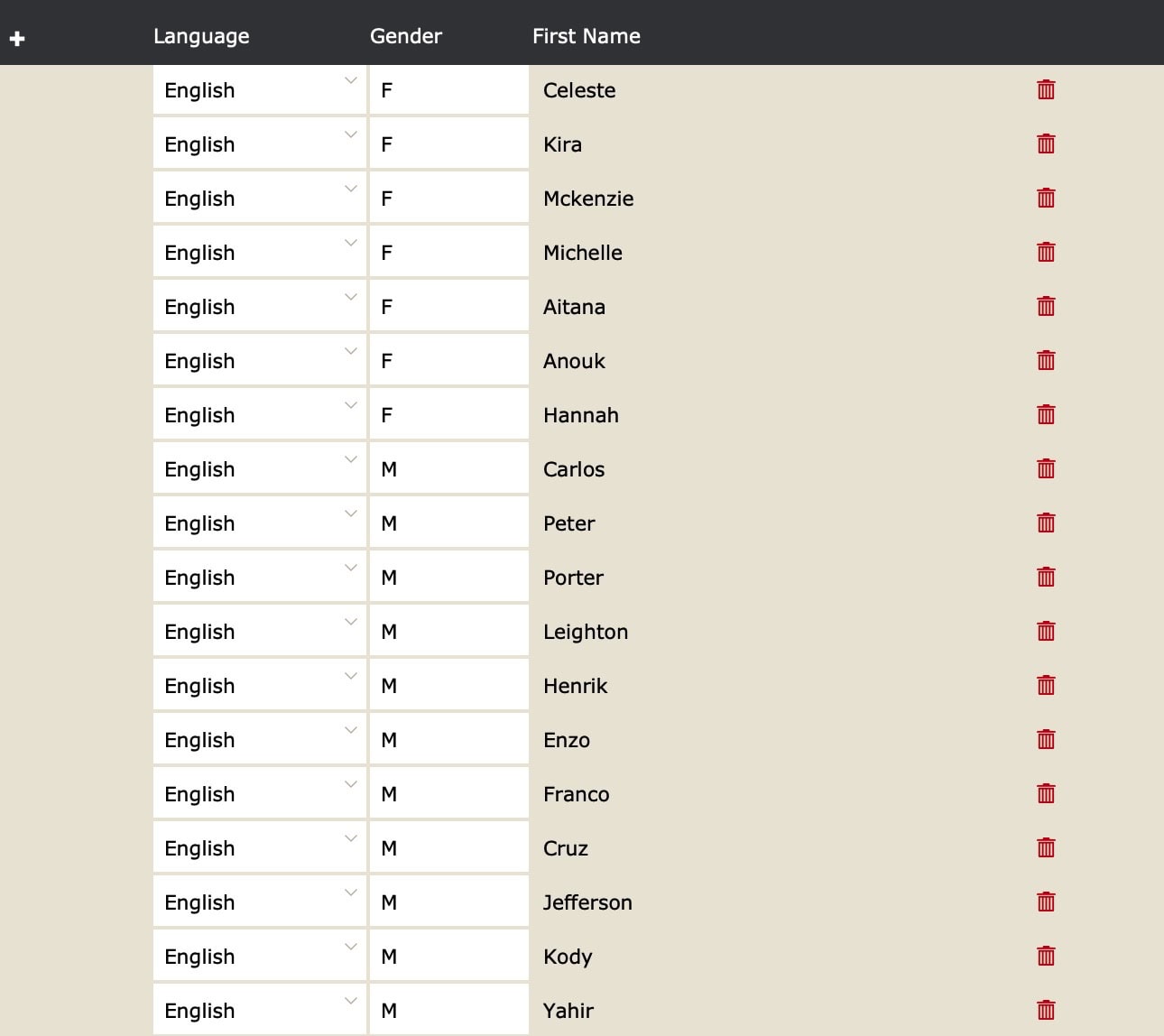
Create random data yourself, with the help of FileMaker. That was the idea behind this little tool. It shows you how you can create random addresses, which you build from the specific information and languages you need. Adapt if you need to adapt. Create new options, as you have a need for it. You can manage, edit, create random data at wish. This might not be the fastest option, but who cares? You need good examples, fitting your needs. That’s what this file is about.
Create building blocks, then randomize
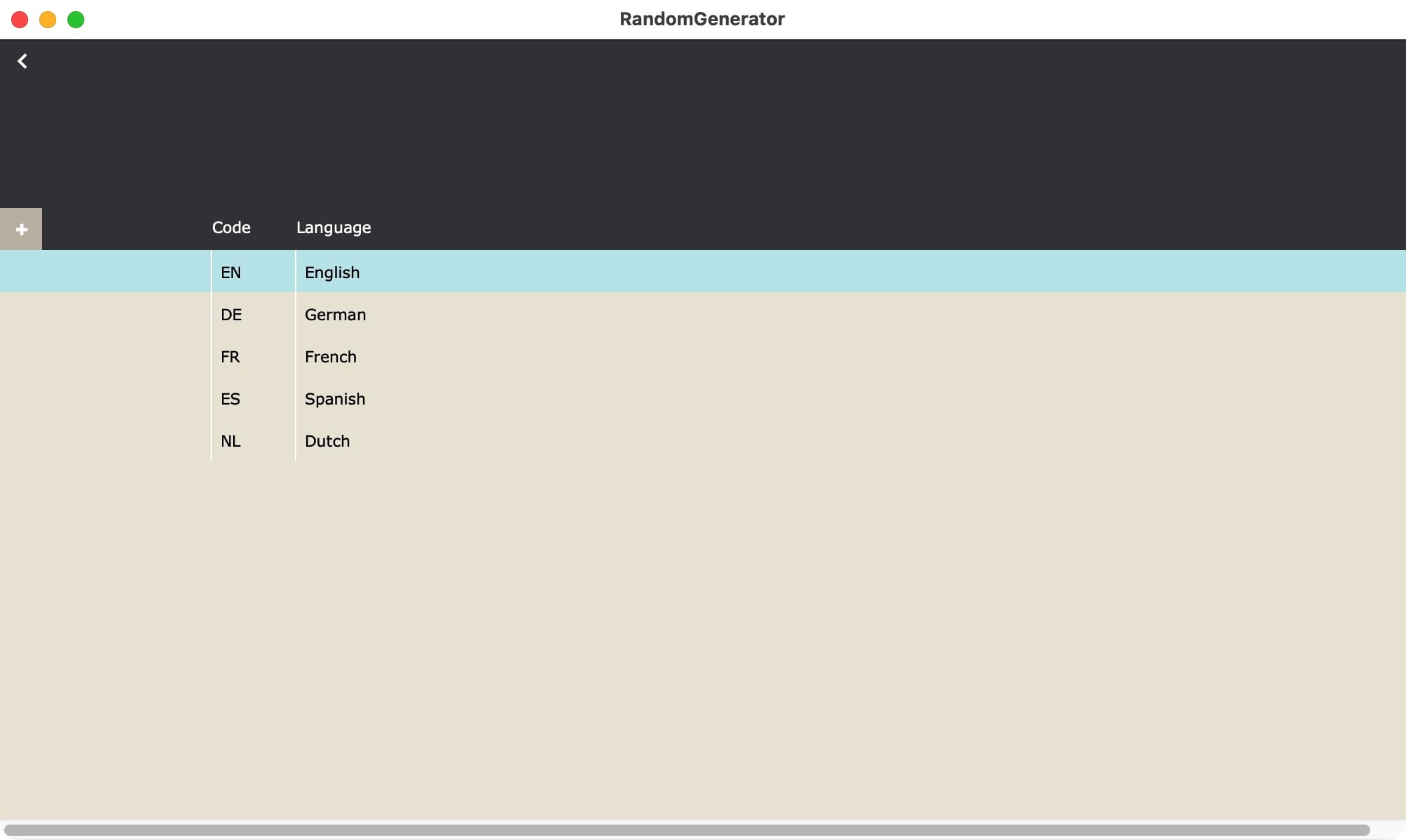
The concept is quite simple: Create building blocks as a basis for variety. Think of countries, genders, languages. Then you can create more complex building blocks, like “female english first names” or “german street names”. Once you have lists in the desired languages, you can randomize the data from these lists, while you build a set of random data.
ZIP Codes
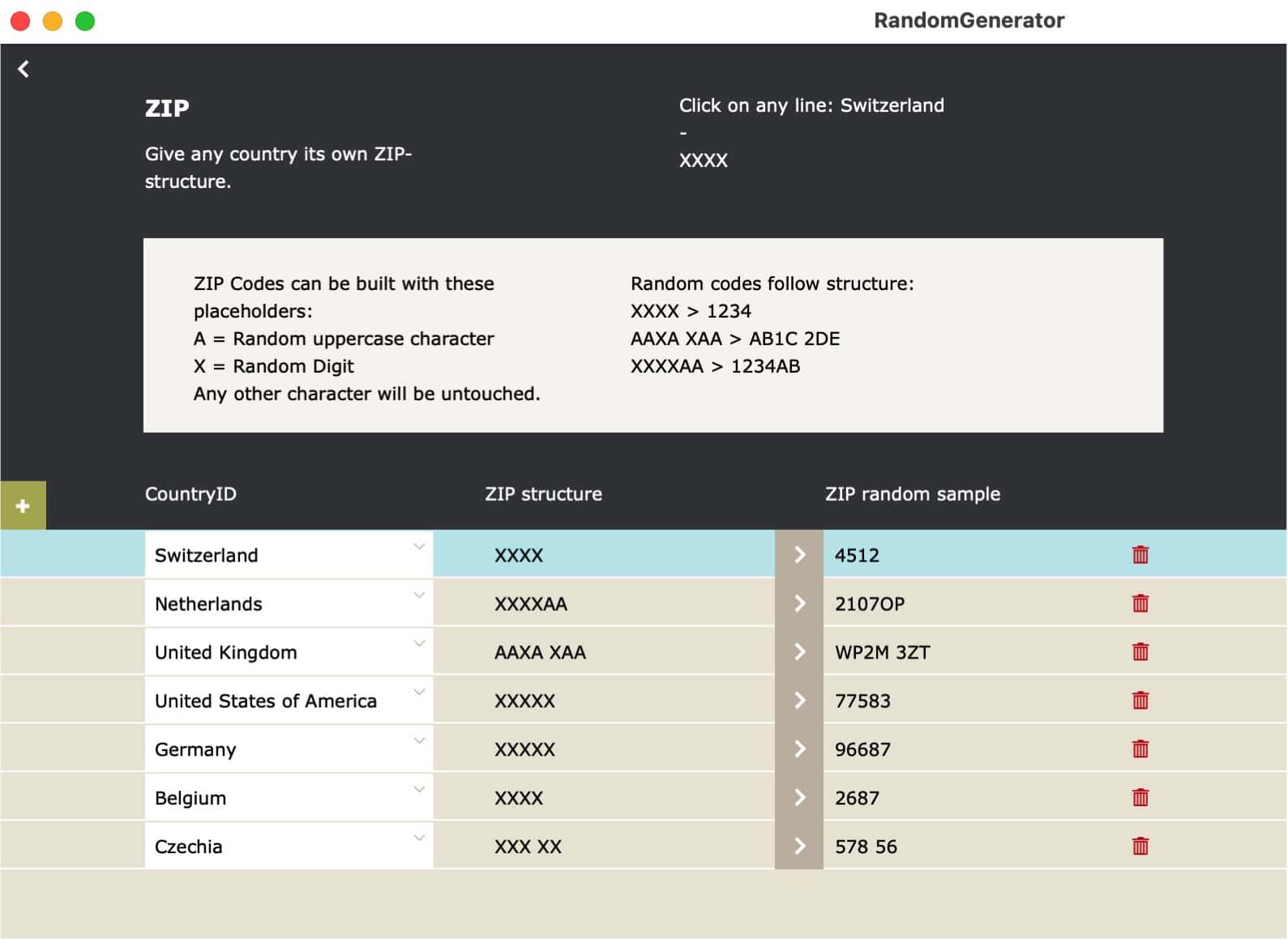
One of the building blocks is about the ZIP codes. You create the structures you need for each country you need. Whatever kind of ZIP Codes you need to make, setup a structure and it will be filled with random data.
Age range
When creating addresses, a random birthday will be set. You can now create an age range, within which the random birthday will be generated.

Adapt this to your needs
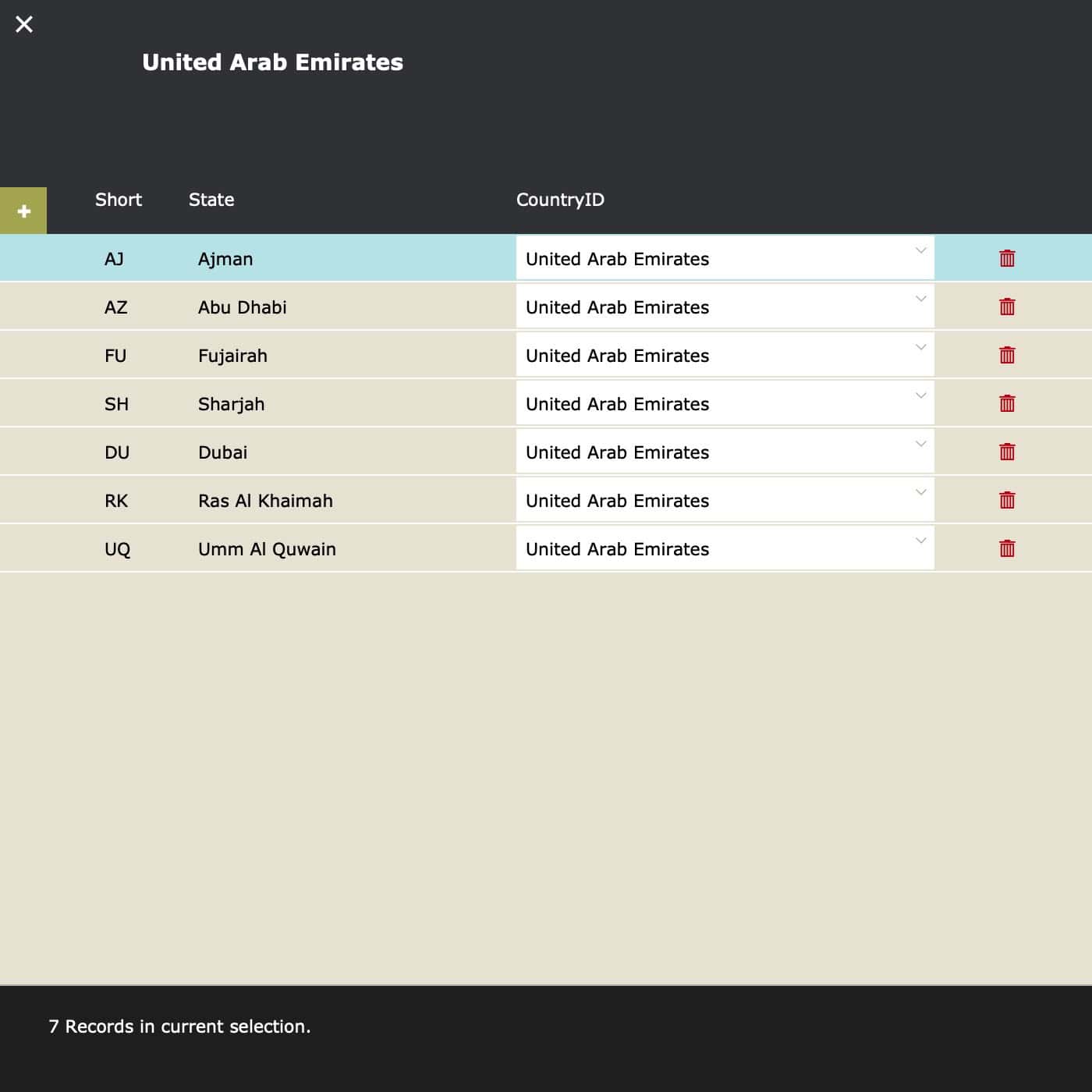
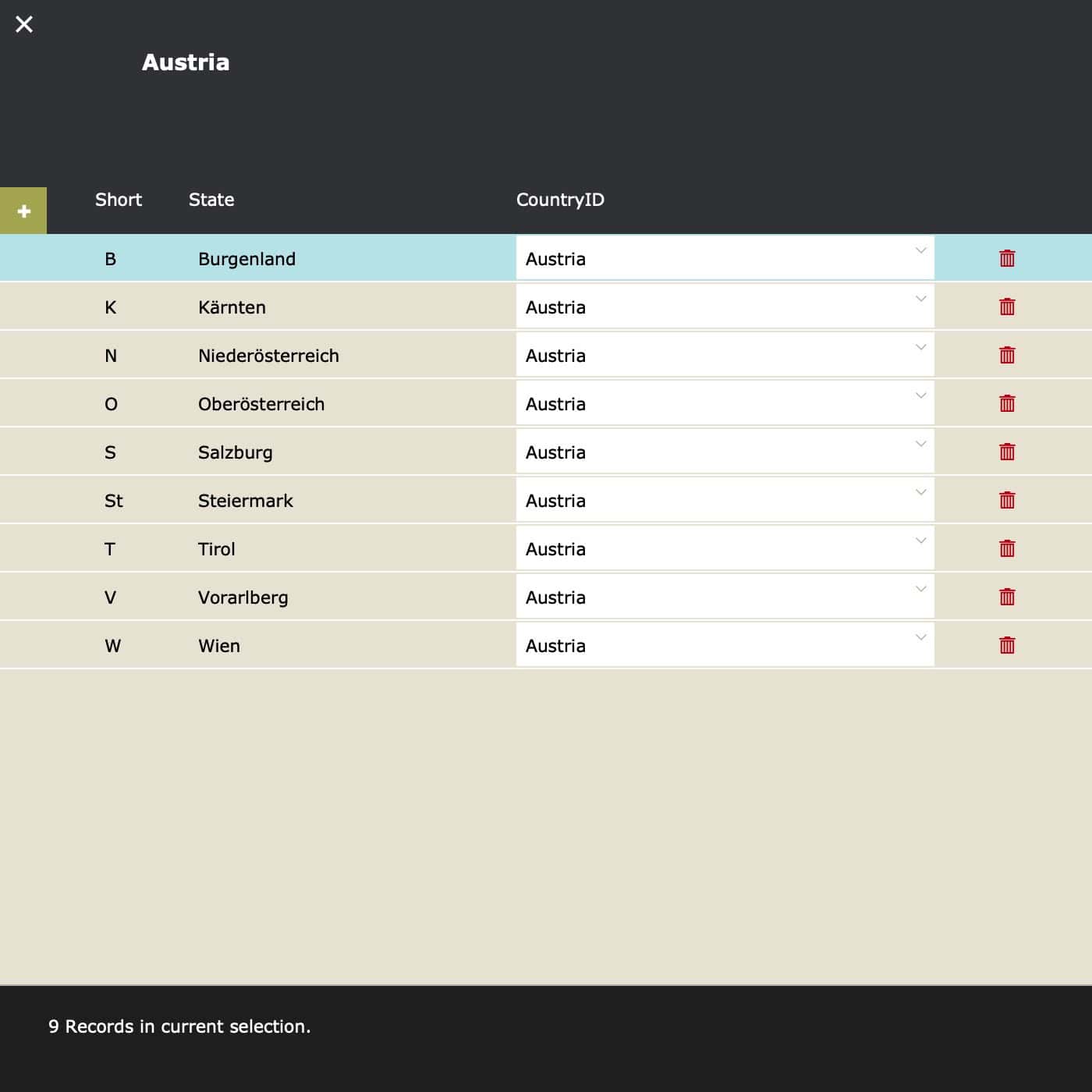
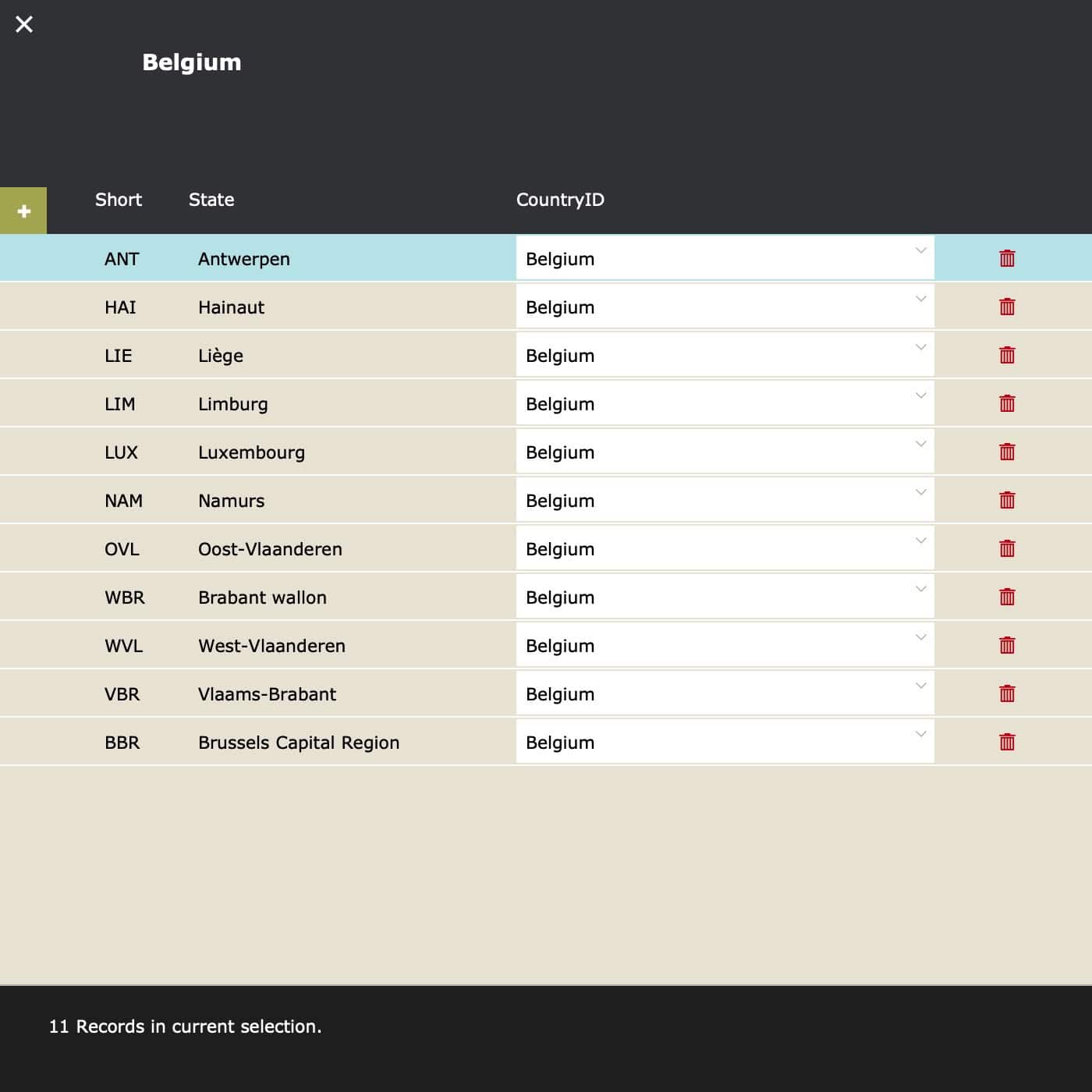
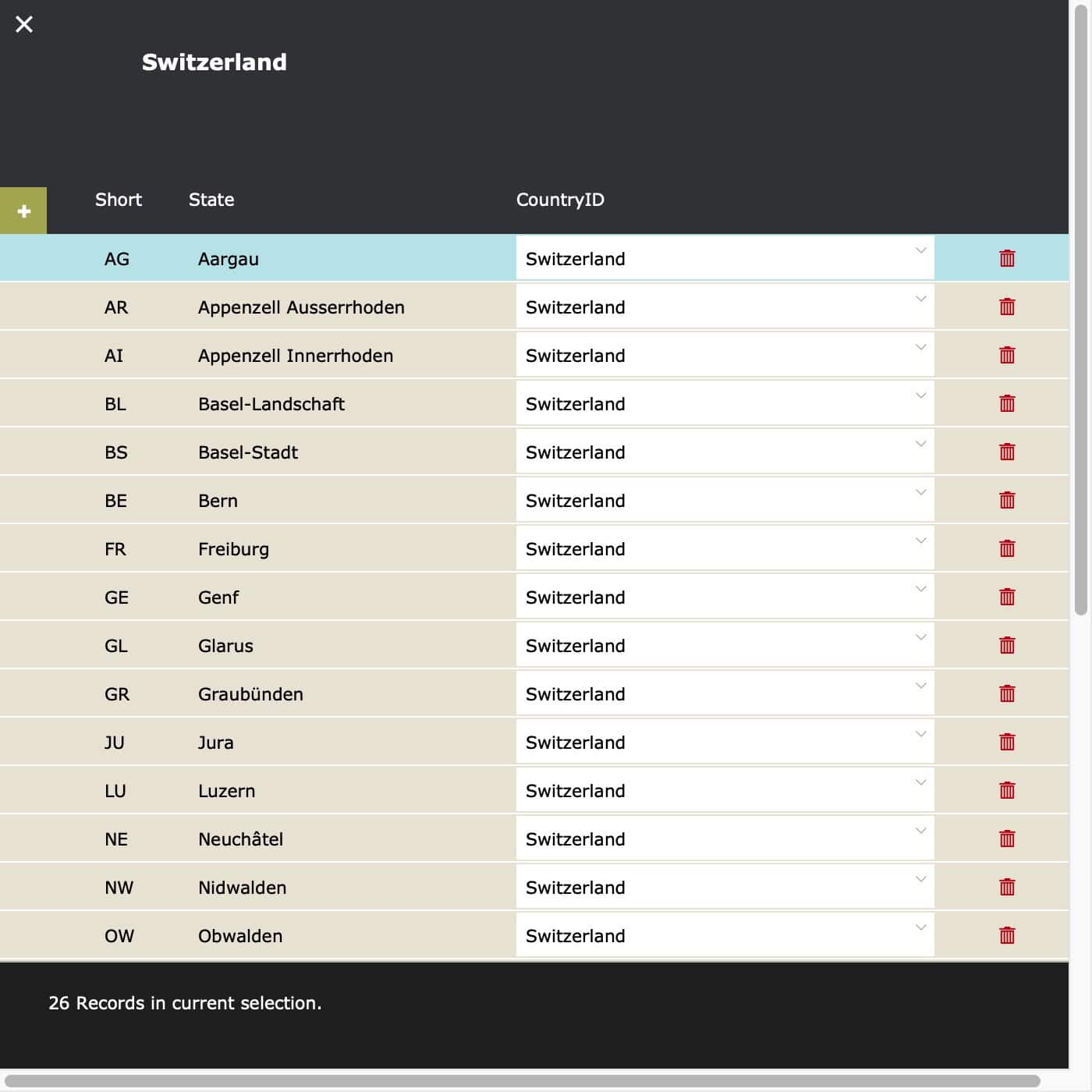
We do not know where you live, what languages you speak or need and what it takes to create a perfect set of random data. For example: Each countries has districts, provinces, states or similar. In each state there are cities and villages. We have filled out some information for a few countries, but you know best what is needed for you. If you want to create your own set of data, build it step by step. We have filled out some data to get you up and running. Now adapt the solution to your needs by adding missing parts or optimizing the scripts.
It’s like magic.
Email does not work?
We are happy to send out free content, but sometimes require you to provide a valid and personal email address. This excludes free, gibberish, or discardable email addresses. We were forced to take action and tighten rules, as we were flooded with hundreds of fake addresses. Usually, a business address works well, as long as it is personal and not a generic address (like info@ or tech@, which are considered unsafe). We will then send you the download link or subscribe you to our newsletter, whatever you applied for. Enjoy your benefits.
DateFormatting
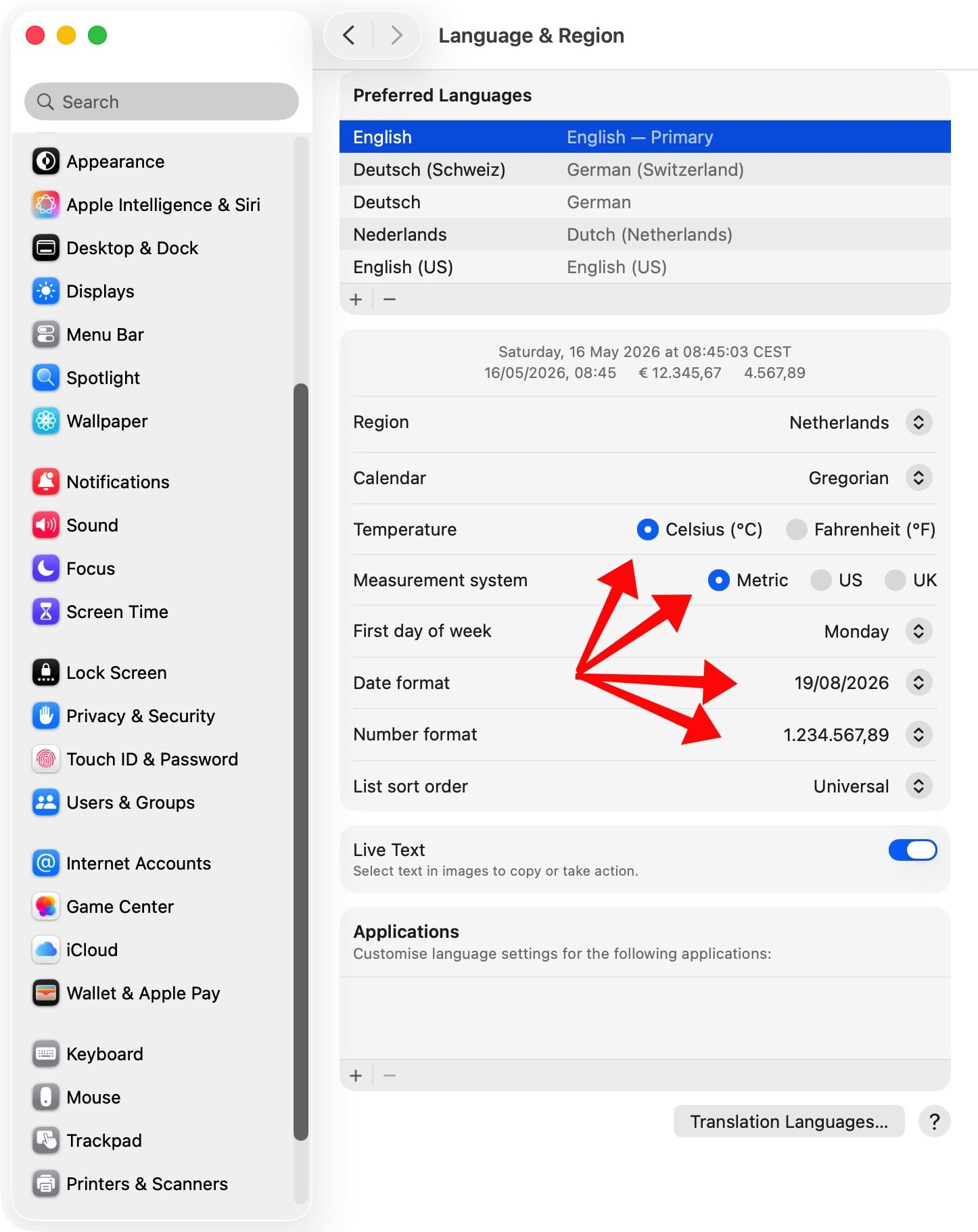
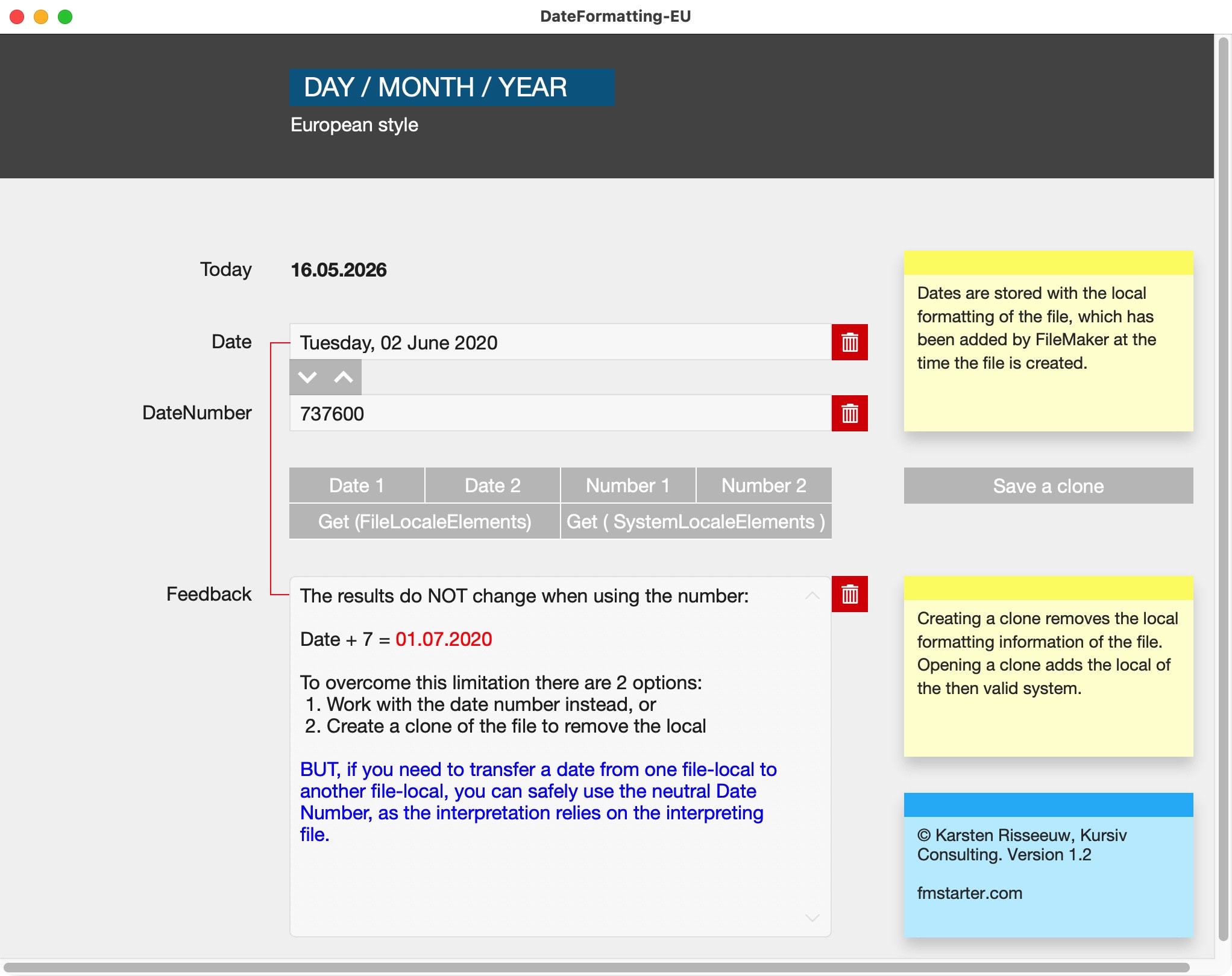
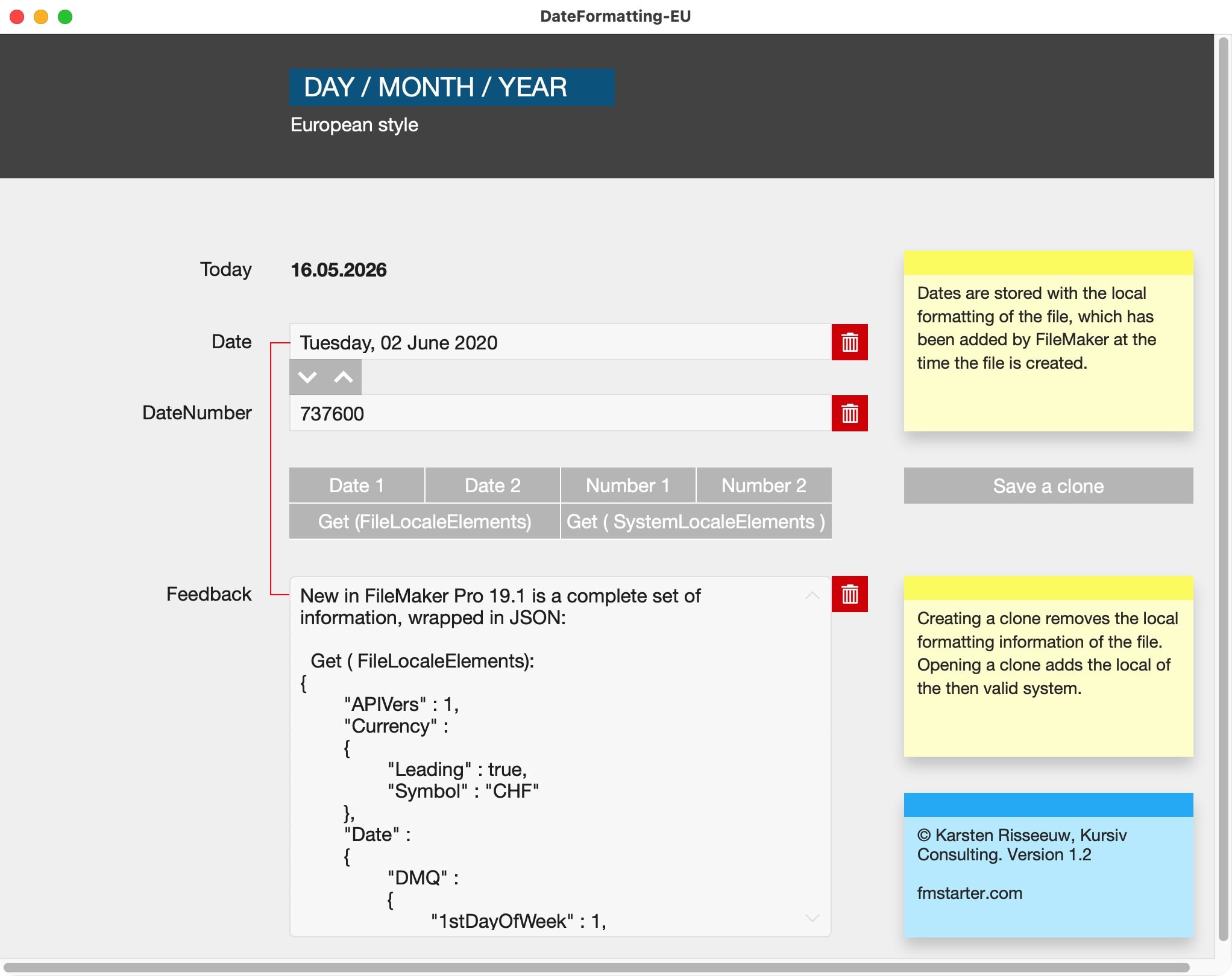
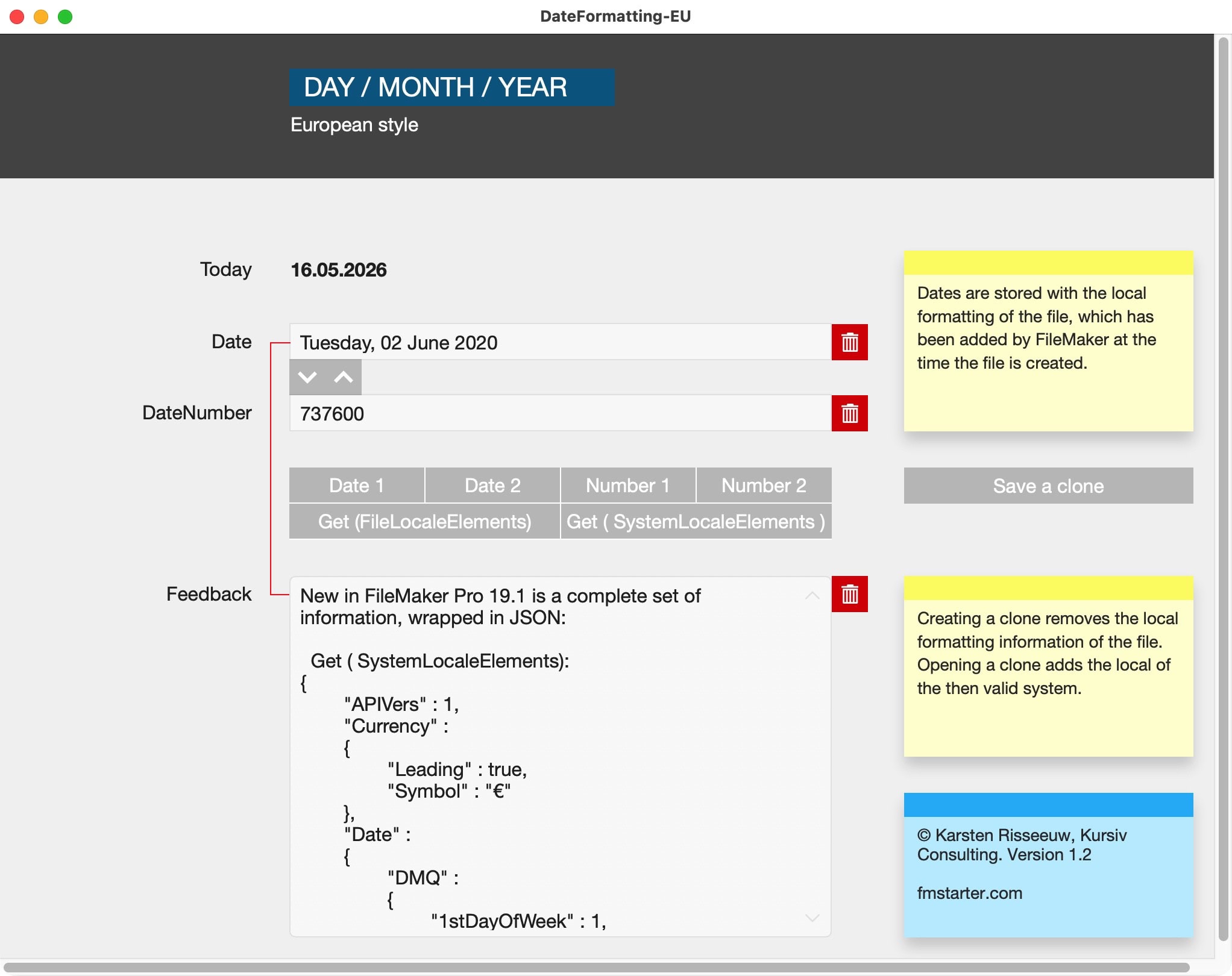
Dates in FileMaker rely on a local setting, the “locale”. This setting is added when a file is created or when an empty clone is generated for the first time. Which setting is used is dependent on your system settings. This has quite important consequenses for the way calendar dates are handled. This file shows you how you deal with it. Save the date!
The locale
The locale in any FileMaker file describes how certain information is used, saved and displayed. The result numbers or dates might create unexpected results in calculations and display.
The locale is set when you create a new file or open an empty clone.
The locale can be removed by saving a file as an empty clone. It will be reset when that file is opened.
The locale gives FileMaker a fixed point to relate to. That makes sense, as some settings differ widely across the world. To make a FileMaker solution work across the world, this file shows you what to look for.
Date as Number
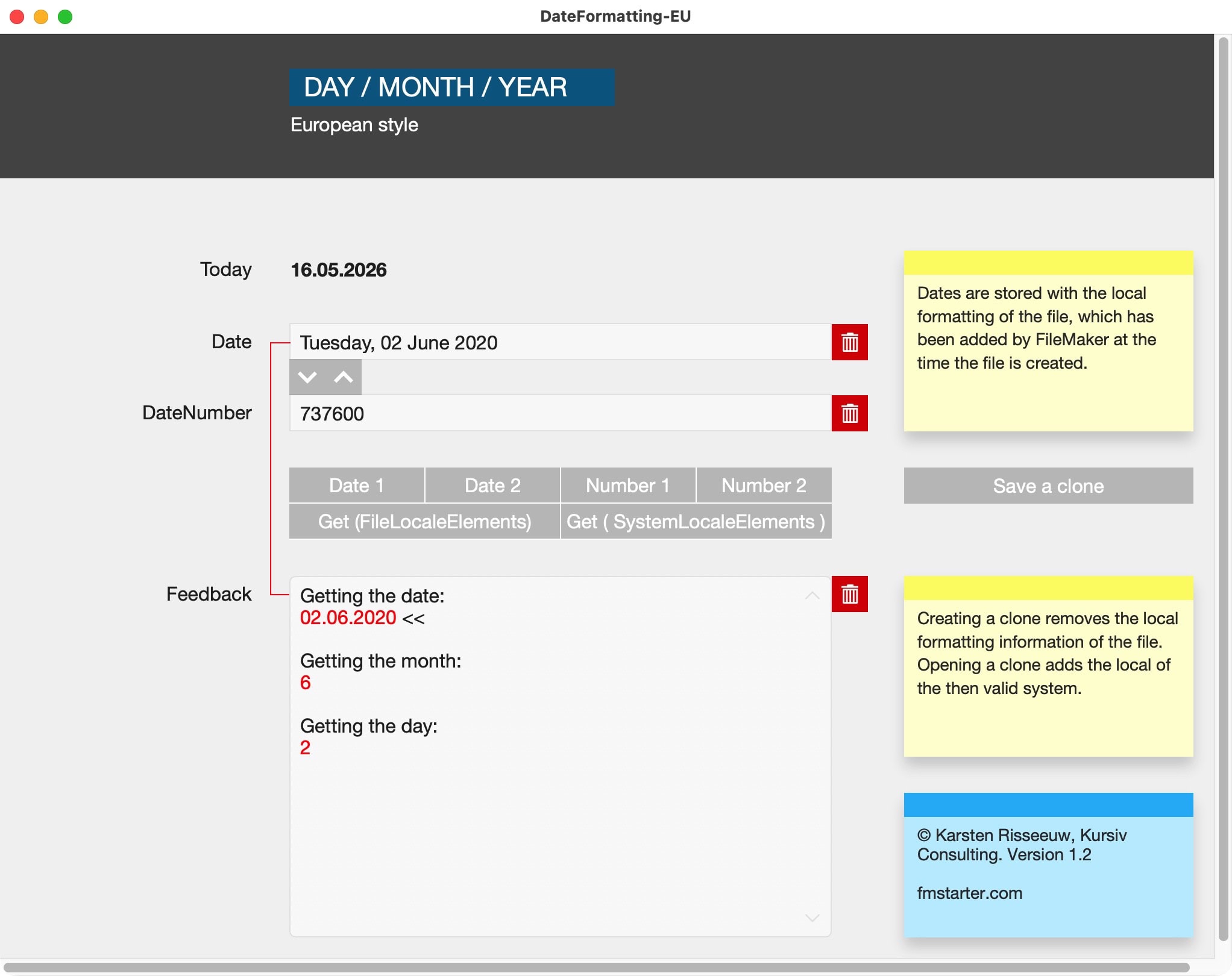
FileMaker has a function to get a date as a number (SetField (text or number field): GetAsNumber (Date field) ). This overcomes the limitations of any locale, as it gives the number of days since the dawn of time, so to say. That “dawn of time” is the first of January of the Year “1”. It is easy to use that number for calculations or to recreate a date from it (use the function: GetAsDate).

Experiment
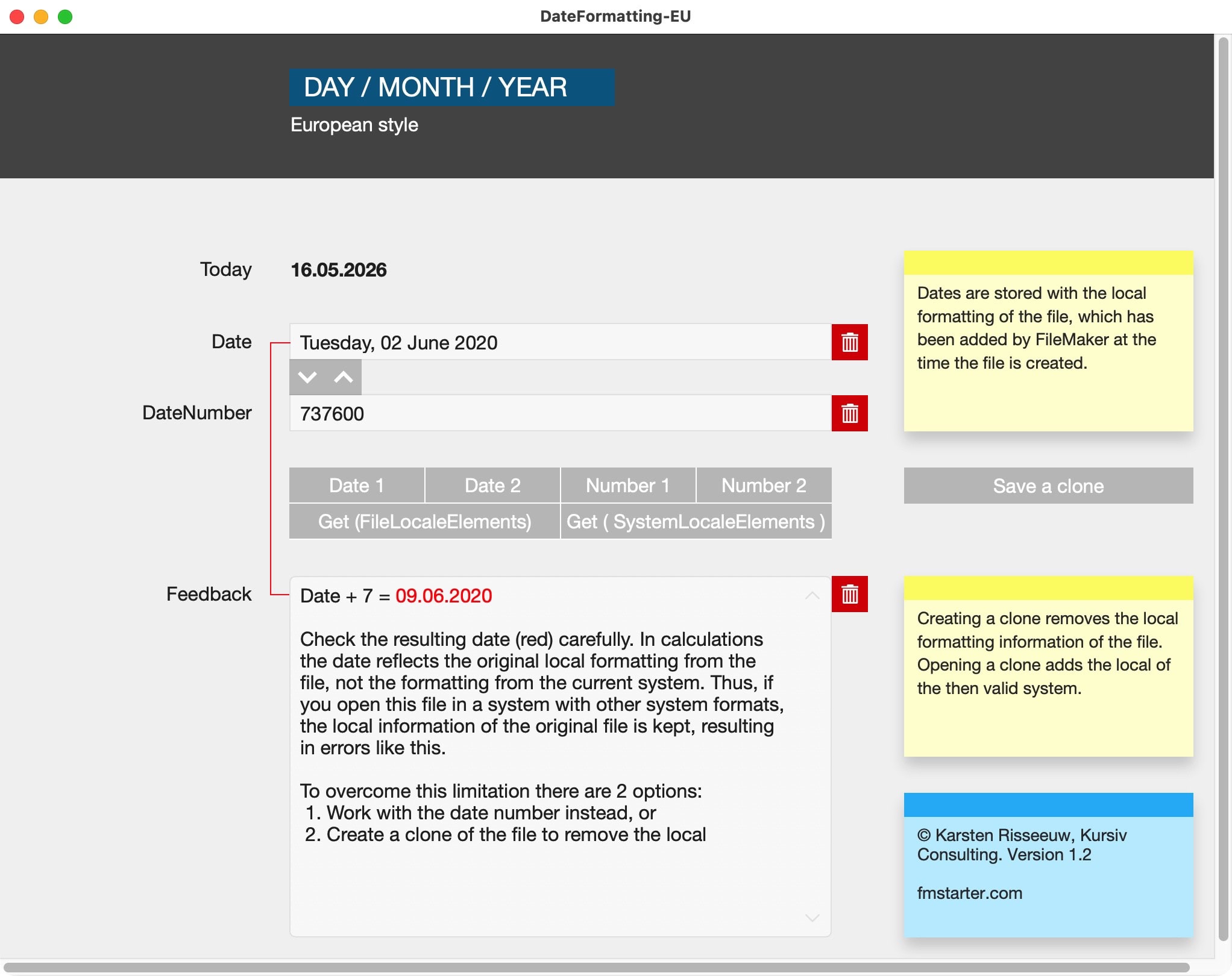
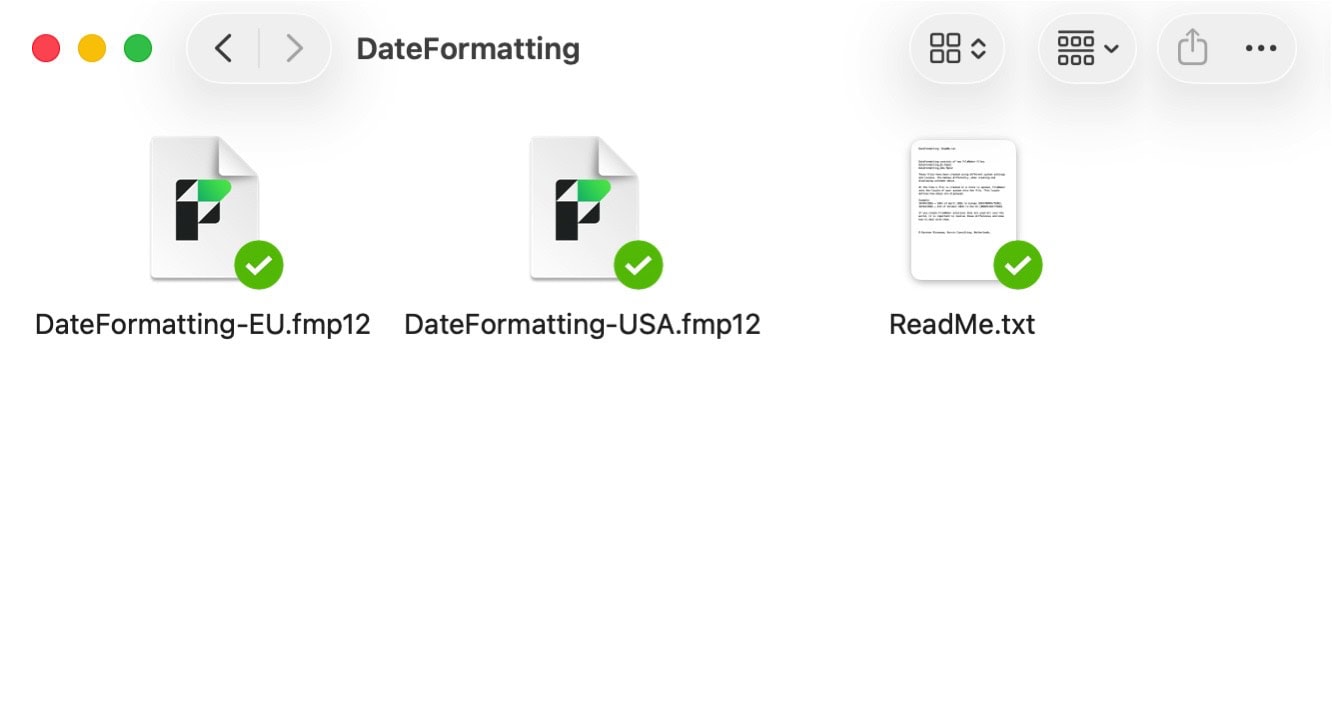
Use the files of this example to understand how it works, then apply to your solution(s).
Sample file for FileMaker Pro 20 or newer to explain date formatting in FileMaker and the use of functions to overcome limitations of any locale.
GetHelp
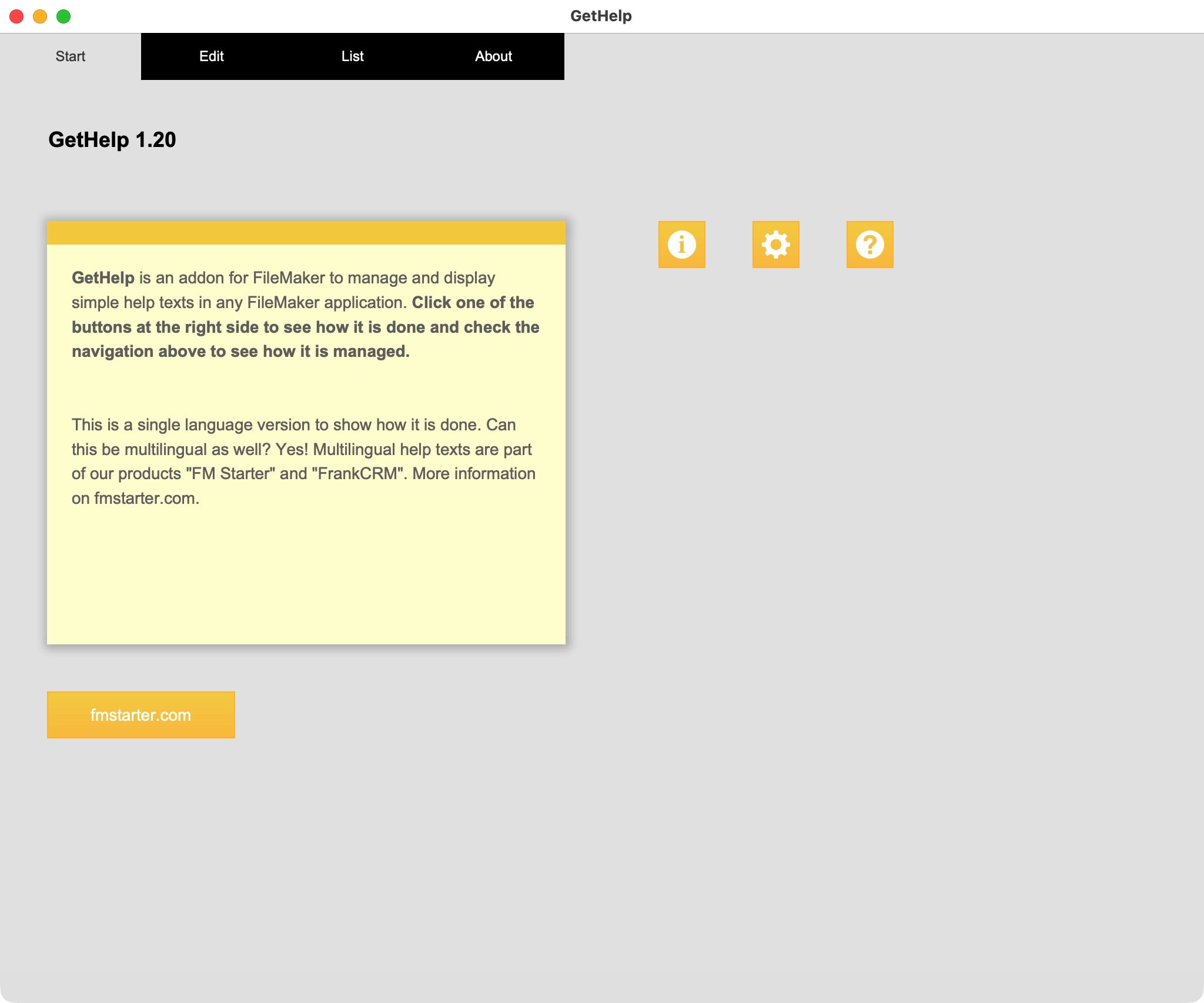
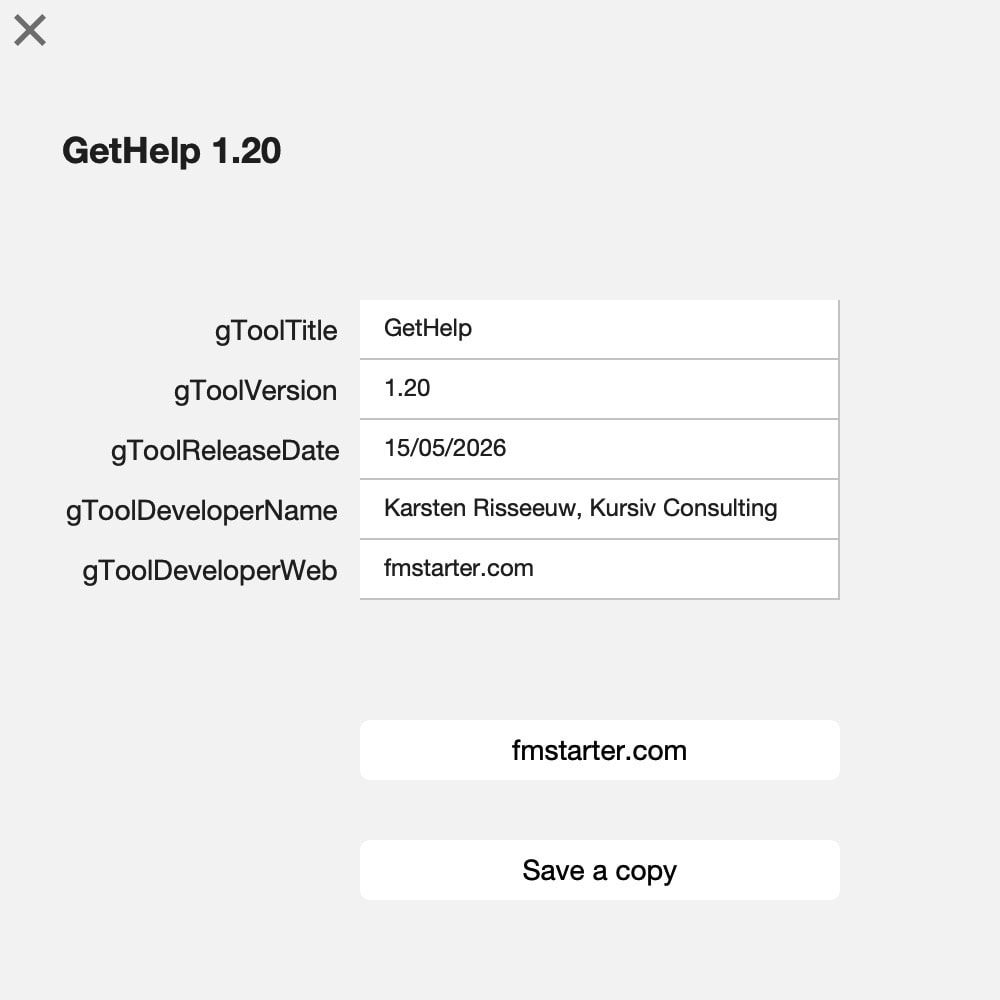
The GetHelp addon is a help system for your Filemaker solution. Instantly added, it helps you to create help texts which are visible and can be used anywhere in your solution.
Purpose
The GetHelp addon is a help function you can use anywhere in your FileMaker solution. Add he addon, then add your help texts to a table and display the text with a single script and parameter. Simple, useful, exactly where you users need your help.

Add the addon to FileMaker
The GetHelp addon must be imported first.
- Download the addon from fmstarter.com
- Unzip the archive
- double-click the fmaddon-file. This file will install the addon for you.
- Restart FileMaker. This will reload available addons and make GetHelp accessible.
- Open any file, switch to layout mode
- In the left panel, select the Addons tab.
- At the bottom of that tab, click on “+” to add an addon. Select GetHelp and confirm.
- This will load the complete addon to your solution, including layouts and scripts.
The addon is now available to use.
How it works
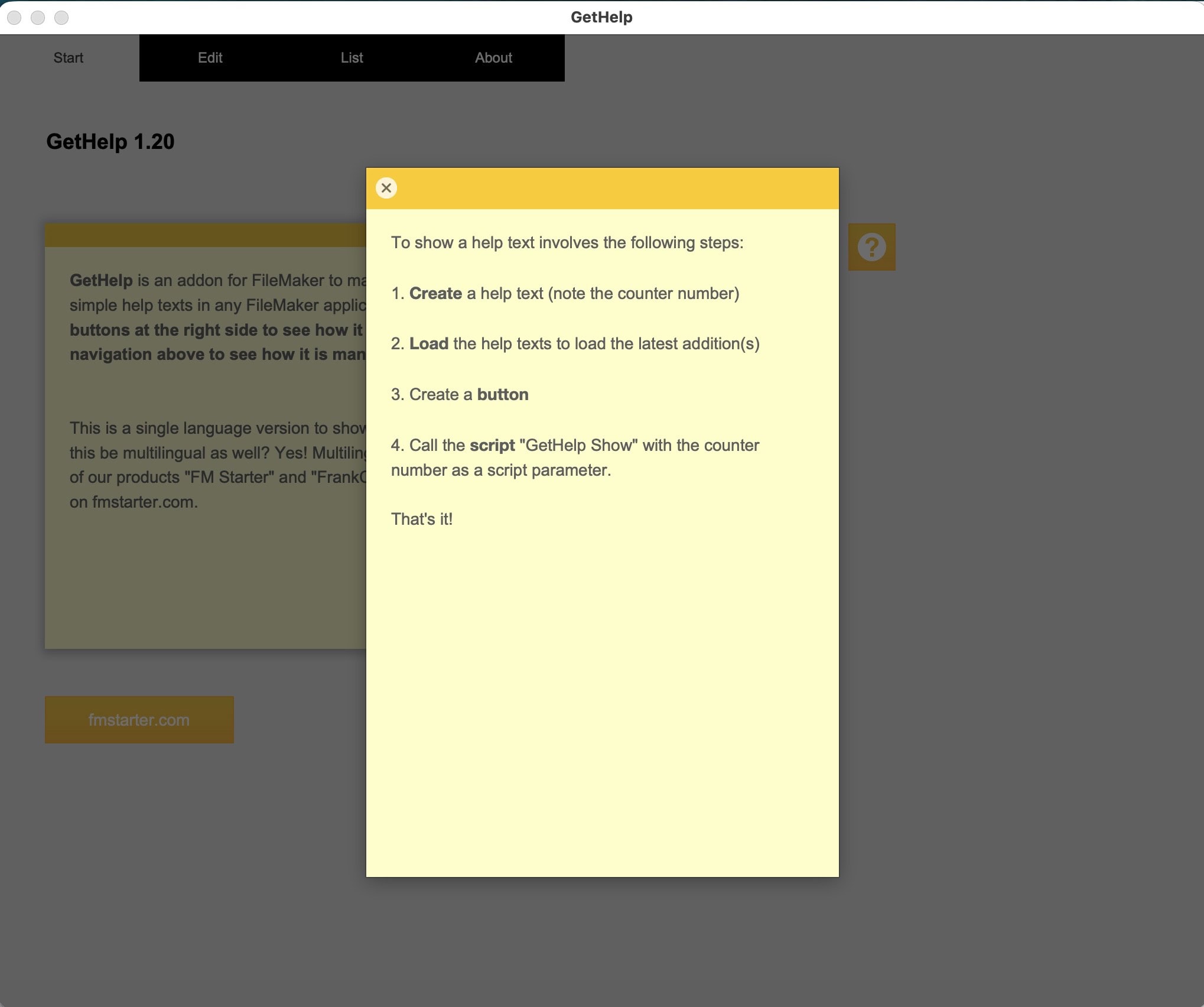
The GetHelp addon is simple to use:
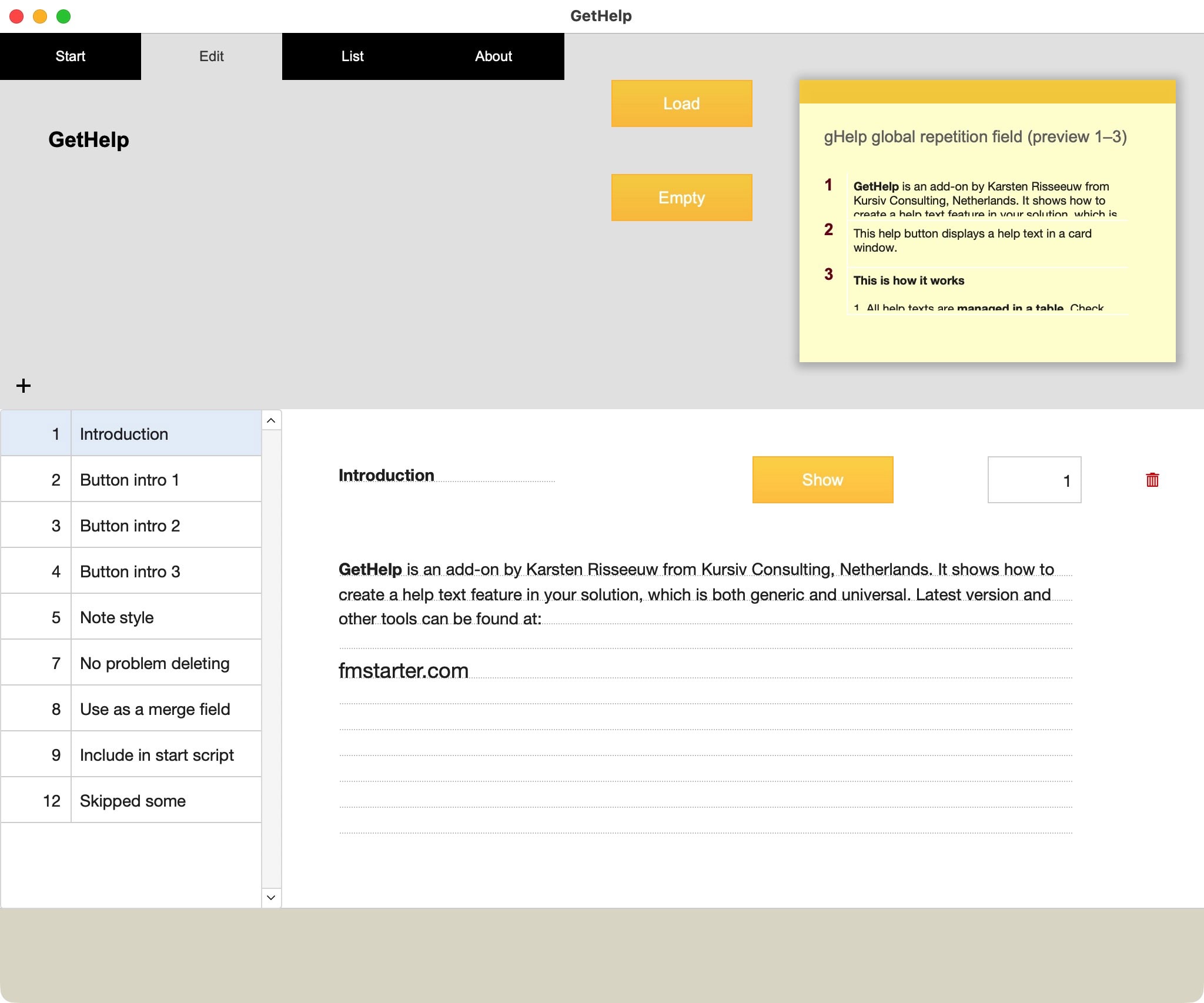
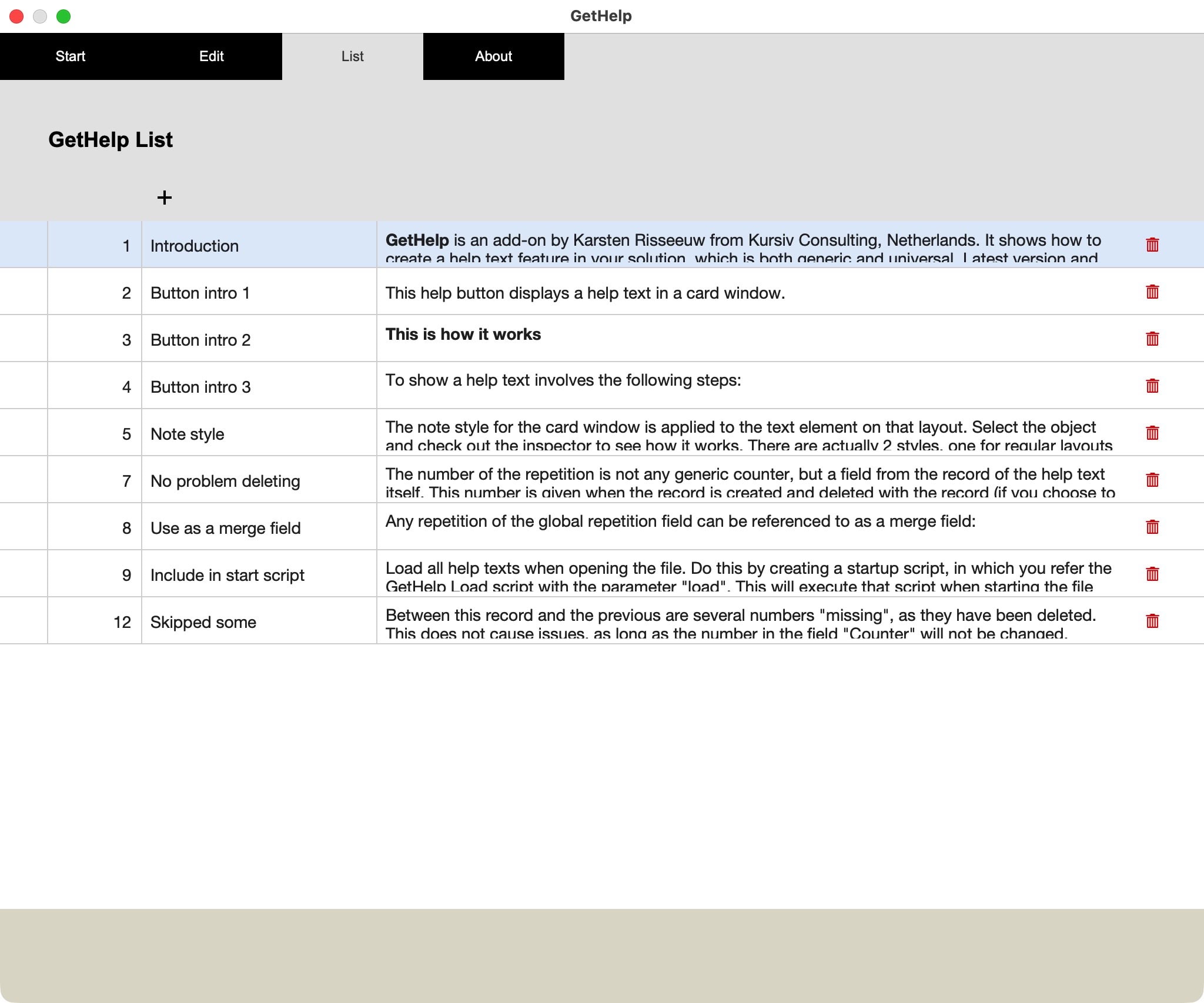
- Add your help texts to the GetHelp table
- For each record a serial number will be added to an extra field.
- Load the GetHelp into a global repetition field (Load-button)
- Each record will be saved into the repetition with the serial number of the record.
- Create a button, link to the script “GetHelp show” and add the serial number of any record as a script parameter.
- A card window will show and display the proper repetition of the global repetition field.

Alternative approach
When using a card window, it would be possible to make that card window layout to be based on the GetHelp table. The referencing script could be searching for the proper record and display that. That would work as well. The solution to load all help texts into a global variable is fast, and no searching is needed. It all boils down to a choice. If you’d like to add images to your Help function, the search option might be easier. What you prefer is up to you. The current solution is simple, neat and easy to implement. Get results instantly.
Email does not work?
We are happy to send out free content, but sometimes require you to provide a valid and personal email address. This excludes free, gibberish, or discardable email addresses. We were forced to take action and tighten rules, as we were flooded with hundreds of fake addresses. Usually, a business address works well, as long as it is personal and not a generic address (like info@ or tech@, which are considered unsafe). We will then send you the download link or subscribe you to our newsletter, whatever you applied for. Enjoy your benefits.
Select files in FileMaker
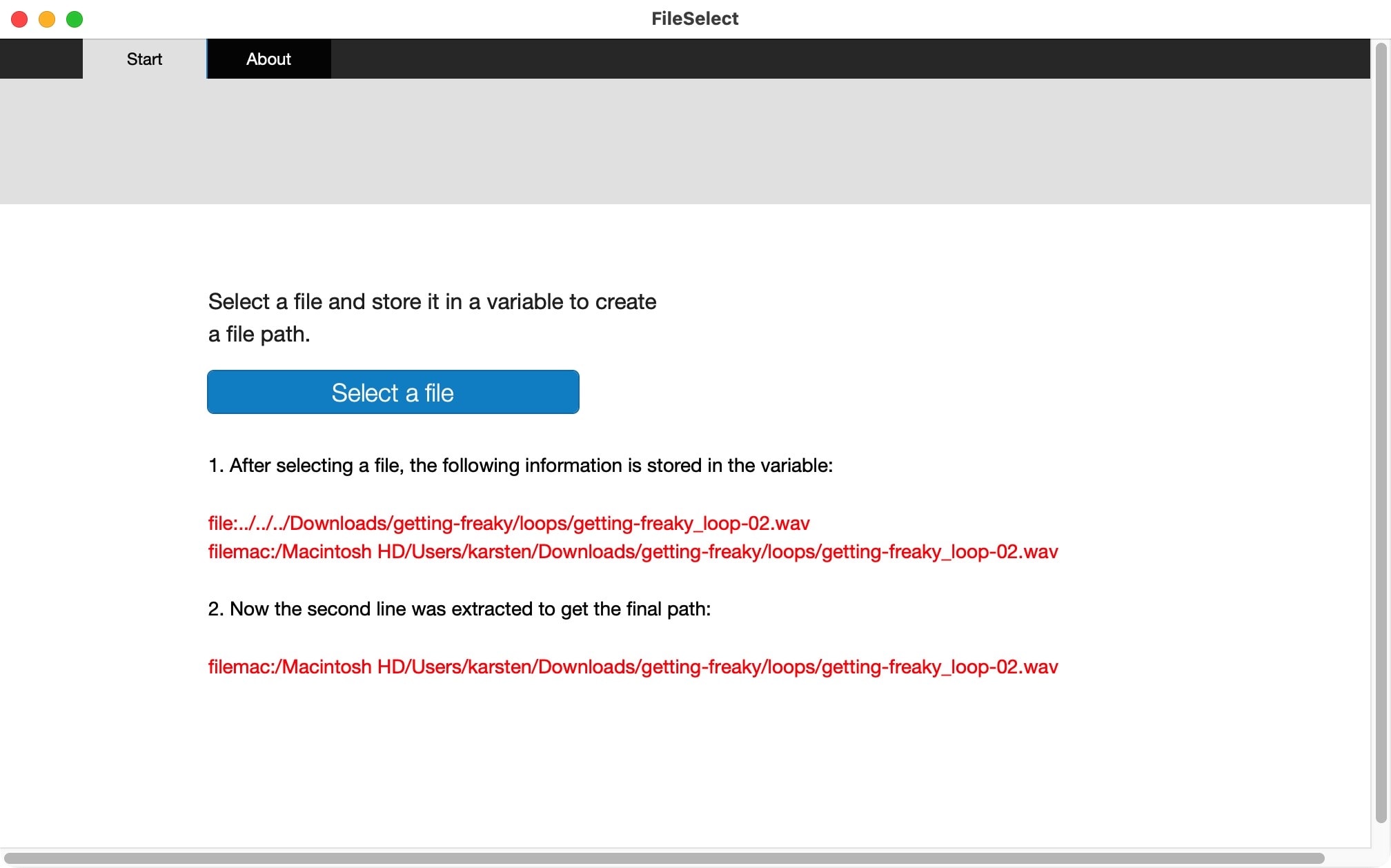
How to get a file path from any file? This sample file shows a simple way of achieving this. Of course this also can be done with plugins and probably more convenient, but this is one way to do without.
Step by step
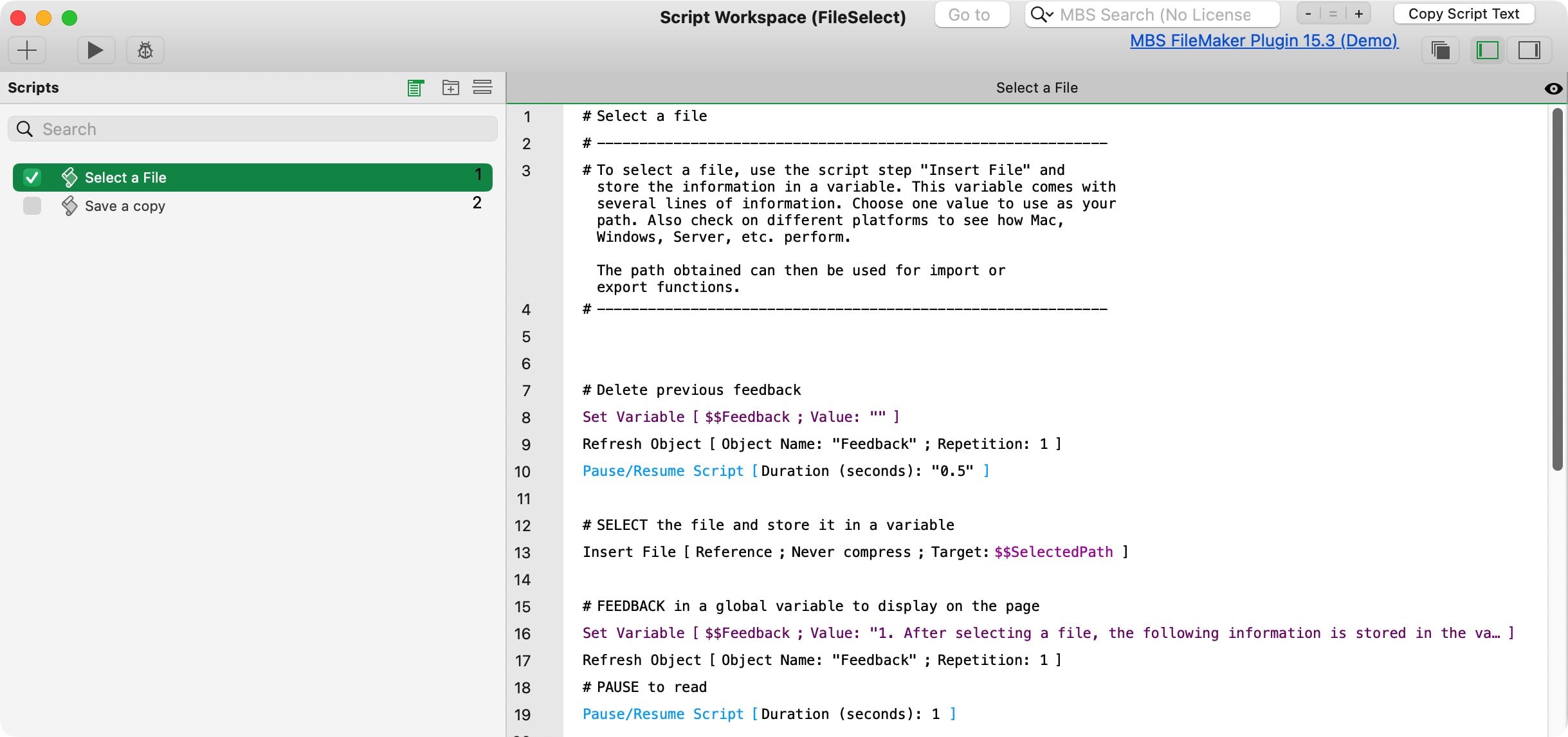
- Use the script step “Insert File”, and
- store the file as a reference in a variable.
- This variable on Mac has 2 values. Get the 2nd value to extract the full path.
The first value is a relative path, starting with “file:”. The second value is an absolute and platform based path, starting with “filemac:”.
Use the path
The extracted path is a text string. You can mold the text if you need to, to create exactly the result you need.

Make it your own
This simple test file will probably not do all you need. Change it, enhance it, and make it your own.
Sample file on how to select a file and save the file path in a variable.
Be aware the script step used here is not compatible across all platforms. Check the Claris Help.
Requires FileMaker Pro 20 or newer.
Date Routine
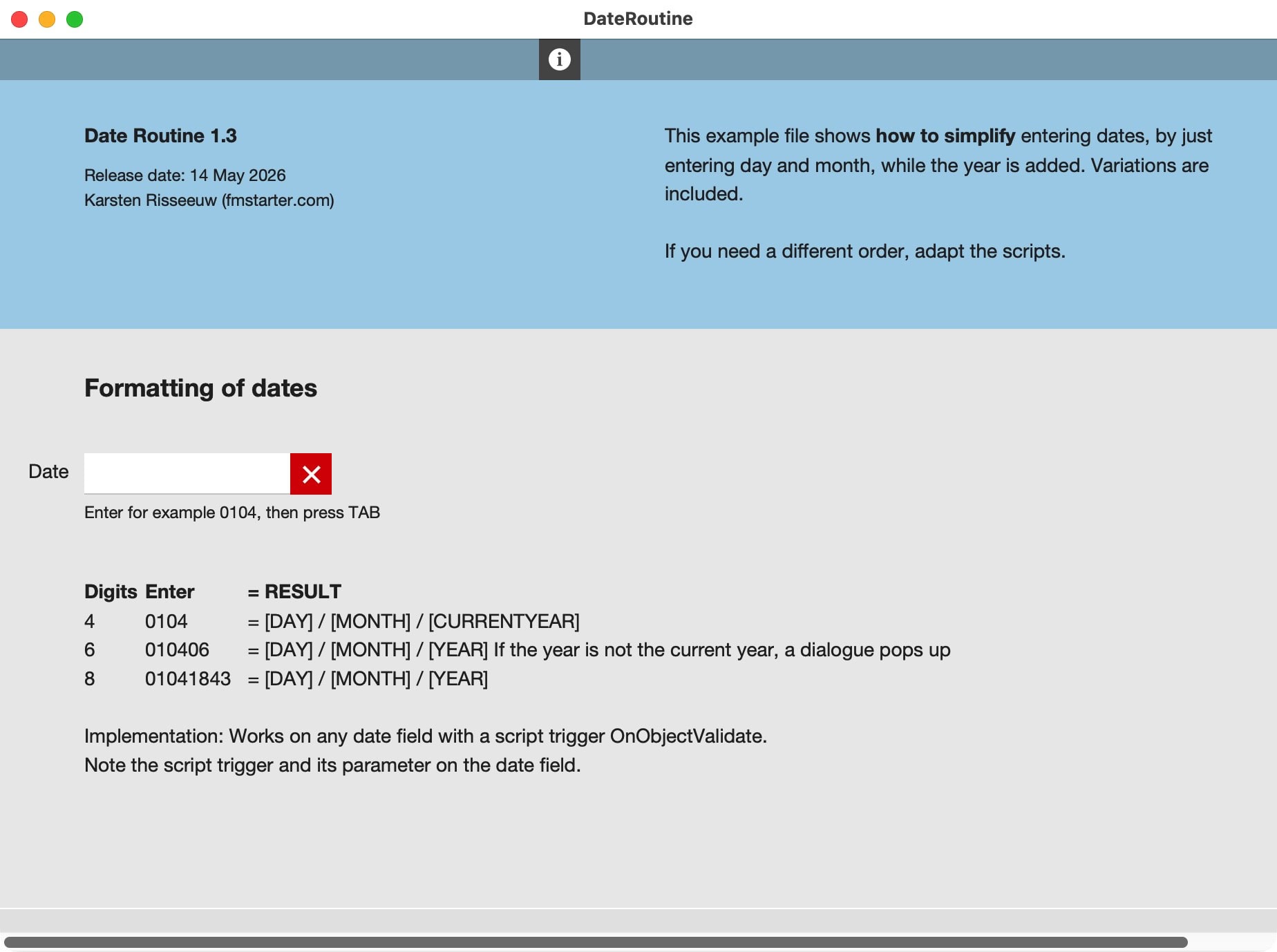
Dates are cumbersome to write down. That is probably fine if it is just a single date. But adding manually the day, month and year to get a valid date is quite a lot. When doing repetitive work and adding many dates regularly, this becomes tedious toil. How can you simplify adding dates? This sample file shows you.
Setting the order
It is quite easy to capture the current date in FileMaker. It also gives you the tools to extract day, month and year. As you have the building blocks readily available, it is possible to reconfigure these as you like. That’s what is done in this sample file. The current setup is focussed on a European style date:
Day/Month/Year
The scripts requires simple numbers and no separators. If you need any other setup, feel free to reconfigure the scripts.
4, 6 or 8 digits
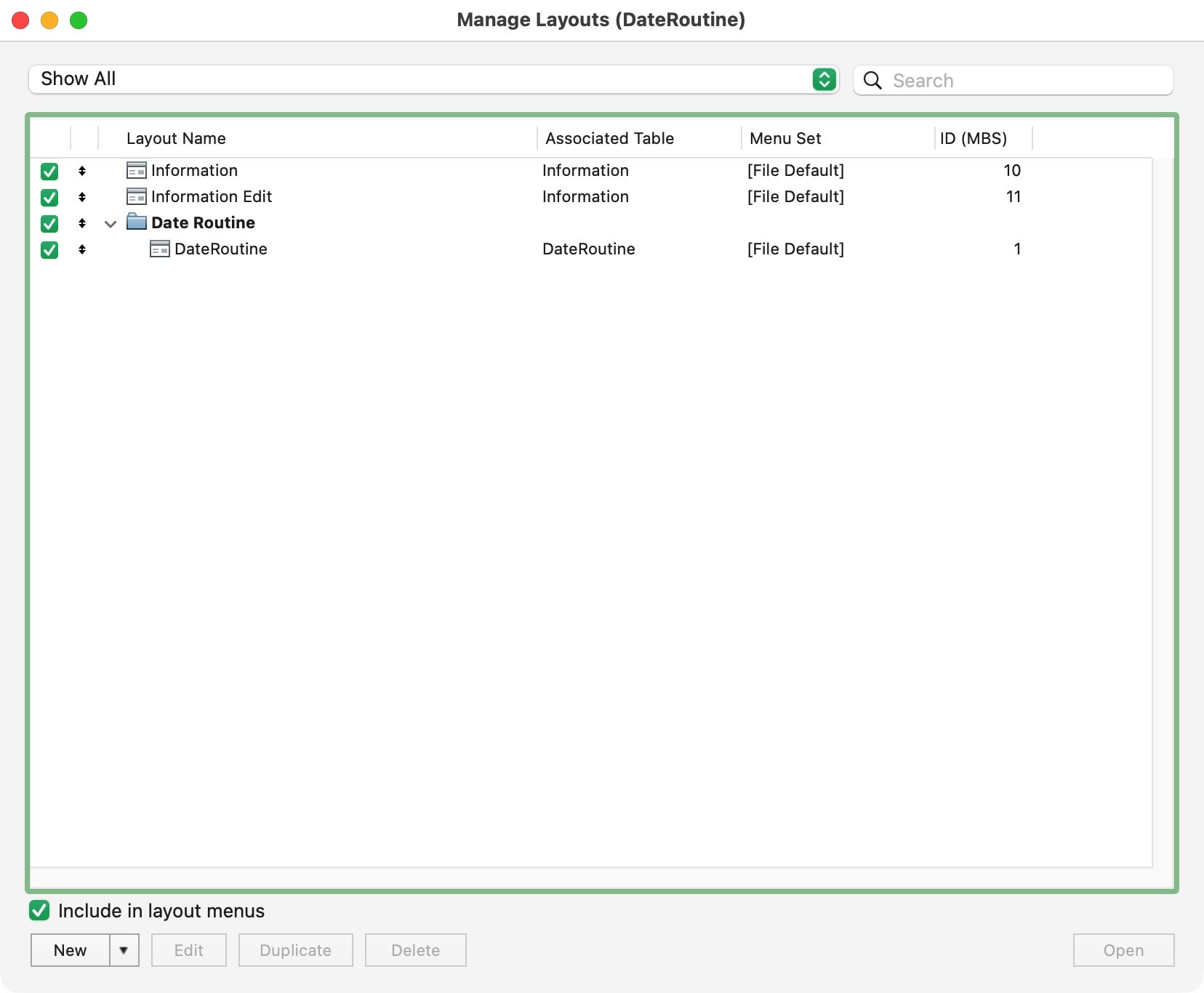
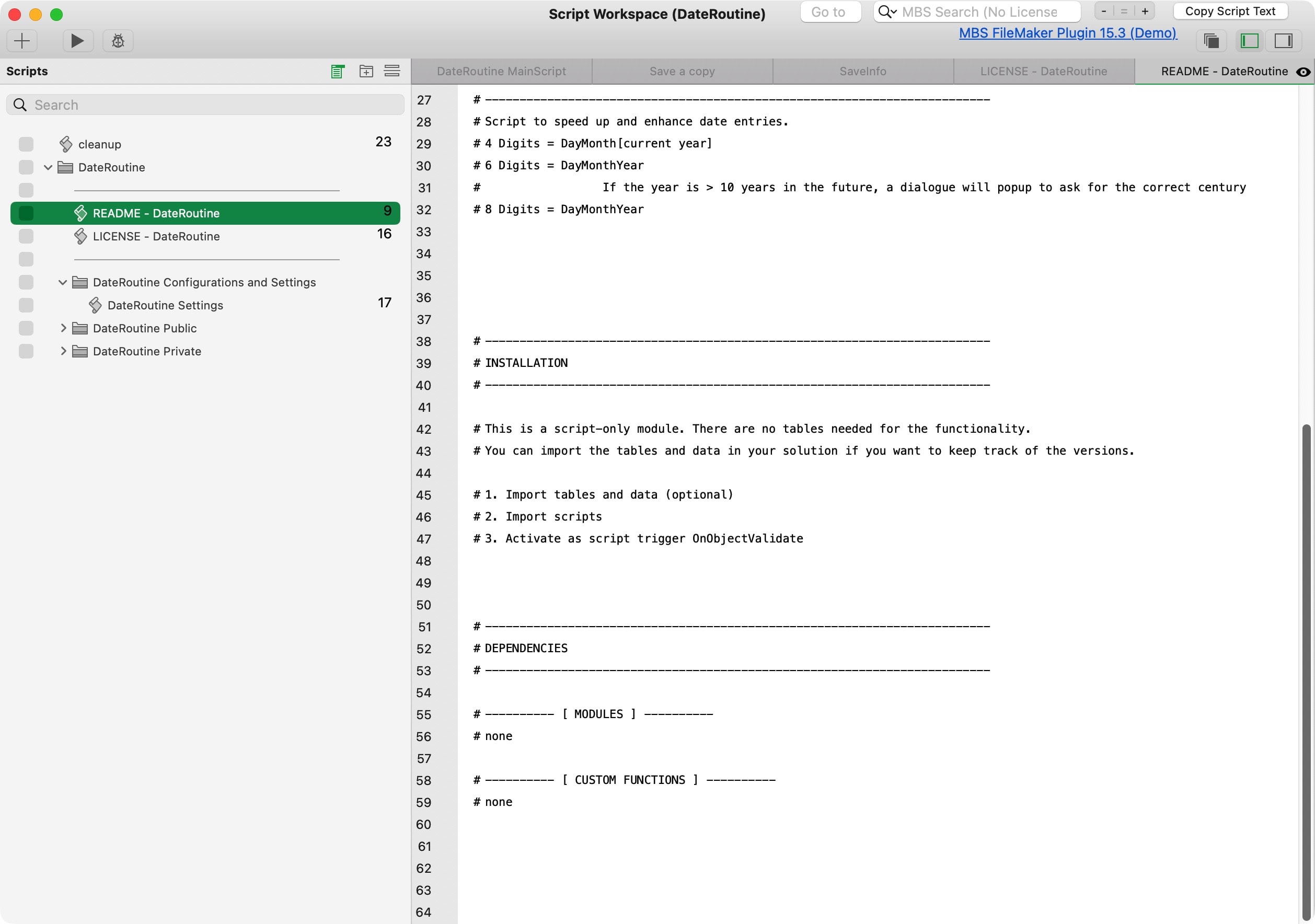
The file requires a field with a script trigger. The trigger kicks off a script which evaluates the input. It will recognize the number of characters filled in and then build the full date around it.
- 4 digits = day+month. Adding “0104” will get you the first of april of the current year
- 6 digits = day+month+2-digit-year. Adding “010226” will get you the first of february of 2026.
- 8 digits = day+month+4-digit-year. Adding “05121725” will get you the fifth of december of the year 1725.
Activate the calculation by jumping out the field. Without leaving your keyboard, press [TAB], which usually jumps to the next field. Now you can work in lists or forms with a shorter and simpler way to add dates.

Make it your own
This simple test file will probably not do all you need. Change it, enhance it, and make it your own.
Entering dates in a date field can be cumbersome. DateRoutine shows how you can use FileMaker scripting and field triggers to complete dates. This is a free sample file.
Currency Conversion Addon
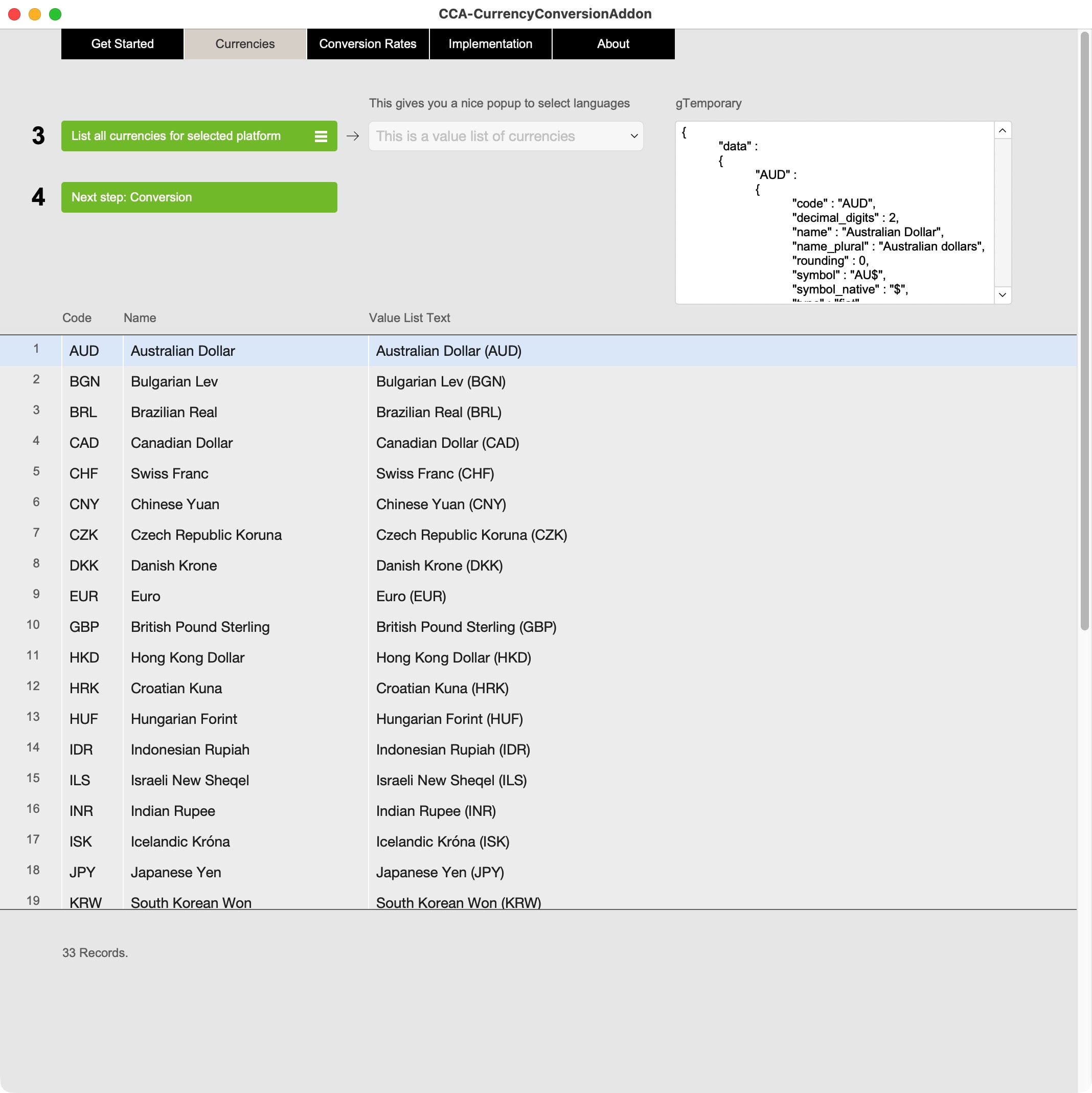
In a global setting you might need to be able to sell in multiple currencies. This addon for FileMaker uses the Free Currency Conversion API to get a list of over 30 currencies to be used in FileMaker Pro.
How it works
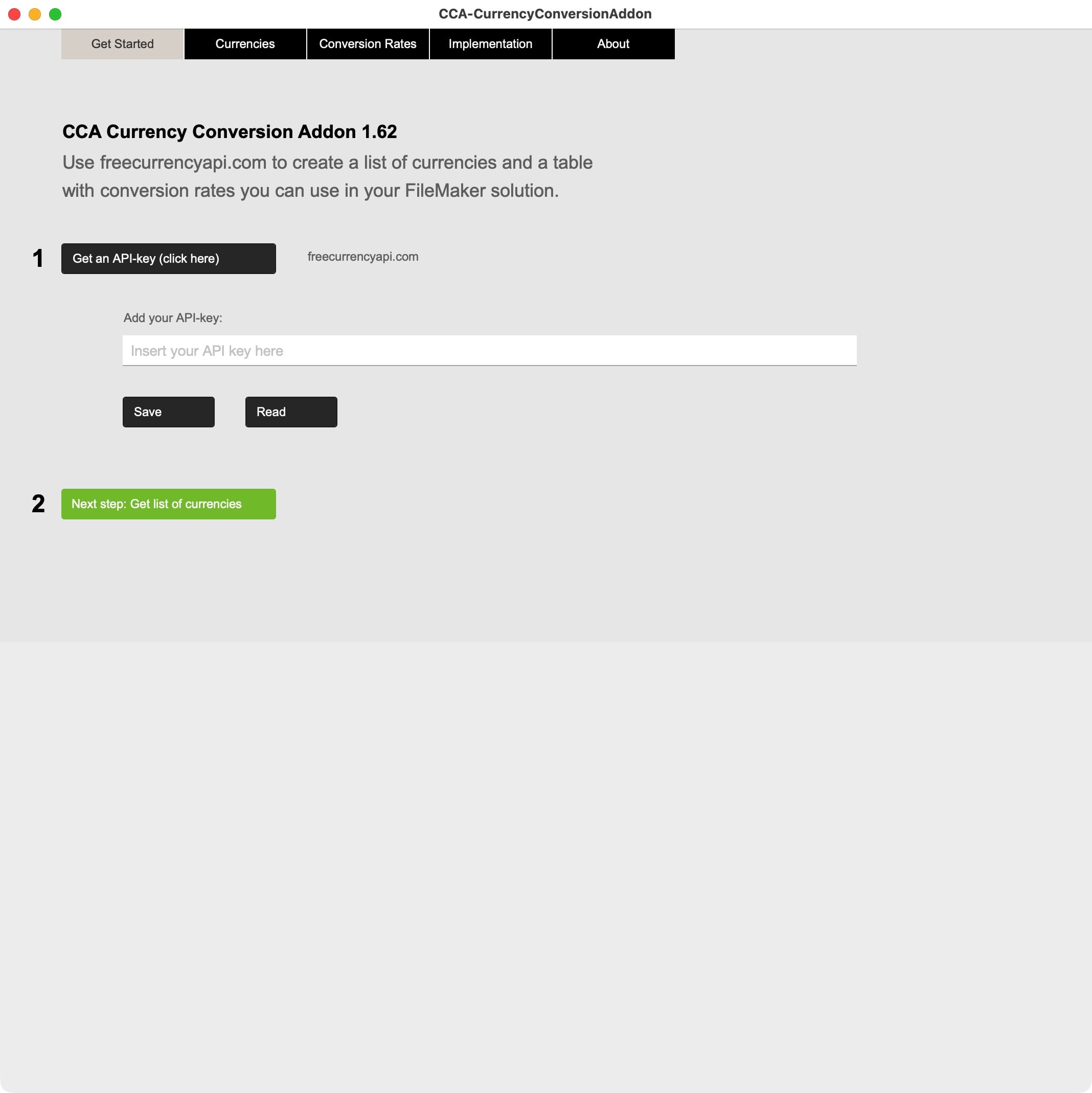
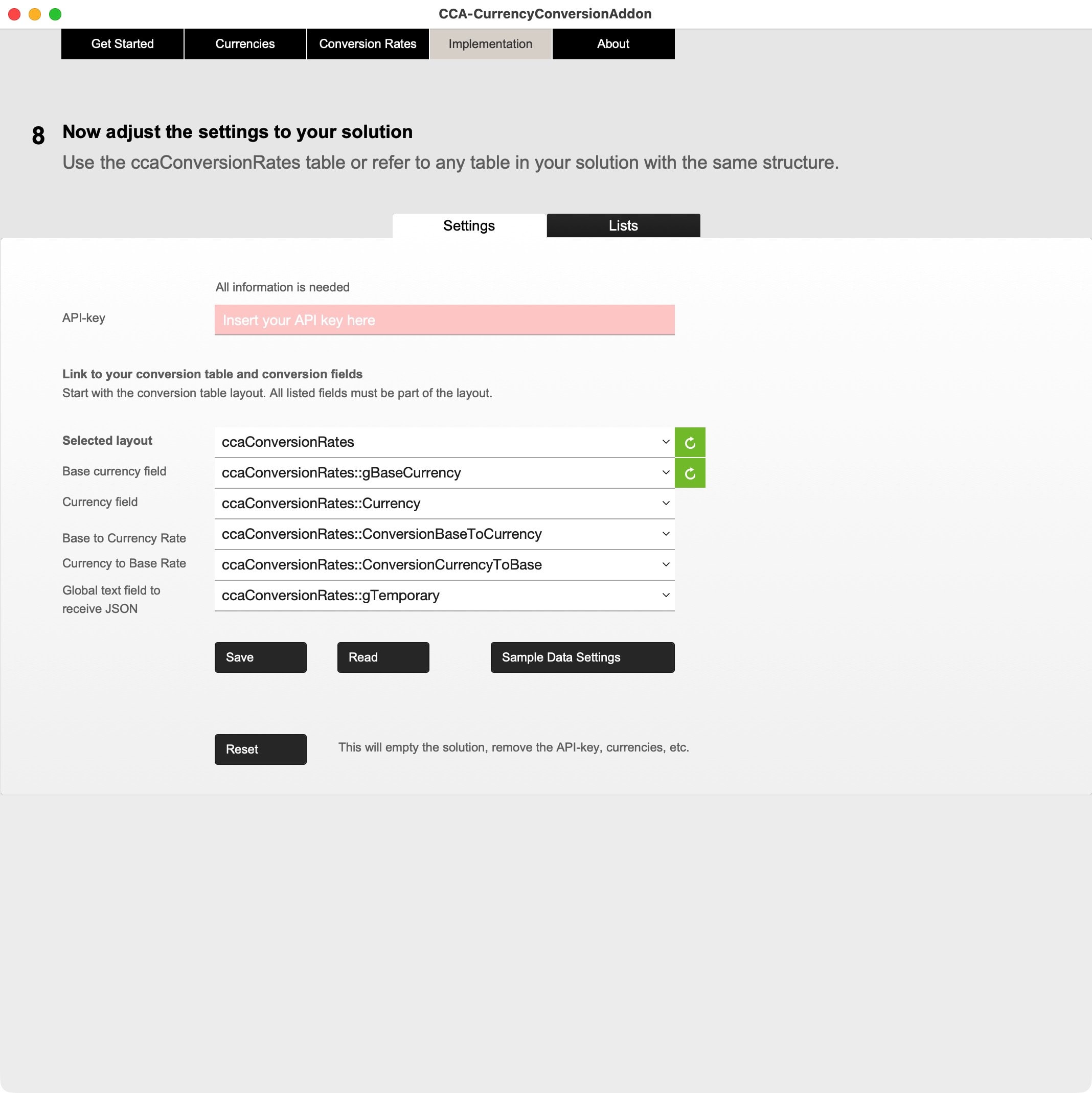
The addon is simple to install in any FileMaker version that supports addons. We strongly advise to use a (near) latest version of FileMaker. After installation, you add your API-key from freecurrencyapi.com. For this you need to create a free account on that website. The API-key is part of your account.
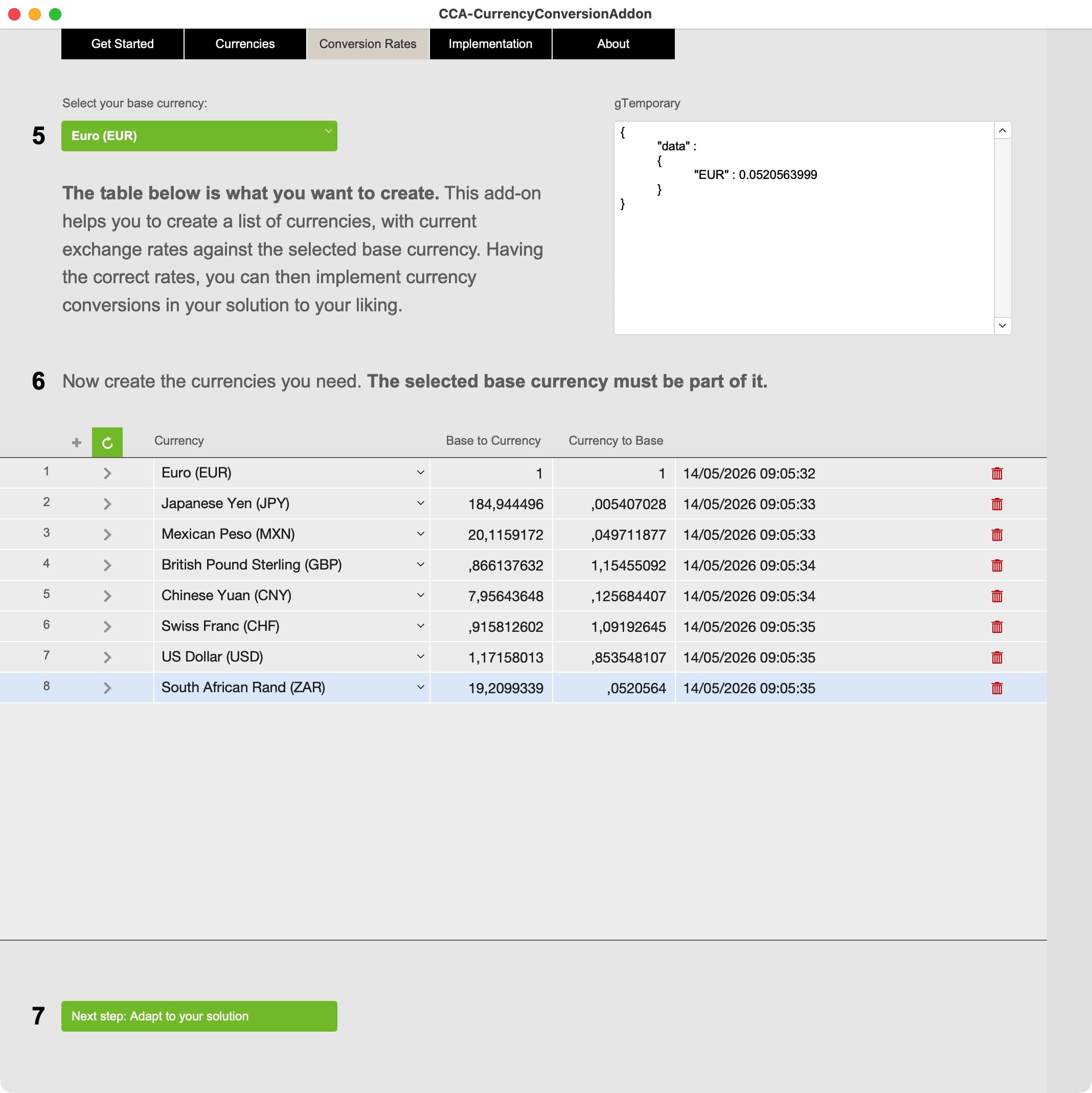
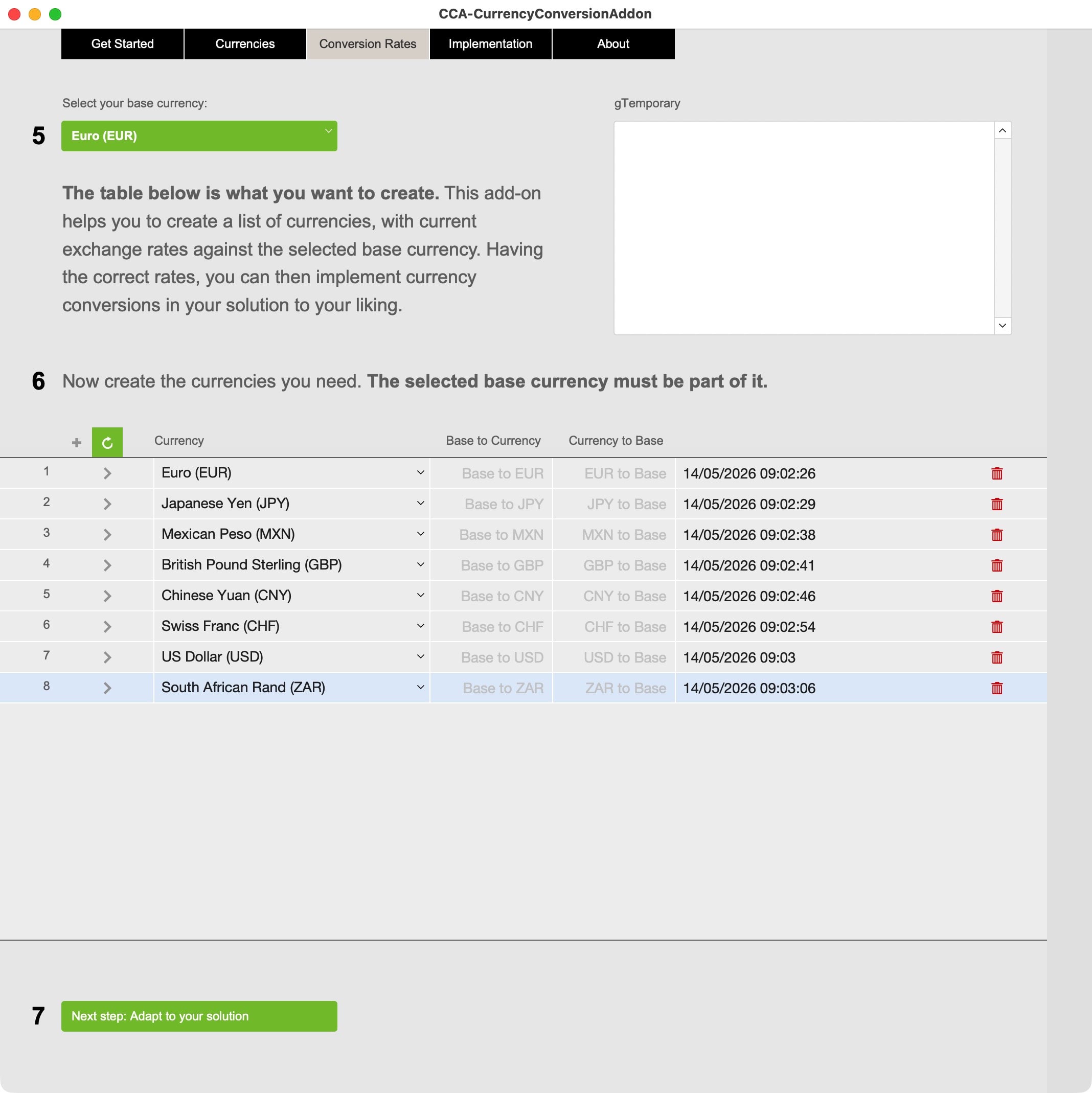
Once the key is installed, you can retrieve the supported currencies (there is a pro version with more currencies). That is what you can work with. The next step is simple: From the available currencies you add the currencies you want to use to a separate table. Then define a base currency. The base currency has a conversion rate of 1:1. All other currencies can now be updated with conversion rates to and from that base currency.
That’s all!
Add to the development
The basic setup is, that you have to make a click to update the currencies. For many it will be enough to make an occasional click. For some, it is paramount to do this automatically on a daily, weekly or monthly base. You must implement such mechanisms yourself. Also you might ask if product pricing should be updated automatically or not. That is entirely up to you.
Add to the development as you deem important for your project.

Change, add or remove currencies
On the Conversions layout you assemble the exact list of currencies you need. At any time you can remove, add or edit currencies from that list, click to update the latest rates and you are good to go. No hassles, no questions needed. It is all straightforward.
Email does not work?
We are happy to send out free content, but sometimes require you to provide a valid and personal email address. This excludes free, gibberish, or discardable email addresses. We were forced to take action and tighten rules, as we were flooded with hundreds of fake addresses. Usually, a business address works well, as long as it is personal and not a generic address (like info@ or tech@, which are considered unsafe). We will then send you the download link or subscribe you to our newsletter, whatever you applied for. Enjoy your benefits.

Dynamic Navigation
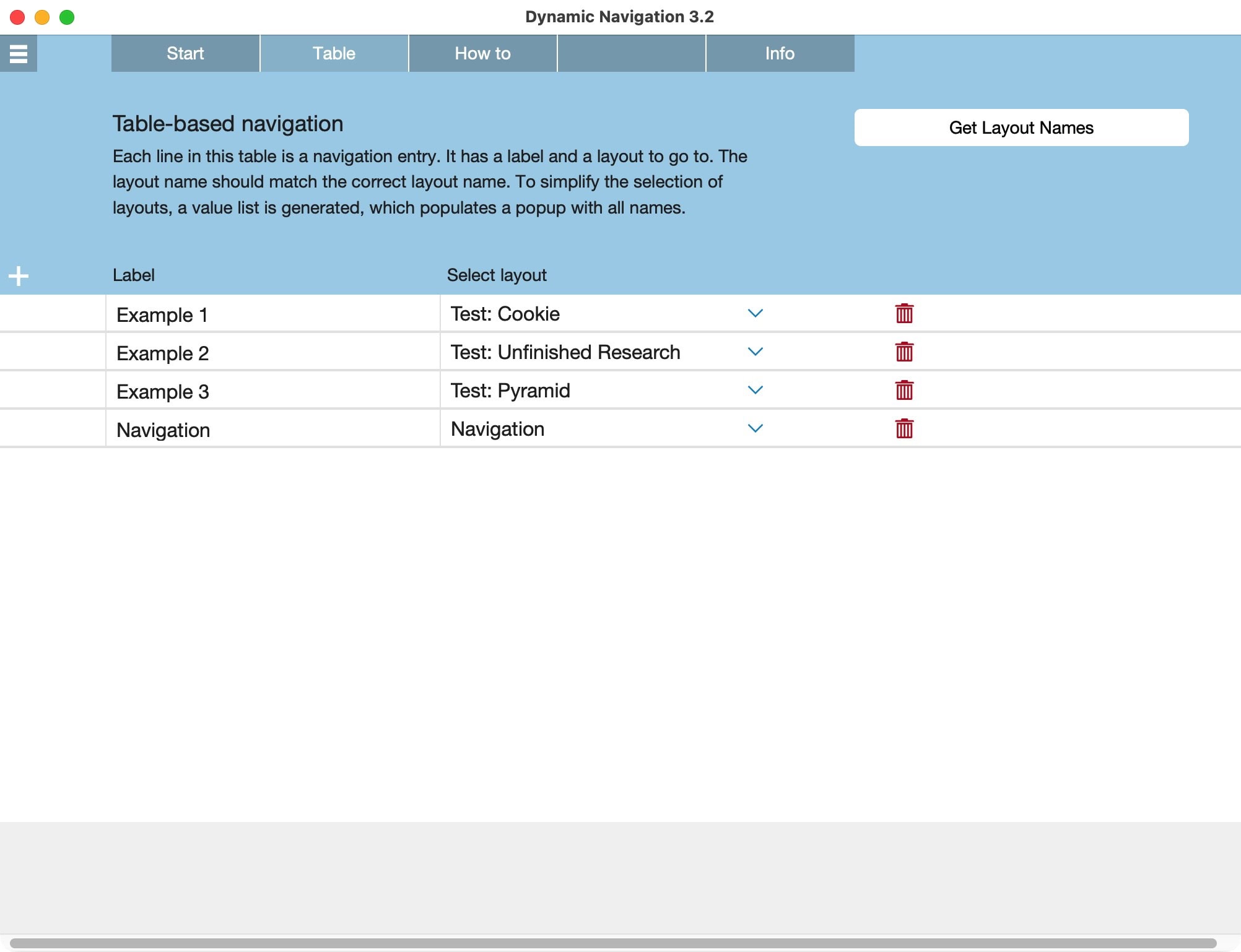
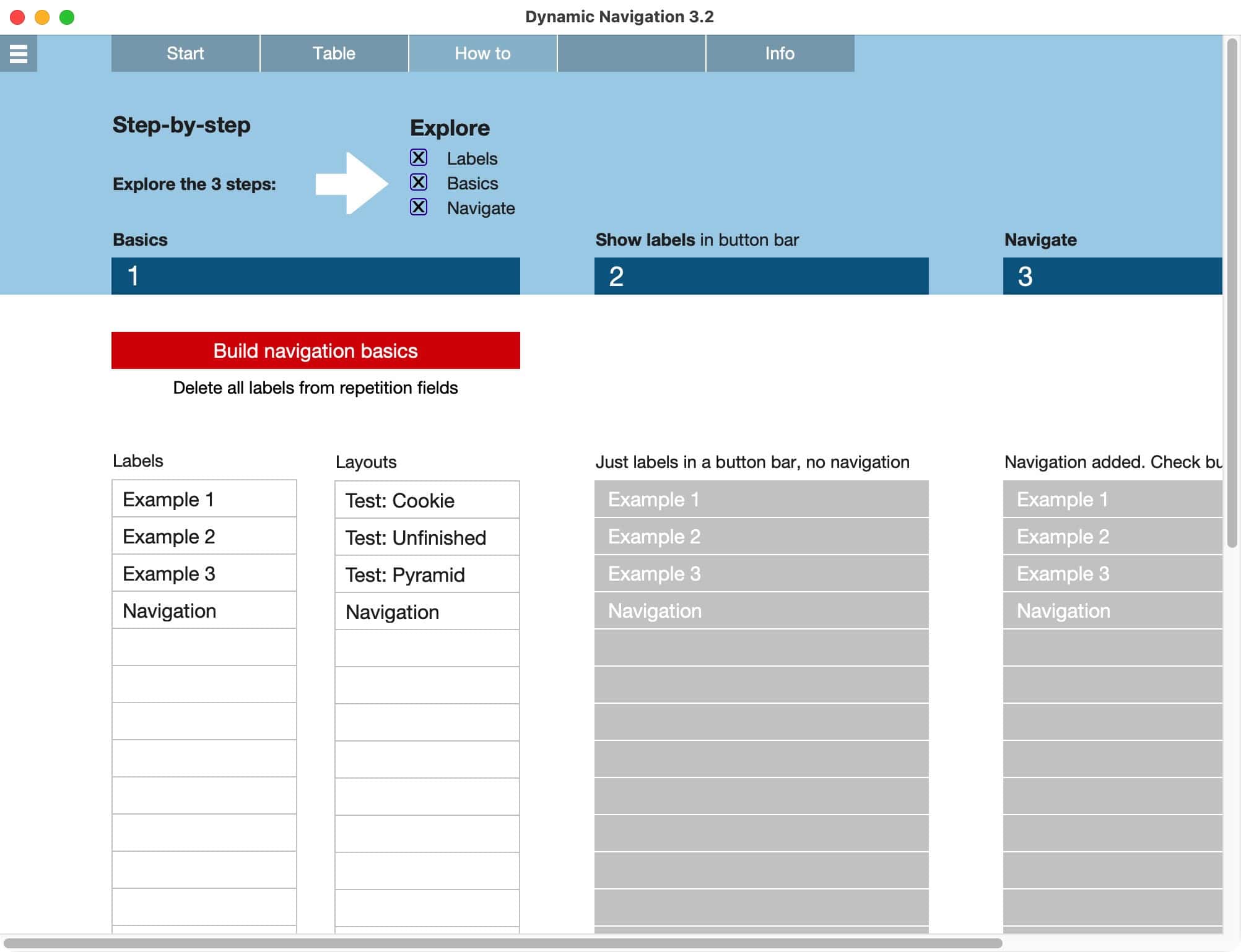
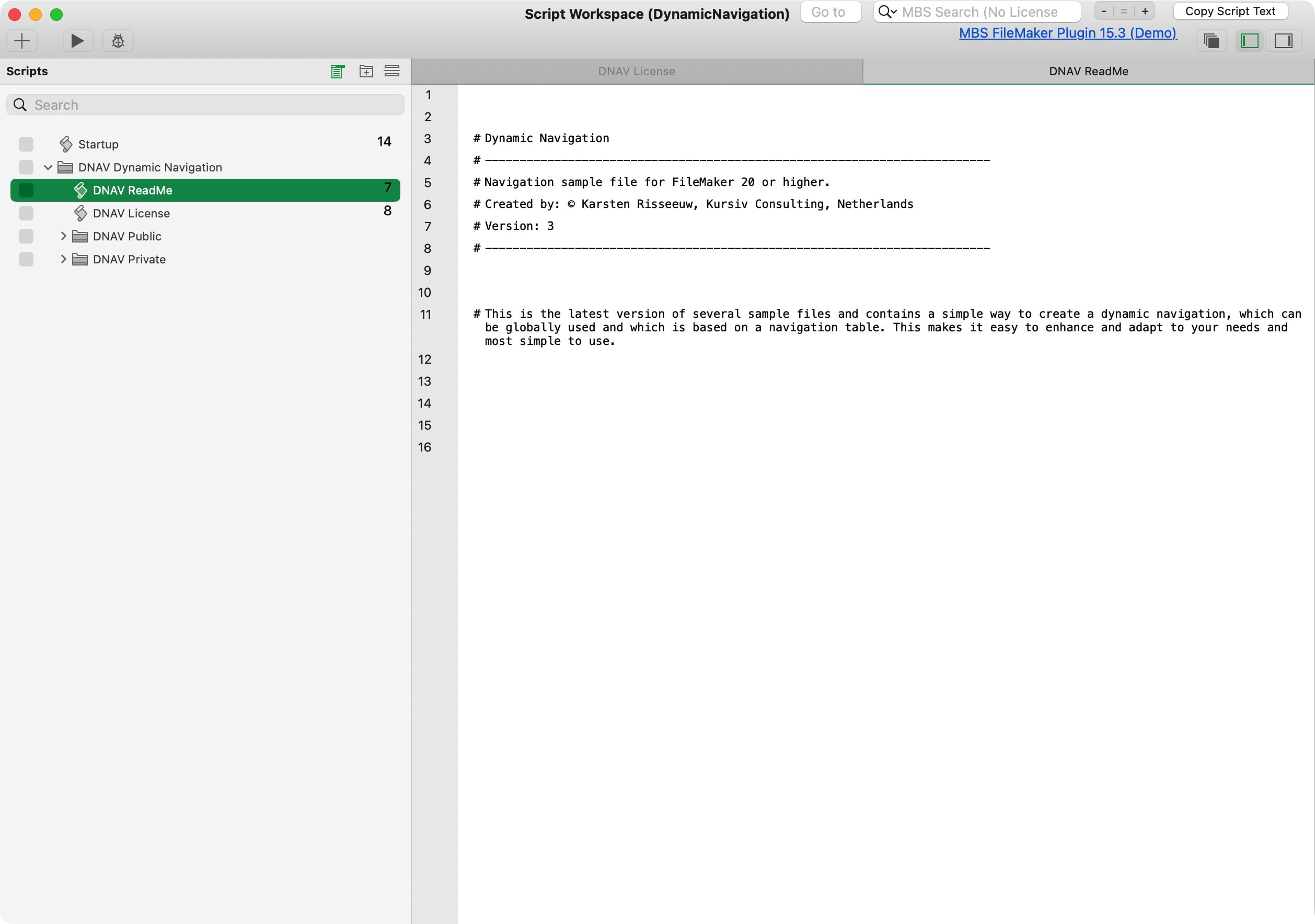
How to create a navigation which is fast, is based on a navigation table and can be applied anywhere? Here is a suggestion which works well. It’s simple, expandable, and universally usable.
Where comfort begins
It is so basic to have a navigation in a solution, that it is hardly considered a requirement in any project discussion. Yet, there are vastly different ways to create a working navigation. Over time, we have created multiple variations. This sample file is our simplest version to date. It is fast, works well, is built with a table for maximum comfort and expandability, yet loaded into global fields for universal application.
The real challenge for any software development is the simplicity. Today there are more options available. This is just a single idea. The result is extremely reliable, fast and simple to use.

Beyond the sample files
If you are interested in a starter file for your next project, where the navigation already is included and heavily expanded, check out our products FM Starter and FrankCRM. In those solutions, a 2-level navigation can be collapsable on main entries, is fully multilingual, restricts access to user groups (if defined) and can trigger scripts (if activated).
Download
Download the sample file to see how it works. It is free, well tested and similar versions run in our main applications for years and are in use by many customers. Check it out.
Sample file on how to build a globally available and dynamic navigation.
Created for FileMaker Pro 20 or newer.
Arrow keys in lists
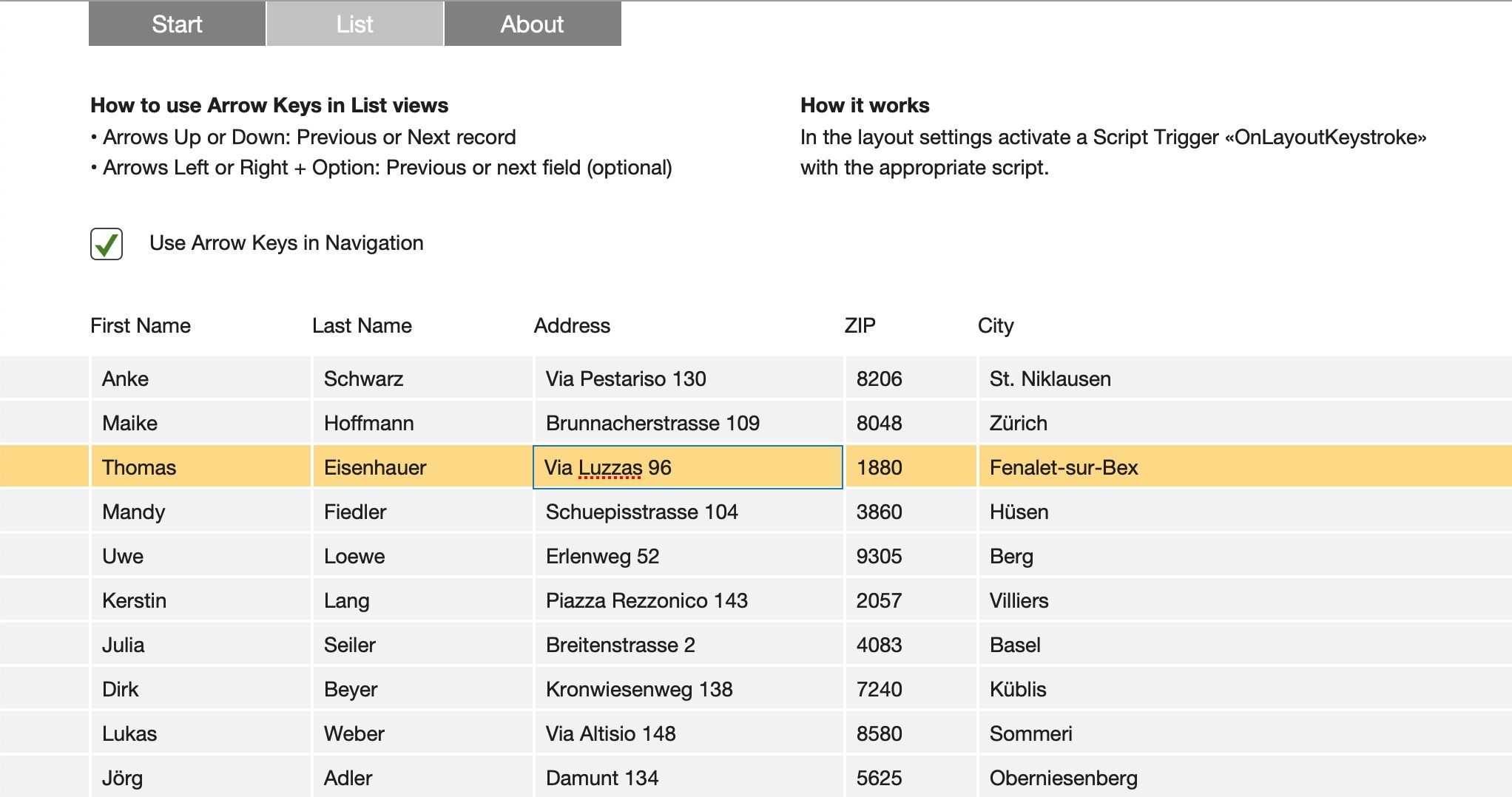
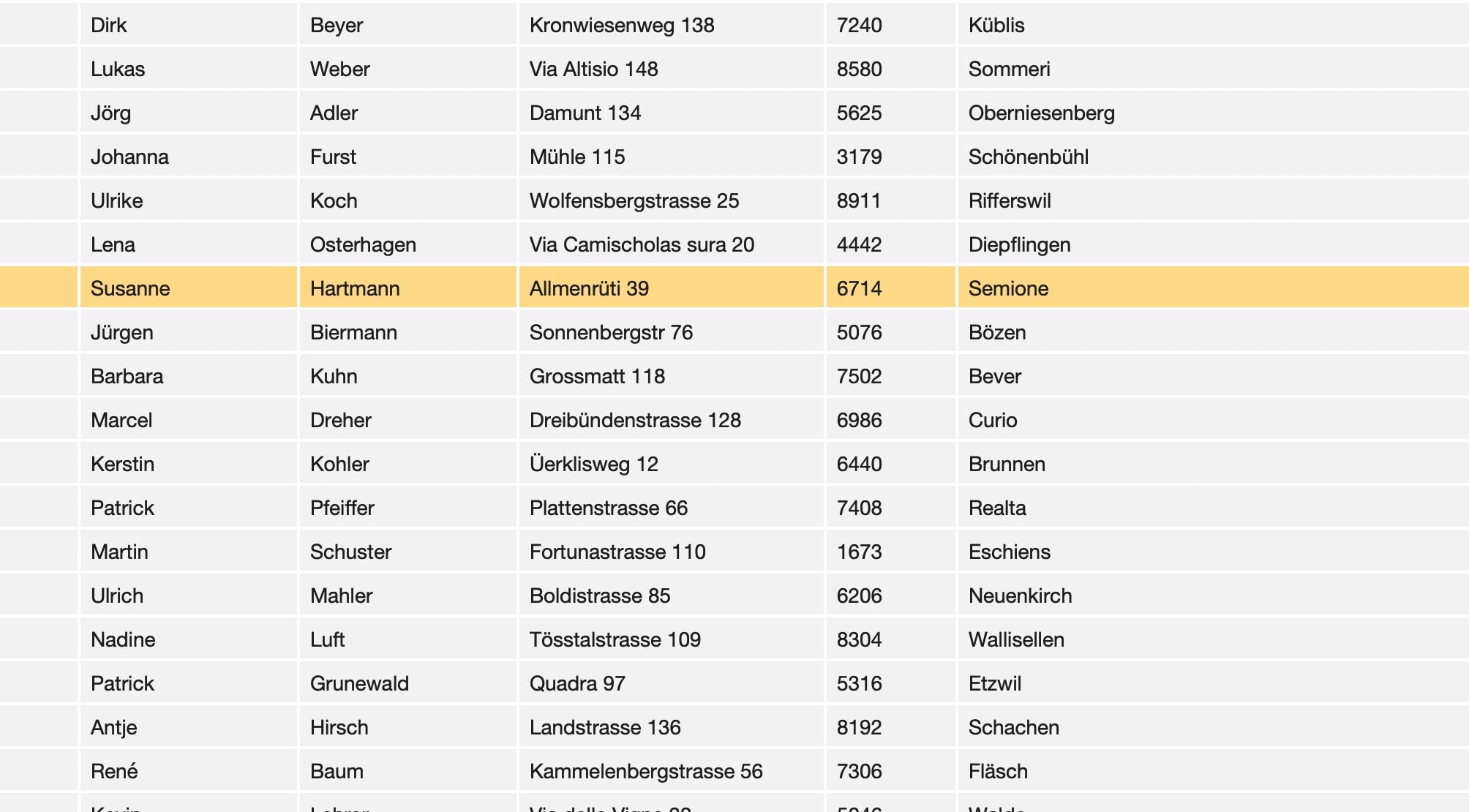
Lists are great, but navigation in lists not so much. Without some scripting, you will need your mouse a lot, as arrow keys are not used to navigate. How to solve this and make it much more intuitive to navigate with your keyboard, check this sample file.
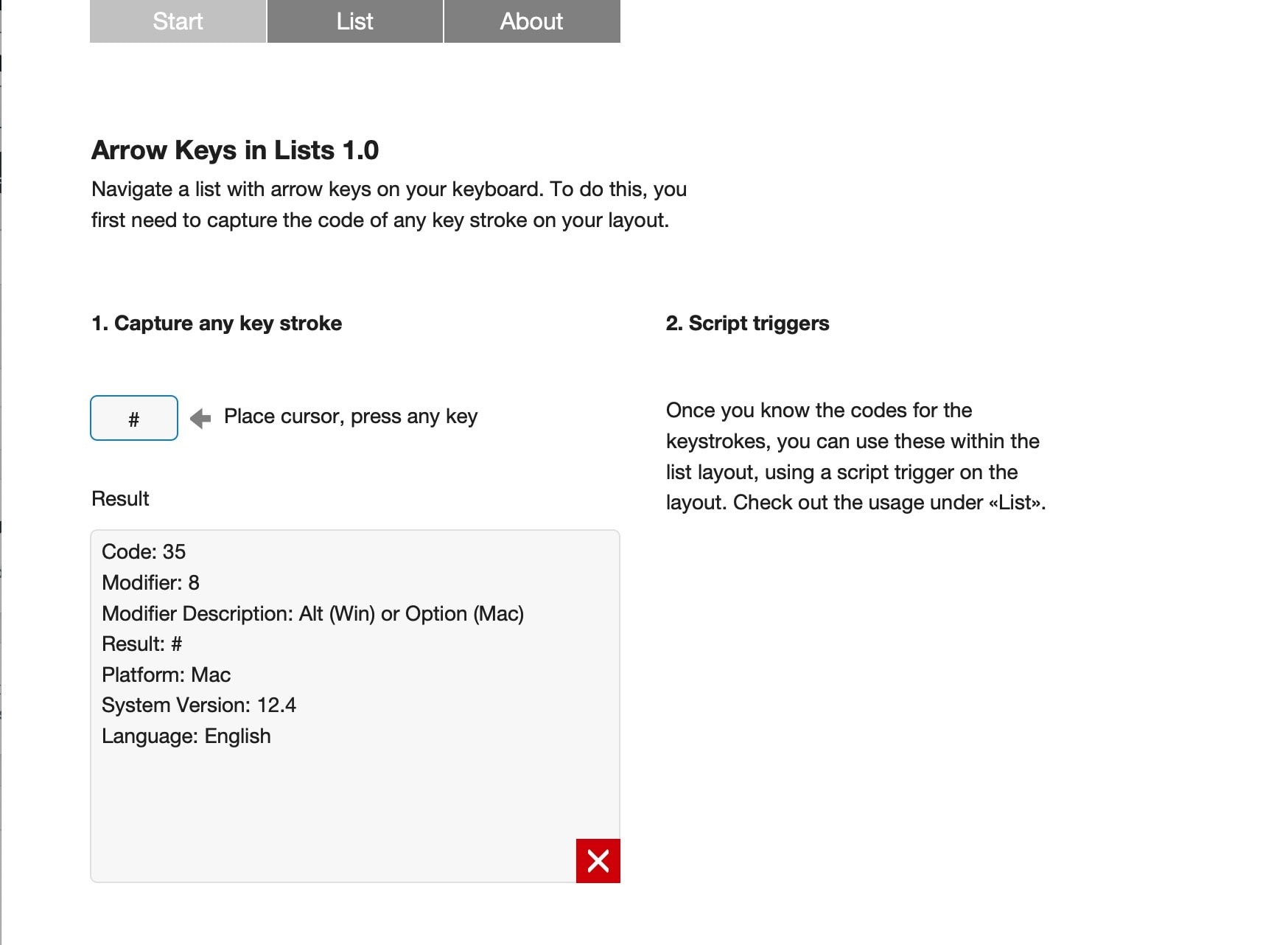
Capturing the keystroke
Any key of your keyboard is recognized by the keyboard and operating system, but not by FileMaker. Thus, capture the keystroke first, then tell FileMaker what to do with it.
Productivity
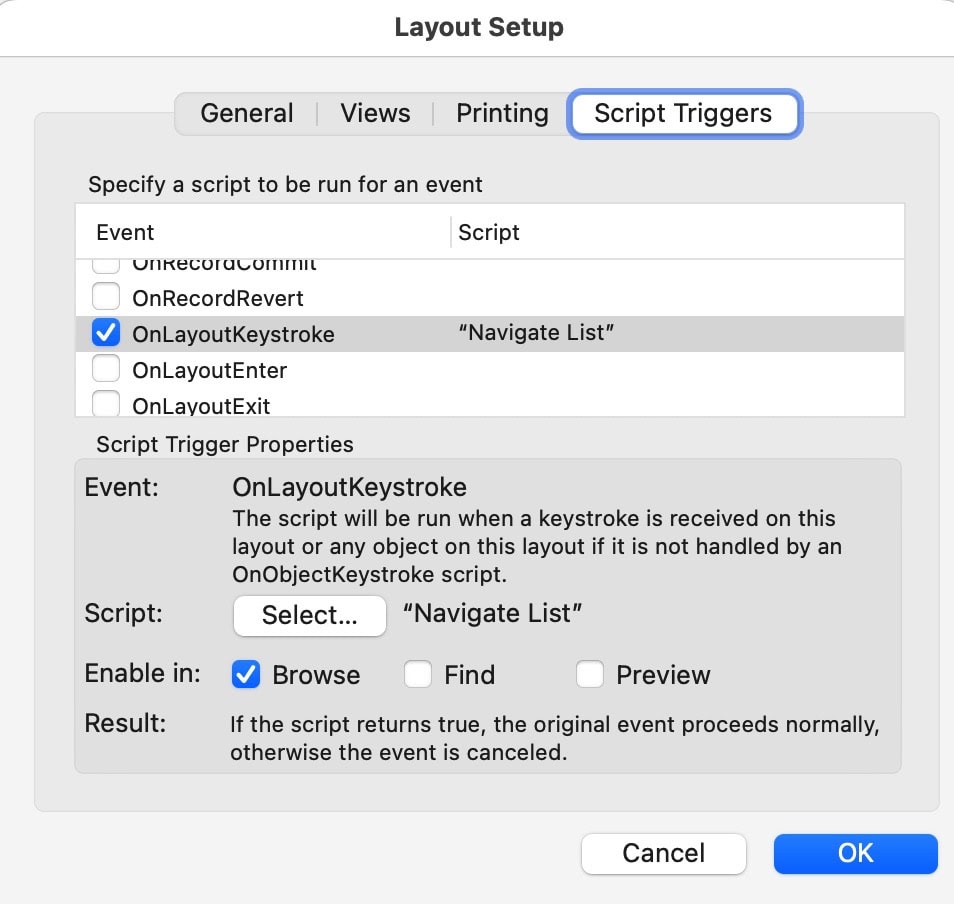
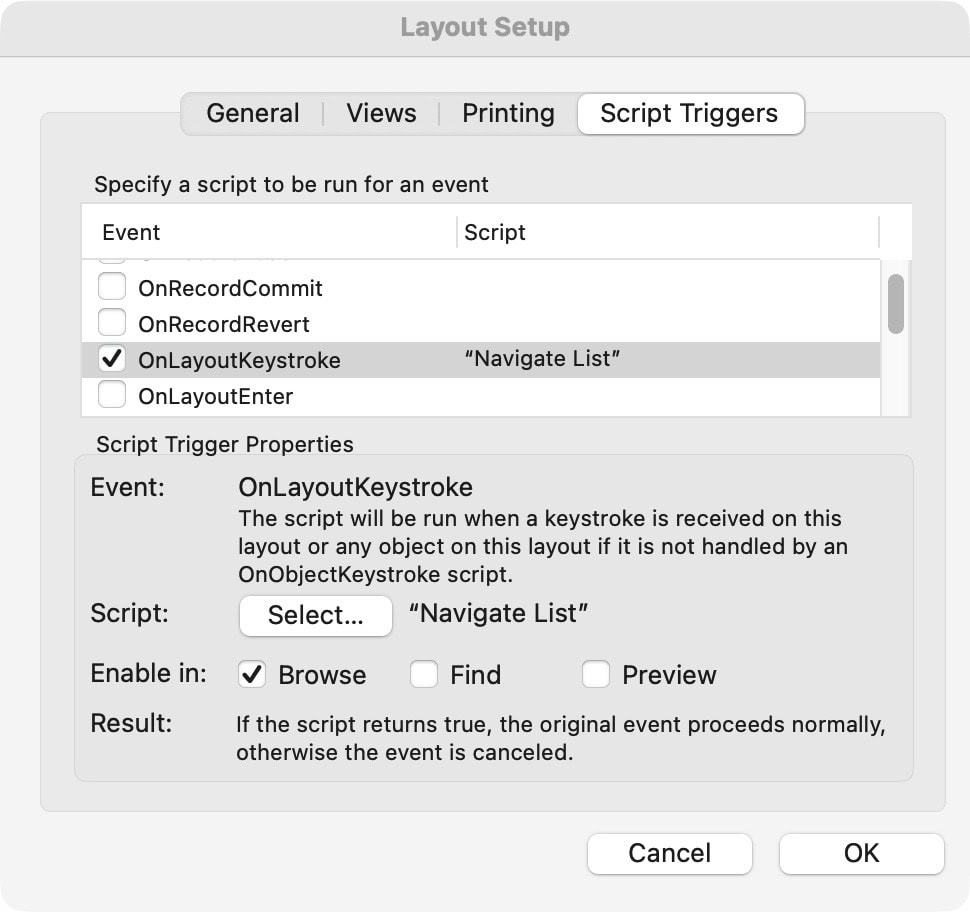
Oftentimes, simple solutions like these will immediately boost productivity. If you do not need to get your hands off the keyboard, many people can work much smoother and quicker. This is the method to eliminate the mouse for repetitive work: Get the keystroke you want to use, build it into a script and let it run in the background. That last part is using a layout script trigger [OnLayoutKeystroke], which can be setup in the layout settings of any layout.
Keep your hands on the keyboard!
Using arrow keys in FileMaker
Once you captured the keystroke, you can combine this information with going to a previous or next record or anything else. Check the scripts how this is done.
Sample file to show how to enable arrow keys as a navigation help in list views with multiple columns and records.
Requires FileMaker Pro 20 or higher.
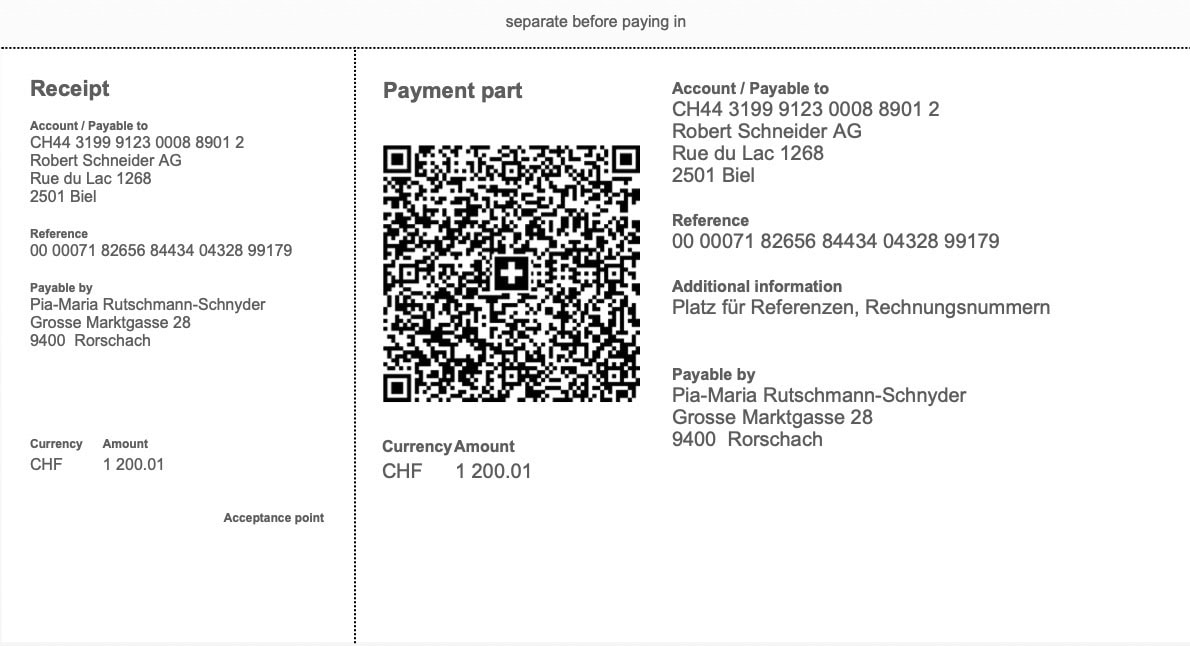
Swiss QR Bill Enhanced
Swiss customers usually get an invoice with a payment slip for paying to swiss banks. It comes with a specific QR Code. This add-on creates a complete payment slip for this situation.
The swiss context
Switzerland is not part of the european union (EU) and finds solutions that remain specific for Switzerland. Such is their highly functional payment slip for invoices. You can use this payment slip if the following two are true:
- Customers reside in Switzerland
- Payment is to a swiss bank account.
If both statements are true, it is advised to issue an invoice with a swiss payment slip. This simplifies payments.
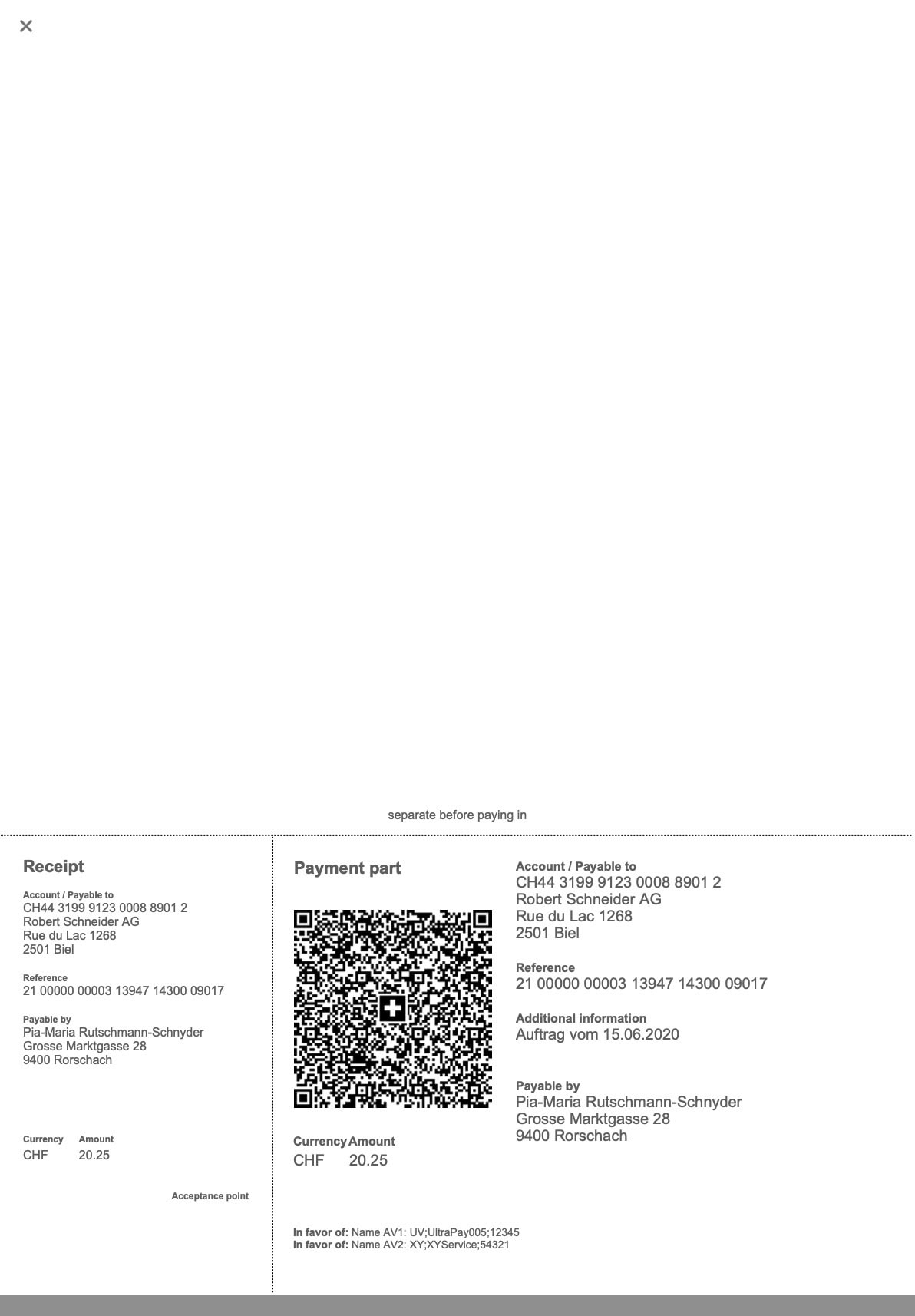
Payment slip
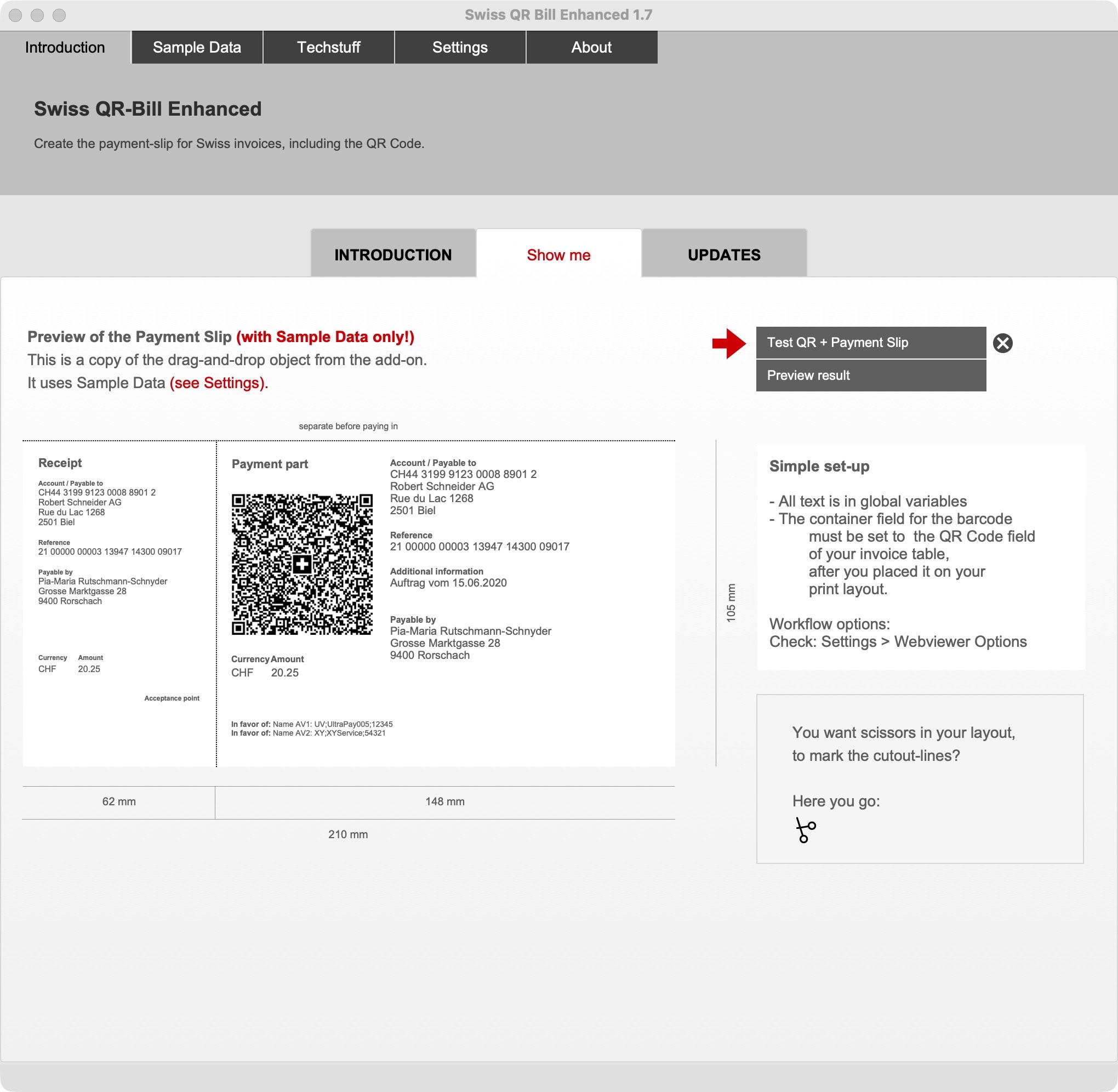
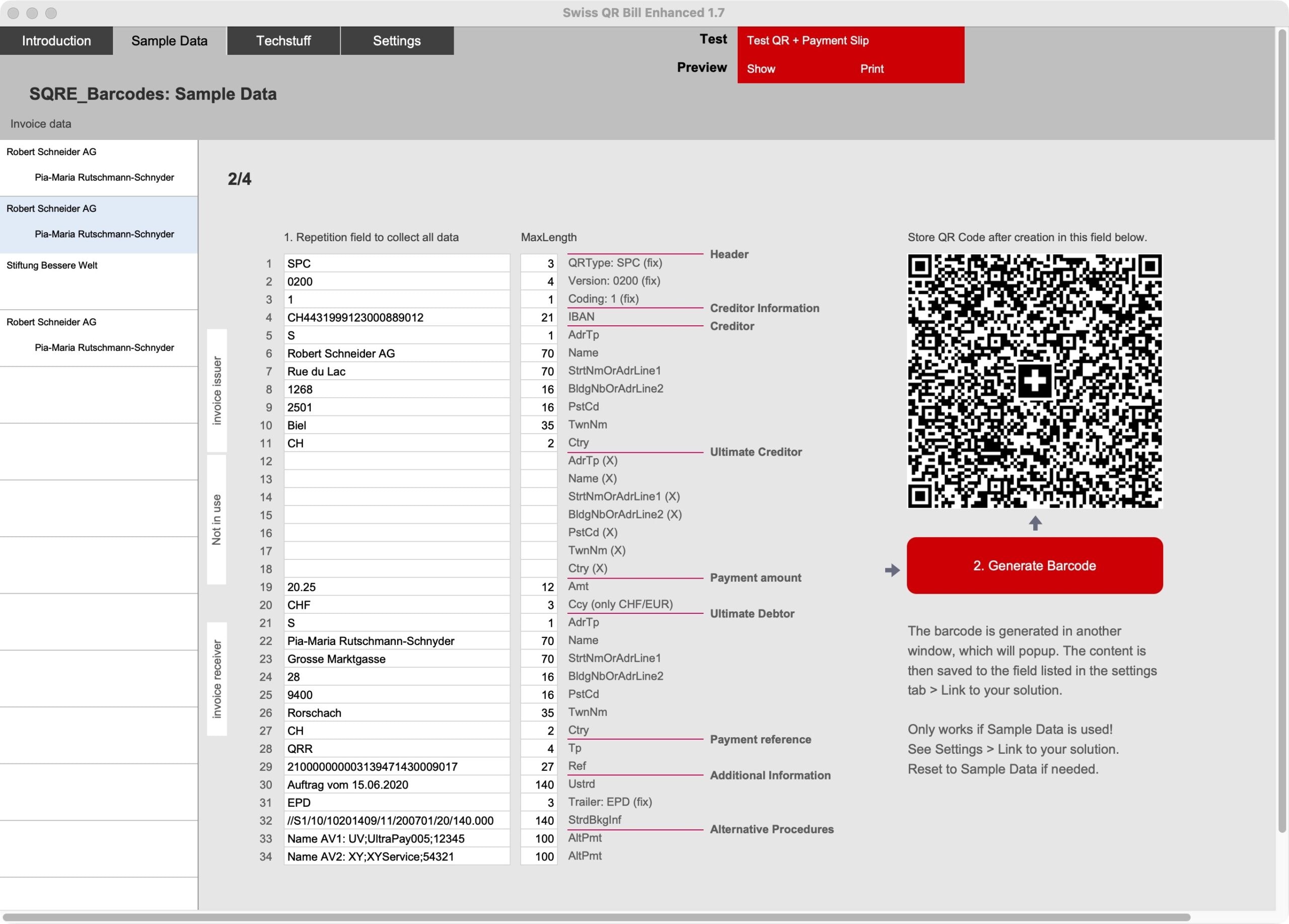
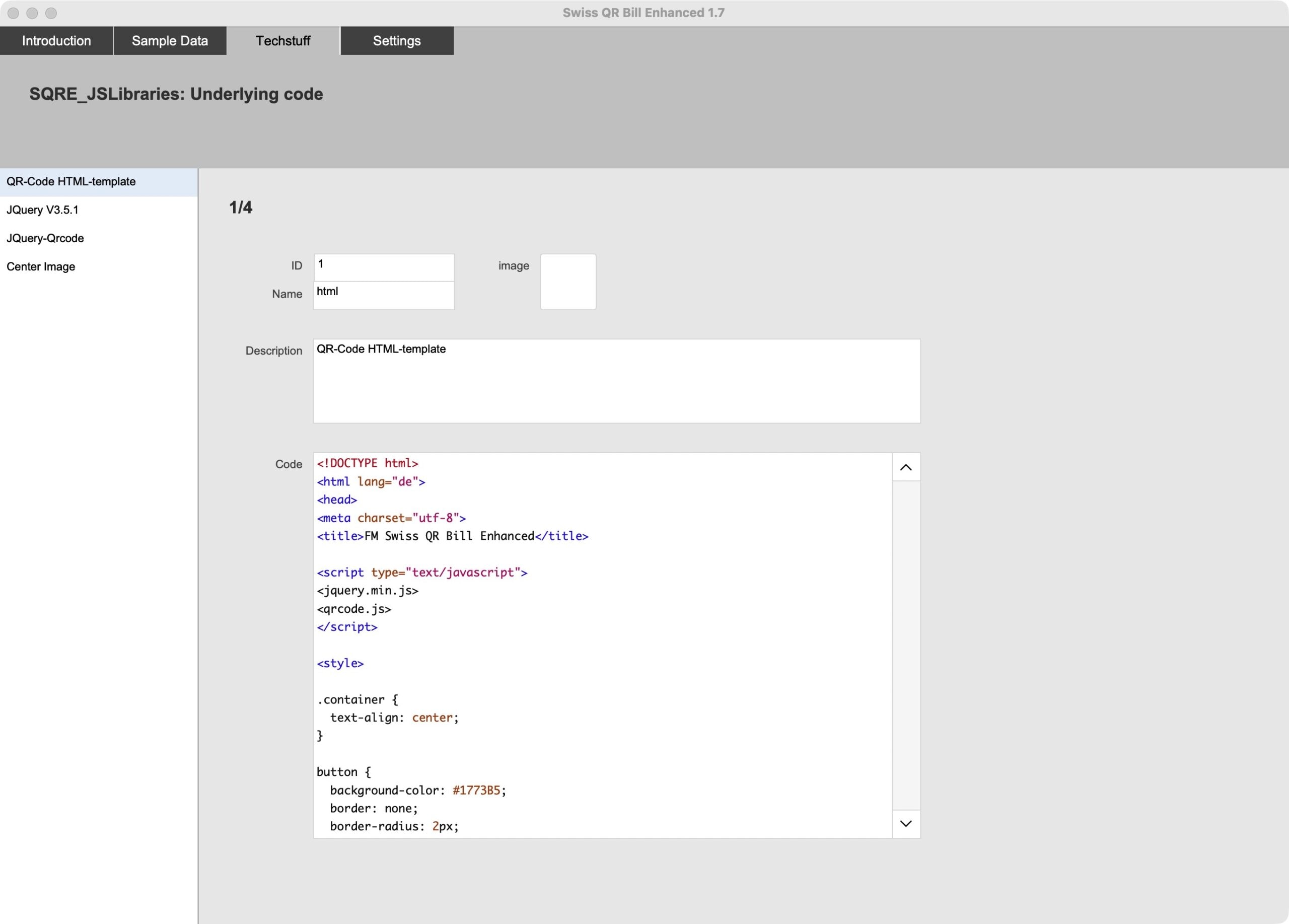
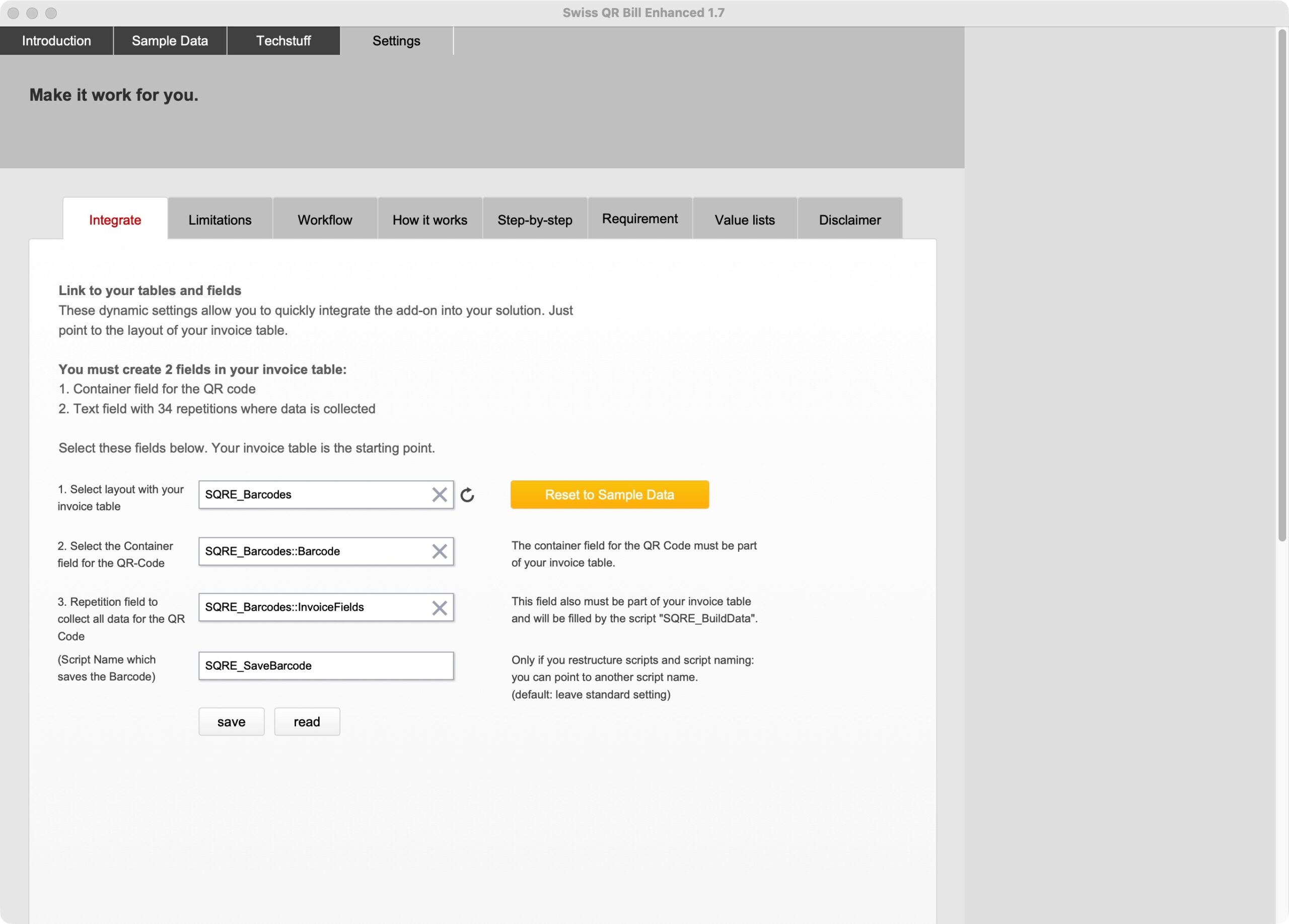
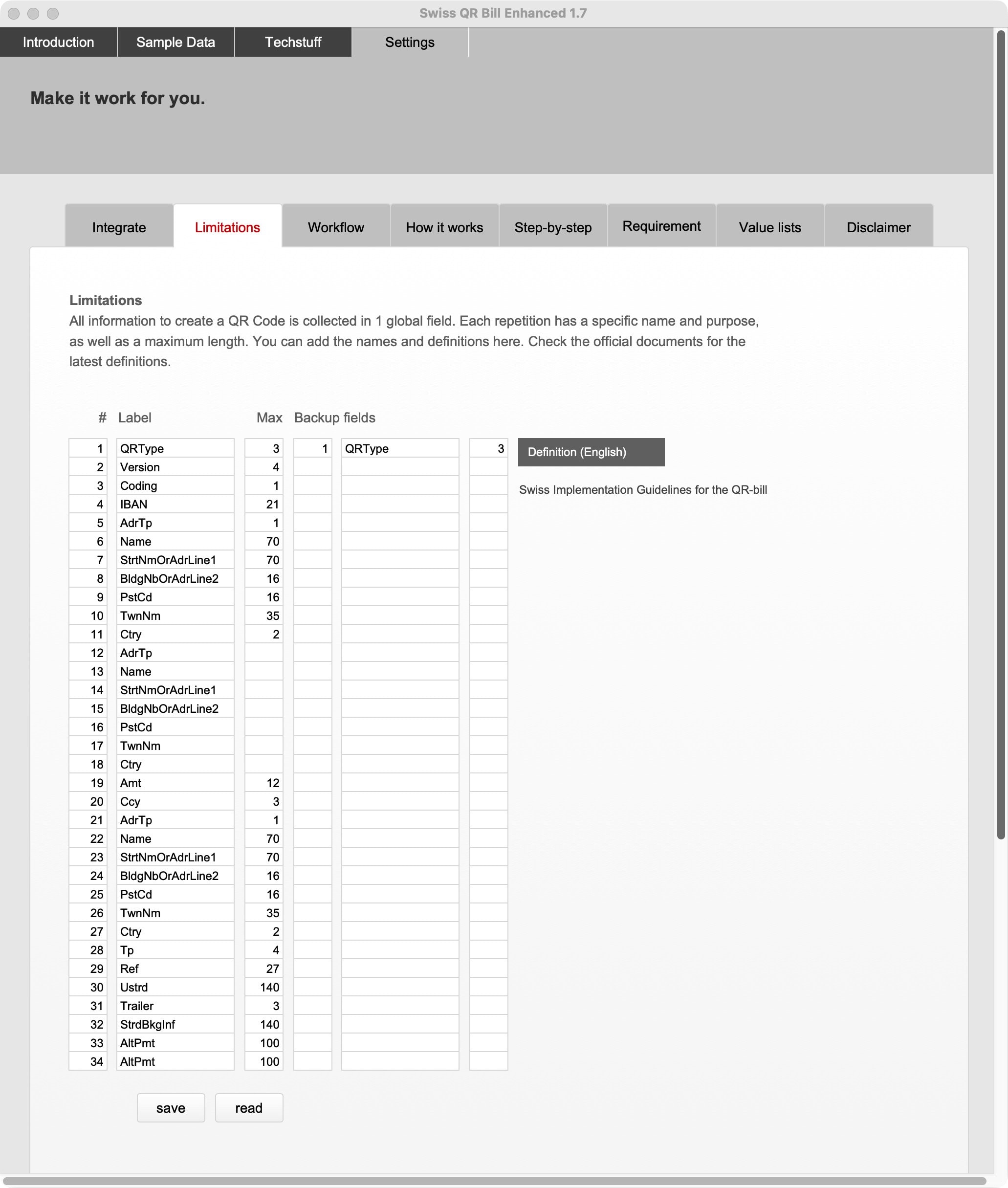
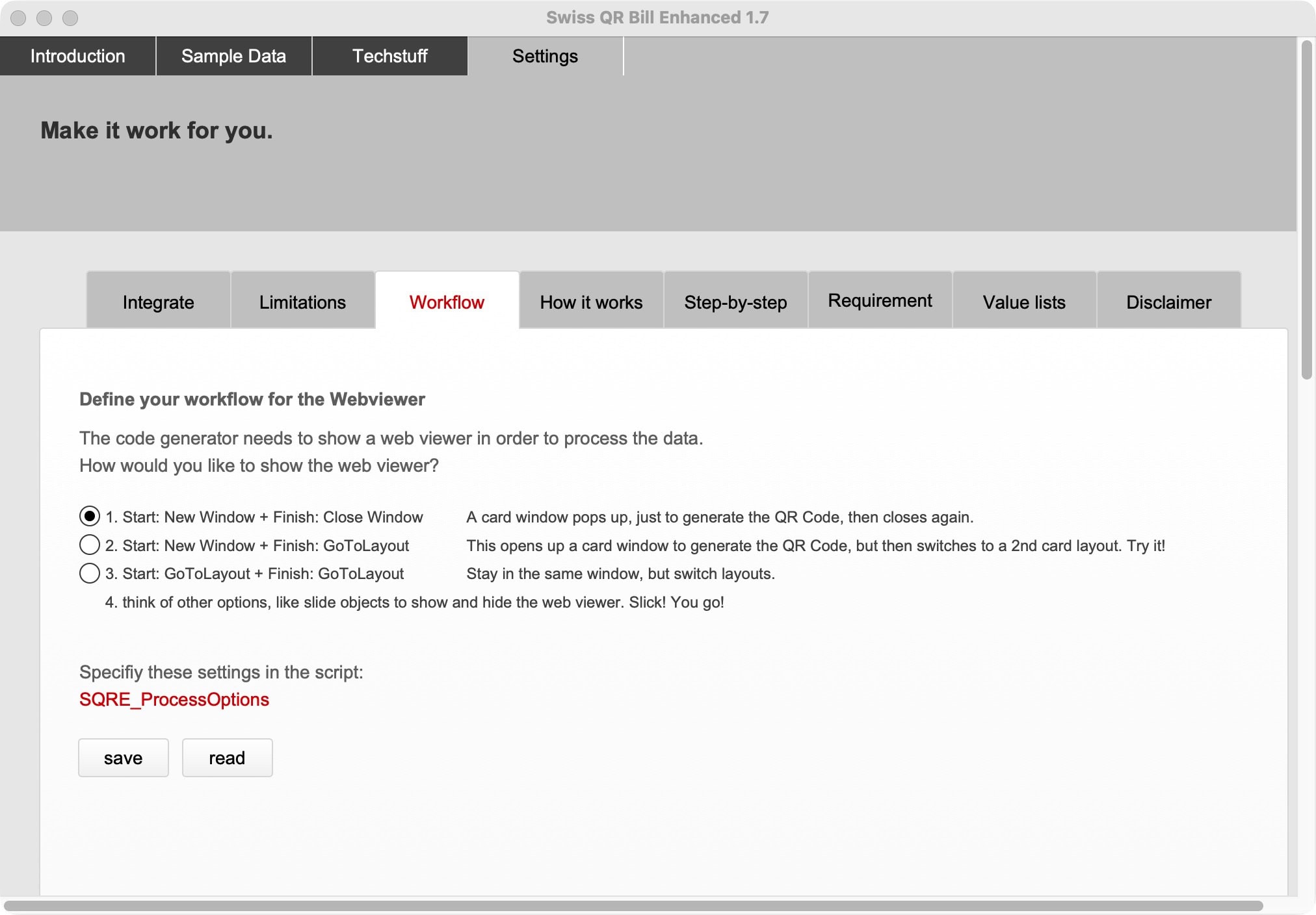
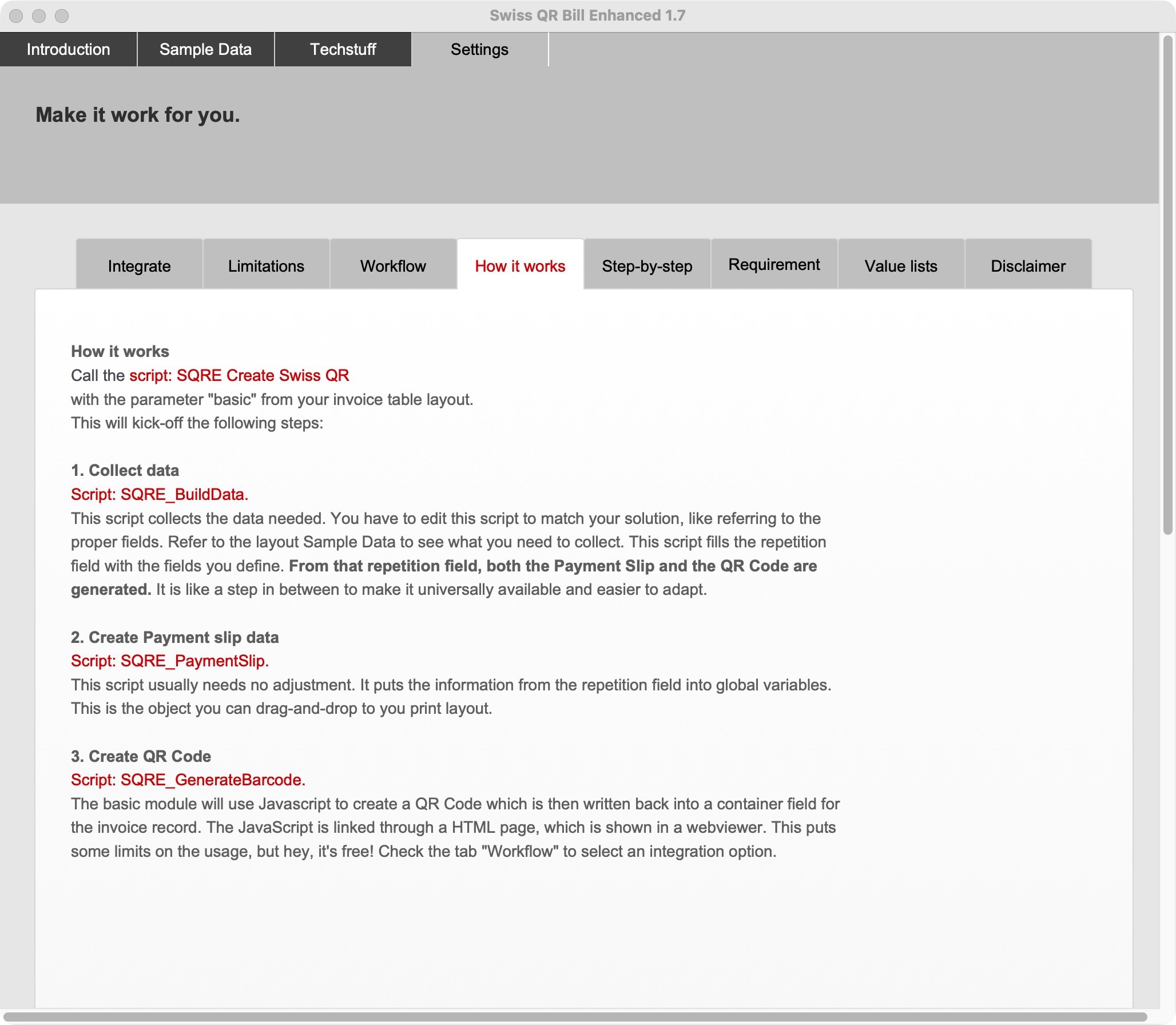
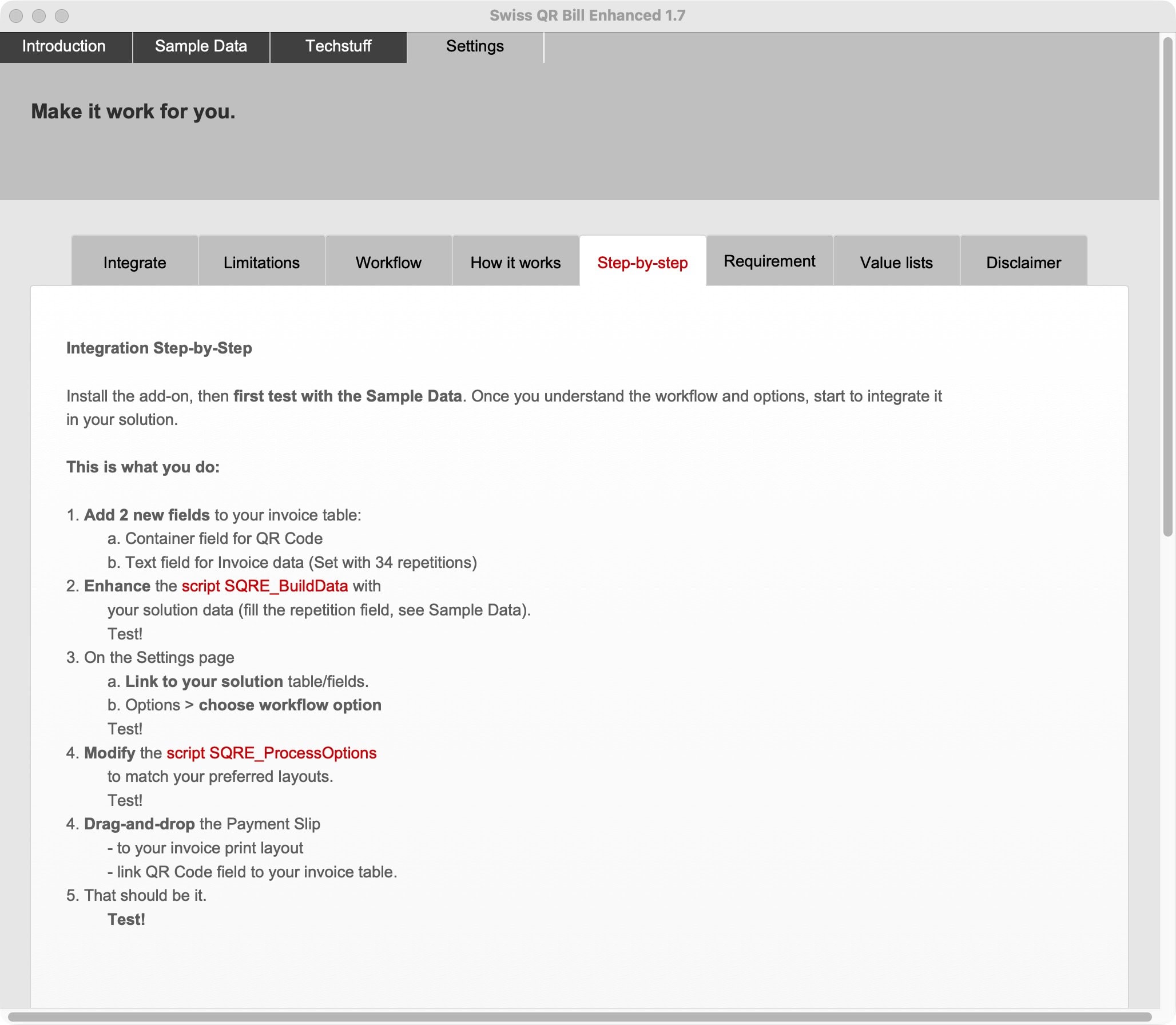
This addon for FileMaker creates a complete payment slip for invoicing customers in Switzerland. The payment slip is the drag-and-drop object of this addon, which can be simply dropped onto an invoice layout in FileMaker. To get to that result, the addon organizes 3 things:
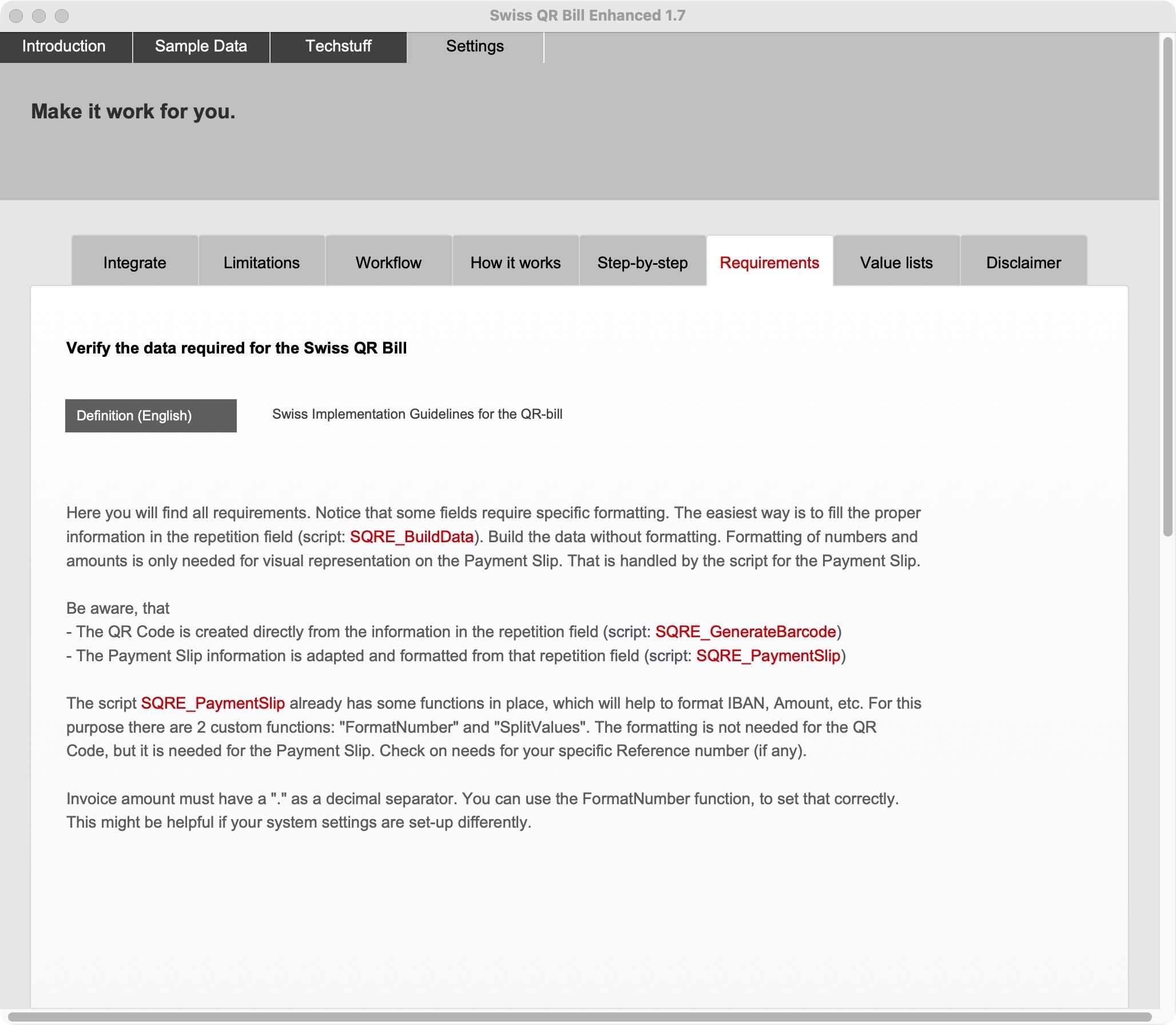
- Collect all data
- Turn data into text for the payment slip
- Create a QR code from that data.
All 3 together are displayed on the payment slip the addon provides.
Language and currencies
There are limits to the currencies and languages one can use. The swiss payment slip of this FileMaker addon is in English. That is one of the allowed languages. Allowed currencies are: Swiss Francs (CHF) and Euros (EUR), requiring a swiss bank account in that currency.

Not for high volumes of invoices
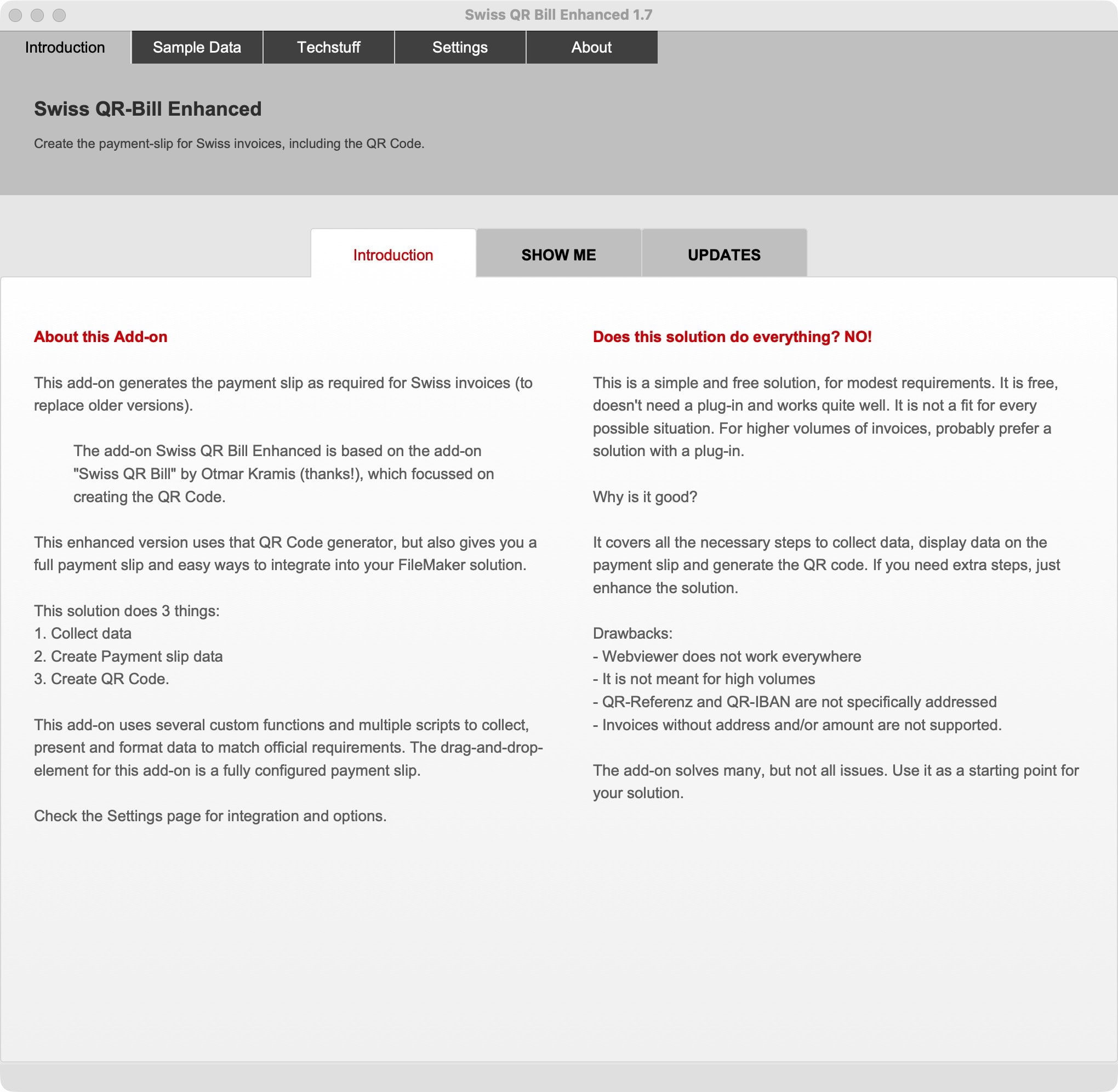
This addon works well for low volumes of invoices. It uses a Javascript library to create the QR code. If you need a solution for high volumes of invoices, you might consider a plug-in to create the QR code and save that code as an image in your invoice table.
A combination of this addon with a plugin is also possible. Currently, there is a single workflow implemented, consisting of the three steps: collect data, process data, and create a QR code. Duplicate this workflow, replace the part for QR code with your own solution, and it might give you all the benefits you need.
Email does not work?
We are happy to send out free content, but sometimes require you to provide a valid and personal email address. This excludes free, gibberish, or discardable email addresses. We were forced to take action and tighten rules, as we were flooded with hundreds of fake addresses. Usually, a business address works well, as long as it is personal and not a generic address (like info@ or tech@, which are considered unsafe). We will then send you the download link or subscribe you to our newsletter, whatever you applied for. Enjoy your benefits.